How actions work
Everything Cuebot does is built from three pieces. Once you know them, you know Cuebot.
| Piece | What it is | Stream example |
|---|---|---|
| Action | A job, with a name. | "Thank new followers" |
| Sub-action | One step of that job. An action has a list of them. | "Write Thanks for the follow! in chat" |
| Trigger | What starts the job. | "Someone followed my channel" |
Think of a recipe card. The action is the card. The sub-actions are the steps written on it, done from top to bottom. The trigger is the moment you pick the card up.
- One action can have many triggers. "Say thanks" could start on a follow and on a sub.
- One trigger type can start many actions.
- An action with no trigger only runs when you start it by hand, from a command, or from another action.
All of this lives in Automation > Actions.
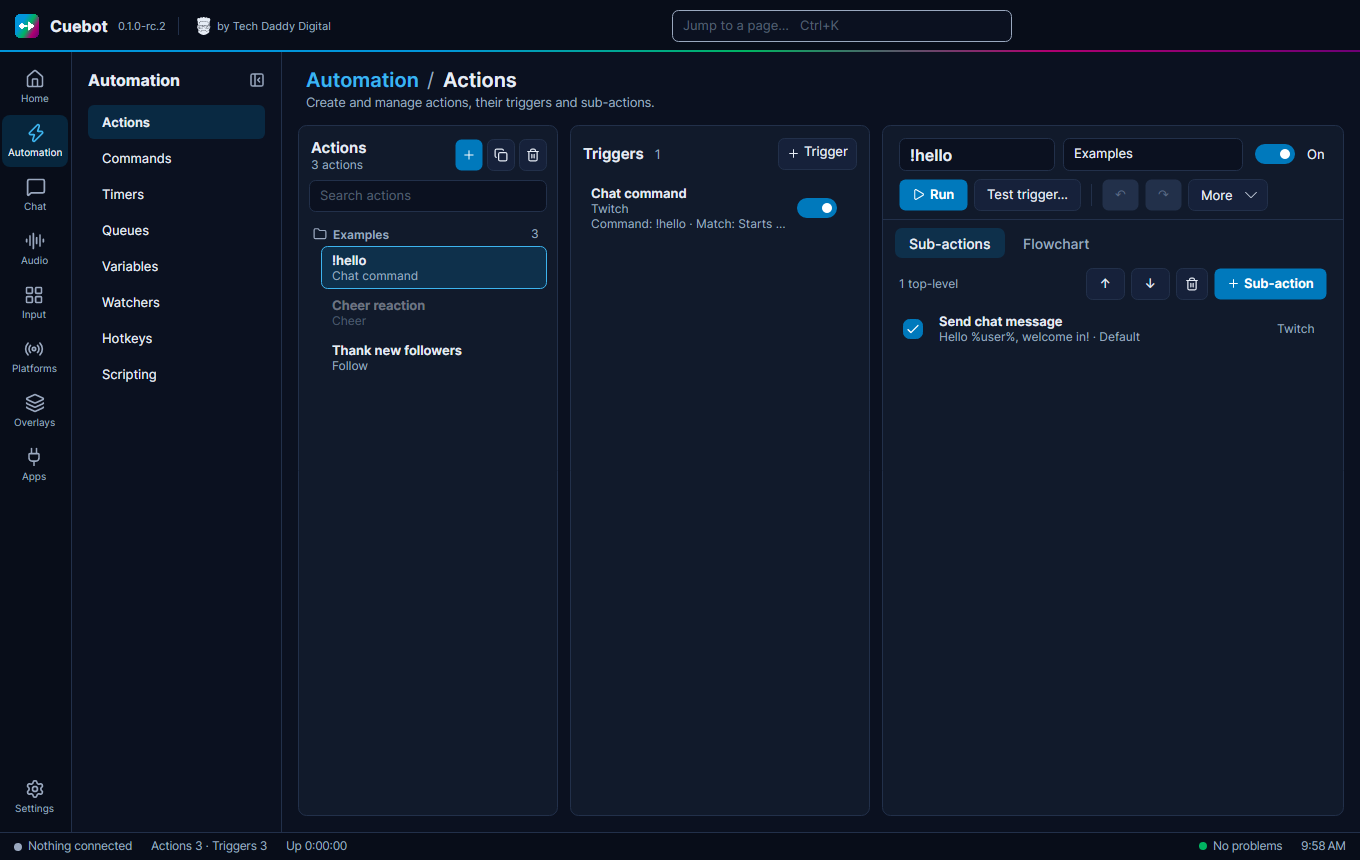
Building an action
- Go to Automation > Actions and click + (New action).
- Click the name at the top and give it a clear name, like
Thank new followers. - Optional: type a Group name, like
Alerts. Groups are folders that keep the list tidy. - On the Sub-actions tab click + Sub-action. Type what you want to do, for example
chat,scene,soundorspeak, pick one and click Add. - Fill in its settings. Each setting has a short hint under it.
- Add more sub-actions the same way. A new one goes in after the one you selected.
- Click + Trigger and pick what should start it, for example Twitch › Follow.
You can try an action at any time:
- Run starts it right now.
- Test trigger… (F5) starts it as if a trigger fired. You type pretend values, like
user=Bob, and Cuebot uses them. Good for testing a follow alert without a real follower.
A test is real
Tests really do the steps. A "send chat message" step really writes in your chat.
Changing the list
- ↑ and ↓ (or Ctrl+Up / Ctrl+Down) move the selected sub-action.
- The tick box on a sub-action turns it off without deleting it.
- Ctrl+Z undoes, Ctrl+Y redoes. Each action has its own undo.
- Ctrl+C / Ctrl+V copy and paste actions, triggers and sub-actions, even into another Cuebot.
- Ctrl+D makes a copy, Del deletes.
Turning things off
The On / Off buttons switch a whole action off. Each trigger also has its own on/off switch. An action that is off does nothing, even when its trigger happens.
Triggers
Click a trigger in the list to see its settings. Many triggers have filters: settings that make them pickier. For example, a channel point trigger can be set to one reward only, like "Hydrate".
Open Variables this gives your action under a trigger. It lists the %words% you can use in your messages, like
%user% for the viewer's name. See Variables.
There are hundreds of triggers: chat messages, commands, follows, subs, cheers, raids, donations, OBS scene changes, Stream Deck buttons, hotkeys, timers and many more. The trigger reference lists every one.
Decisions and repeats
Sometimes a step should only happen sometimes. These sub-actions help. You find them in the Logic and Core groups of the list:
| Sub-action | What it does | Example |
|---|---|---|
| If | Checks something, then runs one of two lists. | If %bits% is more than 499, switch to the "Celebration" scene. Otherwise just say thanks. |
| Switch | Picks one list out of many, by value. | A different sound for each reward name. |
| While | Repeats a list while something is true. | |
| Loop break / Loop continue | Stop a repeat early / skip to the next round. | |
| Delay | Waits, in milliseconds (1000 = 1 second). | Show an alert, wait 5000, hide it. |
| Group | Keeps several steps together, like a folder. | |
| Run action | Starts another action. | Reuse one "play alert sound" action everywhere. |
| Stop action | Stops here. |
When you select a step that has its own lists (like If), the word BRANCH shows up. New sub-actions then go into that list. After the list, the action carries on with the next step.
The Cheer reaction action in the Examples group shows an If in use. It starts switched off.
More options
The More button on an action has extra choices:
- Random action: run only one step, picked at random. Each step gets a Weight: a bigger number means a bigger chance. Great for "pick a random sound".
- Concurrent sub-actions: run all steps at the same time instead of one after another.
- Always run: run even when the action's queue is paused.
- Exclude from history: keep this action out of the History list (handy for things that run very often).
Flowchart
The Flowchart tab shows the same action as boxes joined by lines. It is the same action, just drawn differently. Change one view and the other changes too.
- Click + on a connection point to add a step there.
- Drag a box onto a connection point to move it.
- Drag the background to move around, use the mouse wheel to zoom.
- Auto-arrange tidies everything up.
Queues: one at a time
What if ten people follow at once? Without a plan, ten alerts would play on top of each other. Queues fix this.
A queue is a waiting line. Every action waits in one before it starts. A blocking queue lets only one action run at a time, in order. Perfect for alerts.
- Go to Automation > Queues and click + Queue. Name it, for example
Alerts, and tick Blocking. - In each alert action, pick that queue under More > Queue.
The Queues page also shows what is waiting (Pending) and what ran (History), and has Pause, Resume and Clear for each queue.
History
Chat > History lists every run: what ran, what started it and the values it had. Select a run to see its variables. Run again with these variables repeats it. Cancel run stops one that is still going. Open action jumps to the action.
The Trigger viewer tab shows every event that comes in, like a follow, a chat message or a scene change, even when no action uses it. Select one to see its variables. Two handy buttons:
- Create action from this trigger makes a new action that starts on this kind of event, and opens it.
- Pause stops the list from moving, so you can read it. Your actions still run as normal.
Timers
Automation > Timers starts actions on a clock, like "post my Discord link every 15 minutes".
- Click + Timer and name it.
- Pick how often:
- Every … seconds;
- Random interval: a random wait Between two numbers of seconds;
- Min chat lines: only go off when at least that many chat messages came in since last time, so it does not post into an empty chat;
- Cron: a schedule, like
0 20 * * 5(every Friday at 20:00). Five parts: minute, hour, day, month, weekday.
- In your action, add the Timer trigger and pick the timer.
Hotkeys
Automation > Hotkeys makes keyboard shortcuts that work even when a game or OBS is in front.
- Click + Hotkey and give it a name.
- Type the keys, like
Ctrl+Shift+F1, or right-click and choose Record keys. - Either type an action in Run action (optional), or add the Hotkey pressed trigger to an action.
- Test tries it.
Mac
On a Mac, Meta is the Command key and Alt is Option. The first time you turn on a hotkey, macOS asks
whether Cuebot may watch the keyboard: open System Settings > Privacy & Security > Input Monitoring, turn on
Cuebot, then quit and reopen Cuebot. The app in front still gets the keys, so pick combos it does not use.
The Keyboard press sub-action needs Accessibility in the same place, for the same reason.
Watchers
Automation > Watchers reacts to things on your computer:
- + Folder watcher: a file appears, changes, is deleted or renamed in a folder. Example: a new screenshot.
- + File tail: a new line is added to a text file. Example: a game writes "You died" to its log.
- + Process watcher: a program starts or stops. Example: switch to the "Gaming" scene when your game opens.
Scripts (for the curious)
When no sub-action does what you want, a code step lets you write a little program in C# or Python. This is optional
and needs some coding. The steps are in the Code group of the sub-action list; see the
Code sub-actions. C# code written for Streamer.bot (the CPH methods) works in
Cuebot too. Writing code (C# and Python) walks you through it, with examples.
Automation > Scripting sets up Python:
- Install Python automatically the first time a Python step runs: leave it ticked, and Cuebot downloads its own copy of Python when it first needs it.
- Advanced: use an existing Python interpreter instead: type where your own Python is, if you want to use it.
- Python packages: type a package name, like
requests, and click Install. Remove takes one away again. - Script API lists the functions your scripts can use to talk to Cuebot.
Next: Variables, the %words%.