Connecting your platforms
Cuebot needs to be signed in to the places you stream, so it can read chat, see follows and post messages. Each platform has its own page under Platforms in the left rail: Twitch, YouTube, Kick and Rumble.
Every platform page has Connect and Disconnect buttons at the top. Tick Connect automatically on startup (on Rumble: Connect automatically) and Cuebot reconnects each time it starts.
Your sign-ins stay on your computer
Cuebot stores sign-ins in a locked (encrypted) form on your computer. They are never put in backups and never leave your computer, except to talk to the platform itself.
Broadcaster account and bot account
- Your broadcaster account is the channel you stream on. Cuebot gets every event (follows, subs, raids) through it. You always need this one.
- A bot account is optional. It is a second account, for example "MyChannelBot", that writes Cuebot's chat messages. Viewers then see the bot talking, not you.
Signing in the bot
Your browser is probably logged in as you. Before you sign in the bot, log in as the bot in your browser, or open the sign-in link in a private window. Otherwise the platform signs in the wrong account.
Twitch
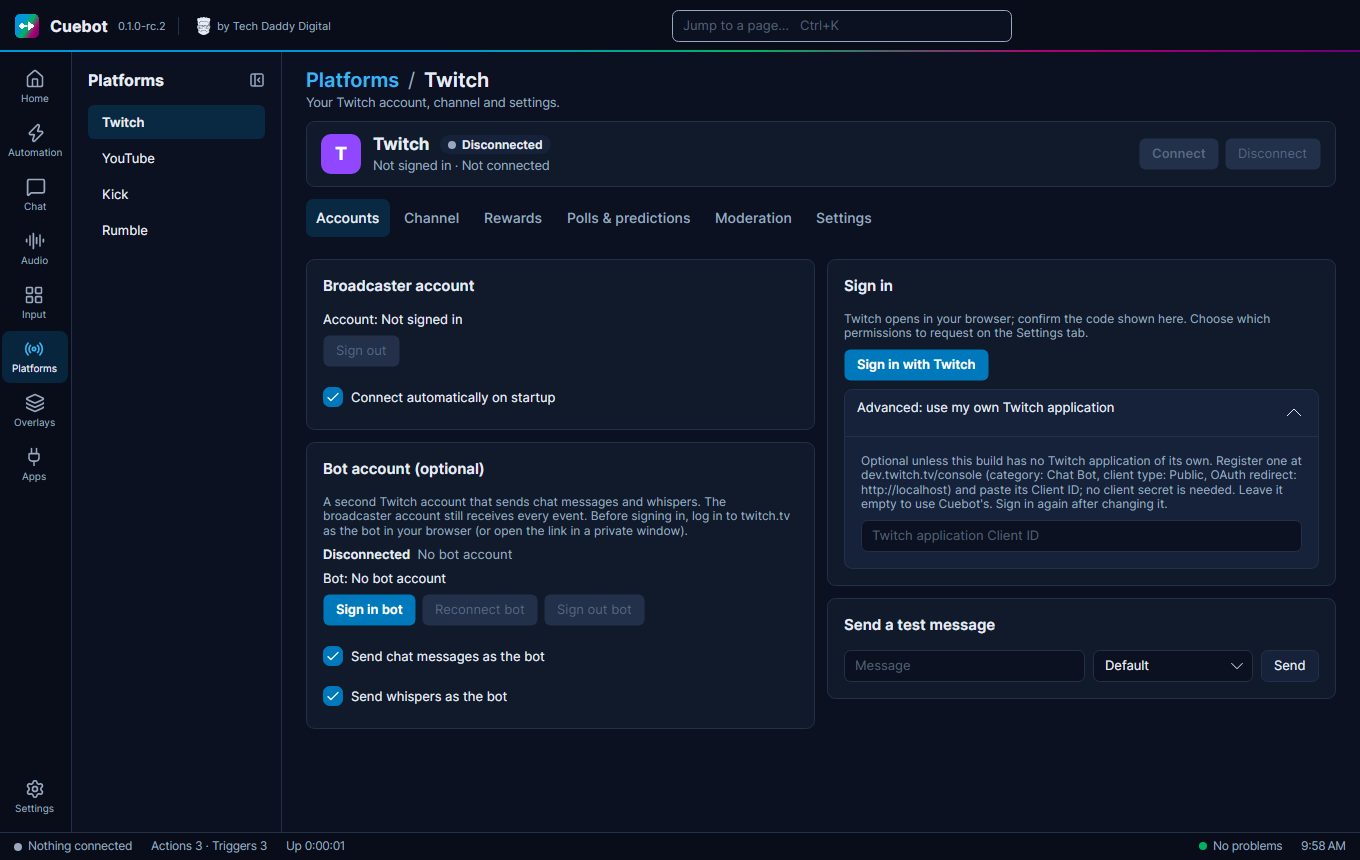
- Go to Platforms > Twitch, tab Accounts.
- Under Broadcaster account click Sign in with Twitch.
- Twitch opens in your browser and Cuebot shows a code. Confirm that code on Twitch.
- Cuebot connects by itself.
Bot account: under Bot account (optional) click Sign in bot, then confirm the code while logged in as the bot. Tick Send chat messages as the bot and, if you like, Send whispers as the bot. Use Send a test message to check it.
Permissions: the Settings tab lists every permission Cuebot asks Twitch for, under Permissions (scopes). You can untick ones you do not want. Anything that needs a missing permission is skipped and a warning goes to the log. Sign in again after you change the list.
The other tabs on the Twitch page: Channel (title, category and more), Rewards (channel point rewards), Polls & predictions and Moderation.
YouTube
- Go to Platforms > YouTube and click Sign in with the browser. (No browser on this computer? Use Sign in with a code.)
- Google asks which account to use. Pick the channel you stream on.
- Allow Cuebot to manage your YouTube account.
\"Google hasn't verified this app\"
While Google is still checking Cuebot, you may see this warning. Click Advanced, then Go to Cuebot.
Cuebot finds your live stream by itself and reads its chat once you go live. A bot account is optional, with Sign in bot with the browser.
Quota (YouTube's daily limit). YouTube gives every app a daily allowance of "units", and every request Cuebot makes uses some. The Polling and quota part of the page shows how much Cuebot expects to use and how much it used today. If you stream a lot and run out, open Advanced: use my own Google Cloud project and follow the steps there. That gives you your own allowance.
Kick
- Go to Platforms > Kick. In your browser, log in to Kick as your streaming account first.
- Click Sign in broadcaster.
- Approve Cuebot in the browser window that opens.
Cuebot looks up your channel by itself. If kick.com blocks that, the page shows how to copy two numbers from kick.com into the Channel id and Chatroom id boxes.
Bot account: click Sign in bot account. On the Kick page you can also set your stream title and category and manage channel rewards.
Rumble
Rumble works a little differently. Reading works with a "key link" from Rumble. Writing in chat needs a sign-in.
- On rumble.com, open your account menu, then Live Stream API. Make a key and copy the whole web link.
- In Cuebot go to Platforms > Rumble and paste the link into the box. It starts with
https://rumble.com/-livestream-api/get-data?key=. - Click Connect. Cuebot now sees followers, subscribers, rants (paid chat messages), whether you are live, and your chat.
- To write in chat (optional): under Send chat (optional), type your Rumble username and password and click Sign in. Cuebot keeps only the login session, never your password.
Warning
Rumble has no official way for apps to write in chat. Sending messages may stop working if Rumble changes its website. Reading followers, live state and chat was tried with a real Rumble channel; writing in chat is not confirmed yet. See What's experimental.
Using your own app (advanced)
Cuebot signs in with its own app on Twitch, YouTube and Kick. You do not need to do anything. If you want to use your own developer app instead, open the Advanced part of that platform's page and follow the steps there. Leave it empty to use Cuebot's.
Signing out
Click Sign out on the platform page. Cuebot also asks the platform to cancel its access.
Next: How actions work.