Using your own code editor
Cuebot's code box is fine for a few lines. For longer code, many people prefer their favourite code editor: Visual Studio Code, Visual Studio, JetBrains Rider, PyCharm, Zed, Neovim or any other. A code editor gives you:
- Suggestions while you type: write
cb.orCPH.and it lists every method, with its help. - Red lines under mistakes, before you even run the code.
- A big window, with search, undo history and all your files in one place.
This page shows how to set one up for Python and for C#. It works the same in any editor: they all read the same project files.
How it works
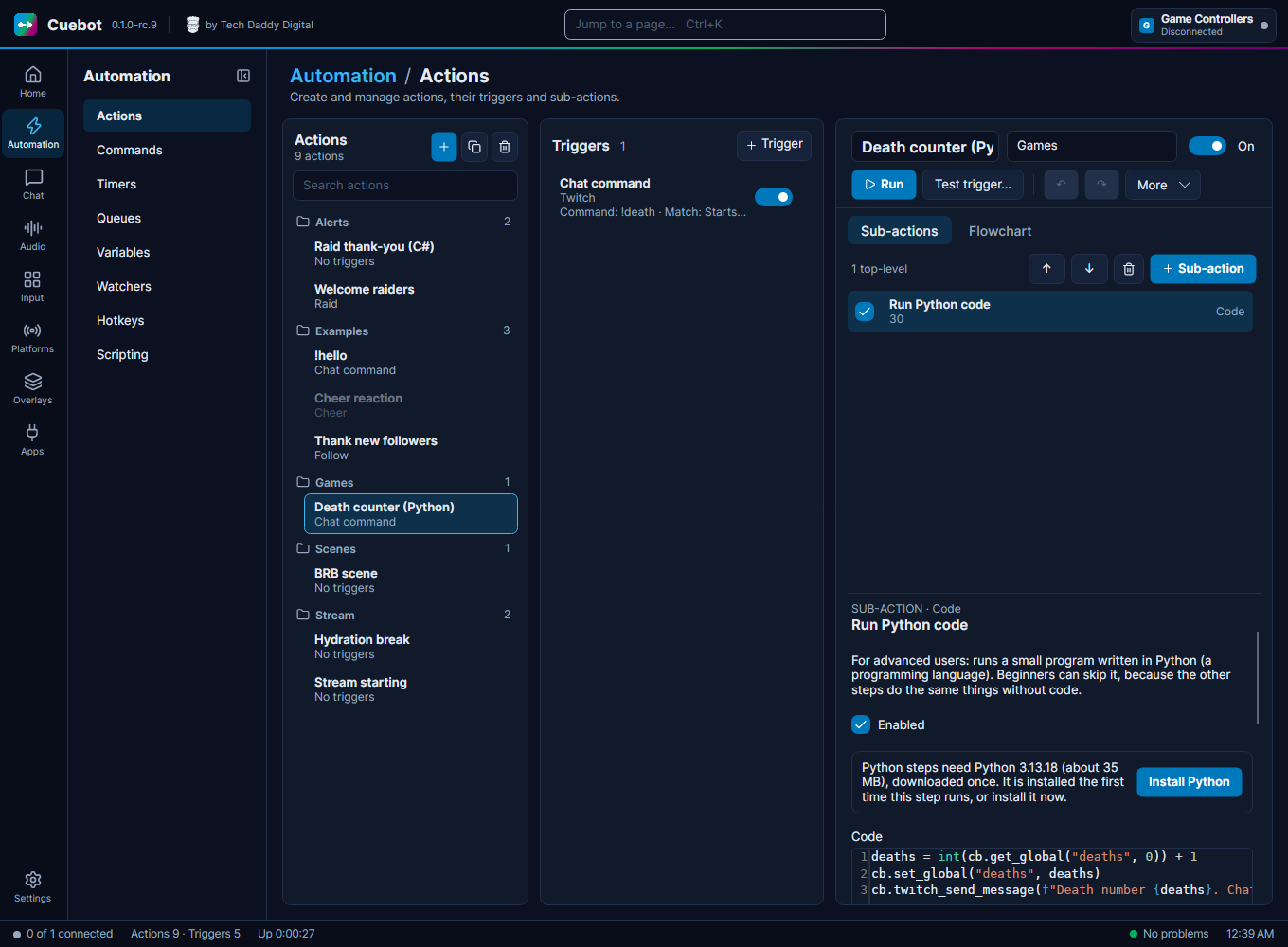
Your editor is where you write the code. Cuebot is where it runs. When the code is ready:
- Select all of it in your editor and copy it.
- In Cuebot, open the action and click its Run Python code or Run C# code step.
- Paste it into the Code box.
- Click Run (or Test trigger…) to try it.
Cuebot keeps its own copy, so it doesn't matter where your file lives. After a change in your editor, copy and paste again.
Two folders you need
| Windows | macOS | Linux | |
|---|---|---|---|
Cuebot's data folder (has python in it) |
%APPDATA%\Cuebot |
~/Library/Application Support/Cuebot |
~/.config/Cuebot (Flatpak: ~/.var/app/io.github.cuebot.Cuebot/config/Cuebot) |
Cuebot's program folder (has Cuebot.Scripting.dll in it) |
The folder you unzipped Cuebot into | /Applications/Cuebot.app/Contents/MacOS |
Tarball: its lib folder · AUR: /usr/lib/cuebot · Flatpak: run echo $(flatpak info --show-location io.github.cuebot.Cuebot)/files/lib/cuebot · AppImage: see below |
AppImage: an AppImage keeps its files packed inside itself. To get at them, run
./Cuebot-x86_64.AppImage --appimage-extract once. The program folder is then squashfs-root/usr/lib/cuebot.
Do this again after you update Cuebot.
On a Mac, ~/Library is hidden in Finder: press Cmd+Shift+G and paste the path.
Python
1. Make a folder for your scripts
Make a folder anywhere, like Documents/Cuebot scripts, and open it in your editor
(File > Open Folder… in most editors).
2. Give your editor Cuebot's list of methods
Cuebot writes a file called cuebot.pyi into the python folder inside its data folder. It does this every
time it starts Python. The file describes cb and all its methods, so your editor knows them.
Copy cuebot.pyi into your scripts folder. Copy it again after you update Cuebot, so new methods show up too.
(You can also download it from this site, but the copy from your own
Cuebot always matches your version.)
No Python step yet?
Cuebot makes cuebot.pyi when Python starts for the first time. Run any Python step once, or click
Install Python on Automation > Scripting, and it appears.
3. Start each script with these lines
from typing import TYPE_CHECKING
if TYPE_CHECKING:
    from cuebot import cb, CuebotError

cb.twitch_send_message("Hello from my editor!")
The first three lines are for your editor only: they say "cb is the Cuebot helper from cuebot.pyi". When the
code runs in Cuebot they do nothing, so you can paste the whole file, these lines included.
Now type cb. and the list of methods pops up. Hover over one to read its help.
4. Optional: use Cuebot's own Python
Packages you install on the Scripting page (like requests) live in Cuebot's own Python. To get suggestions for
them too, tell your editor to use that Python:
| Computer | Cuebot's Python |
|---|---|
| Windows | %APPDATA%\Cuebot\python\env\Scripts\python.exe |
| macOS | ~/Library/Application Support/Cuebot/python/env/bin/python |
| Linux | ~/.config/Cuebot/python/env/bin/python |
- Visual Studio Code (with the Python extension): press Ctrl+Shift+P (Cmd+Shift+P on a Mac), choose Python: Select Interpreter, then Enter interpreter path… and paste the path.
- PyCharm: Settings > Project > Python Interpreter > Add Interpreter > Add Local Interpreter > Select existing, and paste the path.
- Other editors (Zed, Neovim, Sublime Text, Helix…) use a Python "language server", usually Pyright or
basedpyright. Point its
pythonPath(orvenvPath) at the path above.
A small warning you can ignore
Cuebot lets you stop an action with return False in the middle of your code. Editors don't expect return outside
a function, so they underline it. It still works in Cuebot.
C
There are two ways to write C# in Cuebot. In a code editor, use the CPHInline class way: the same as
Streamer.bot, and the editor understands all of it. (Short C# with Cb.Call only works in Cuebot's own code box.)
1. Install the .NET SDK
Download the free .NET 10 SDK from dotnet.microsoft.com. It lets your editor understand C#. Cuebot itself doesn't need it.
Your editor may need a C# add-on:
- Visual Studio Code: install the C# Dev Kit extension.
- Visual Studio (Windows): tick .NET desktop development in the installer.
- JetBrains Rider: nothing extra.
- Other editors (Zed, Neovim…): they use the C# language server (Roslyn or OmniSharp); most install it for you.
2. Make a project folder
Make a folder, like Documents/Cuebot C#. Inside it, make a file called CuebotScripts.csproj with this in it.
Change the CuebotFolder line to your program folder from the table above.
<Project Sdk="Microsoft.NET.Sdk">
  <PropertyGroup>
    <TargetFramework>net10.0</TargetFramework>
    <ImplicitUsings>enable</ImplicitUsings>
    <Nullable>enable</Nullable>
    <!-- Where Cuebot is installed: the folder that has Cuebot.Scripting.dll in it -->
    <CuebotFolder>C:\Users\you\Downloads\Cuebot</CuebotFolder>
  </PropertyGroup>
  <ItemGroup>
    <Reference Include="$(CuebotFolder)/Cuebot.Scripting.dll" Private="false" />
    <Reference Include="$(CuebotFolder)/Cuebot.Core.dll" Private="false" />
    <!-- The same names Cuebot (and Streamer.bot) give your code without a using line -->
    <Using Include="Streamer.bot.Plugin.Interface" />
    <Using Include="Streamer.bot.Plugin.Interface.Model" />
    <Using Include="Streamer.bot.Plugin.Interface.Enums" />
    <Using Include="Streamer.bot.Common.Events" />
    <Using Include="Twitch.Common.Models.Api" />
  </ItemGroup>
</Project>
Then open it:
- Visual Studio Code: File > Open Folder… and pick the folder.
- Visual Studio: File > Open > Project/Solution… and pick
CuebotScripts.csproj. - Rider: Open and pick the folder or the
.csprojfile.
3. Write a script
Add a file called RaidWelcome.cs:
namespace MyScripts.RaidWelcome;

public class CPHInline : CPHInlineBase
{
    public bool Execute()
    {
        var user = args["user"]?.ToString() ?? "friend";
        CPH.SendMessage($"Thanks for the raid, {user}!");
        return true;
    }
}
CPH.lists every Cuebot method, with its help. They are also on the C# methods (CPH) pages.argsholds the action's variables, likeargs["user"].return falsestops the action.return truecarries on.- One file per script. Give each file its own
namespaceline, likeMyScripts.RaidWelcomeandMyScripts.DeathCounter. Then manyCPHInlineclasses can live in one project. Cuebot doesn't mind the namespace.
4. Check it
Your editor underlines mistakes as you type. To check everything at once, build the project: Build in Visual
Studio or Rider, or type dotnet build in a terminal in the folder. Build succeeded means the code is ready
for Cuebot.
Then copy the whole file, namespace line included, into a Run C# code step.
Already have Streamer.bot scripts?
They work the same way: CPHInline, CPH and args are all there. Paste them into a file, add a namespace line,
and your editor shows anything Cuebot doesn't support. See Moving from Streamer.bot.
Something not working?
| What you see | Why, and the fix |
|---|---|
Editor: cb is not defined |
The if TYPE_CHECKING: lines are missing, or cuebot.pyi isn't in your scripts folder. |
Editor: cb has no method you expected |
Your cuebot.pyi is old. Copy it again from Cuebot's data folder. |
Editor: CPHInlineBase or CPH not found |
The CuebotFolder line doesn't point at the folder with Cuebot.Scripting.dll. Check for typos, then reload the project. |
| Cuebot: "CPHInline has no public bool Execute()" | The class needs public bool Execute(). |
| It works in the editor but not in Cuebot | Check the action's log on the History page: it shows the error and the line. |