The phone app (Cuebot Companion)
Cuebot Companion puts your Cuebot on your phone or tablet. Use it as a button board next to your keyboard, or to keep an eye on your stream from the couch.
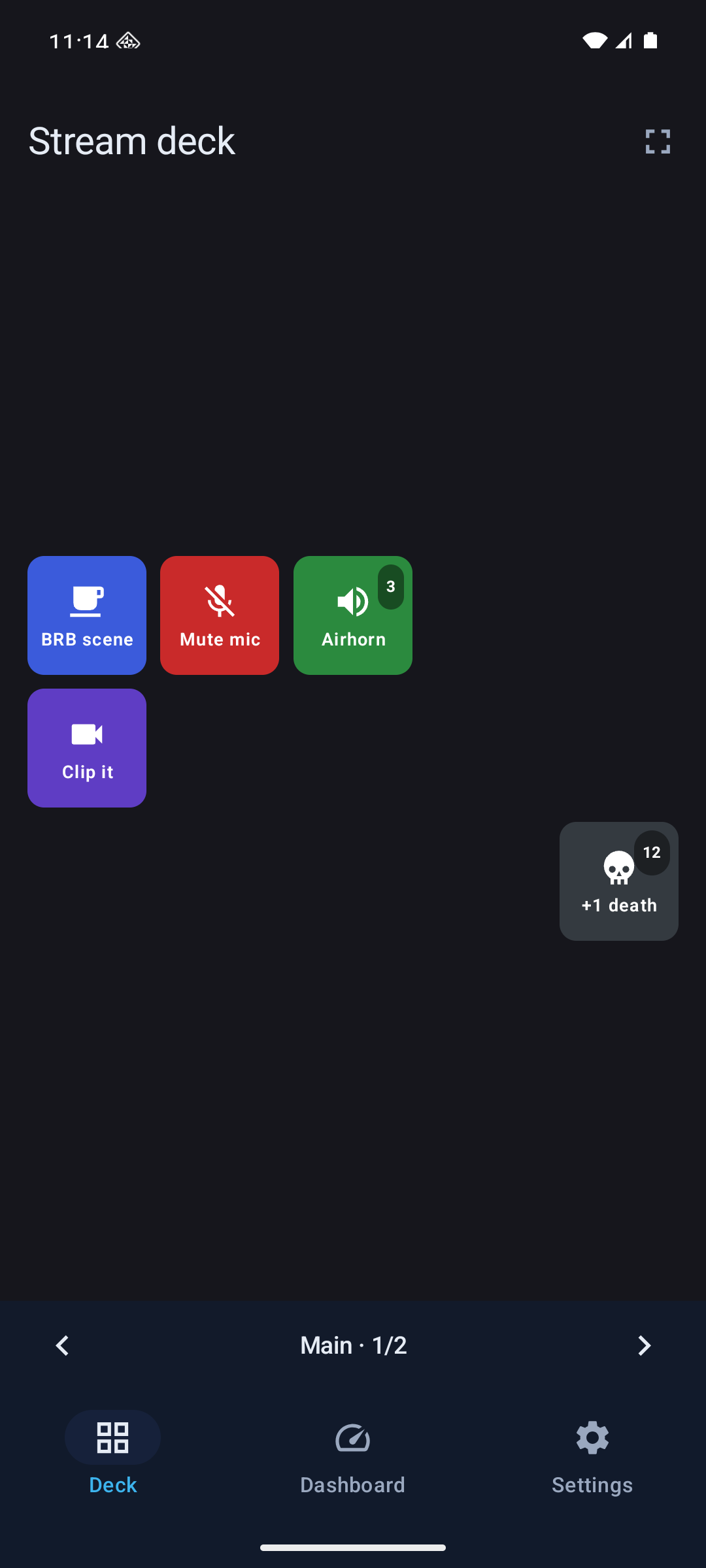
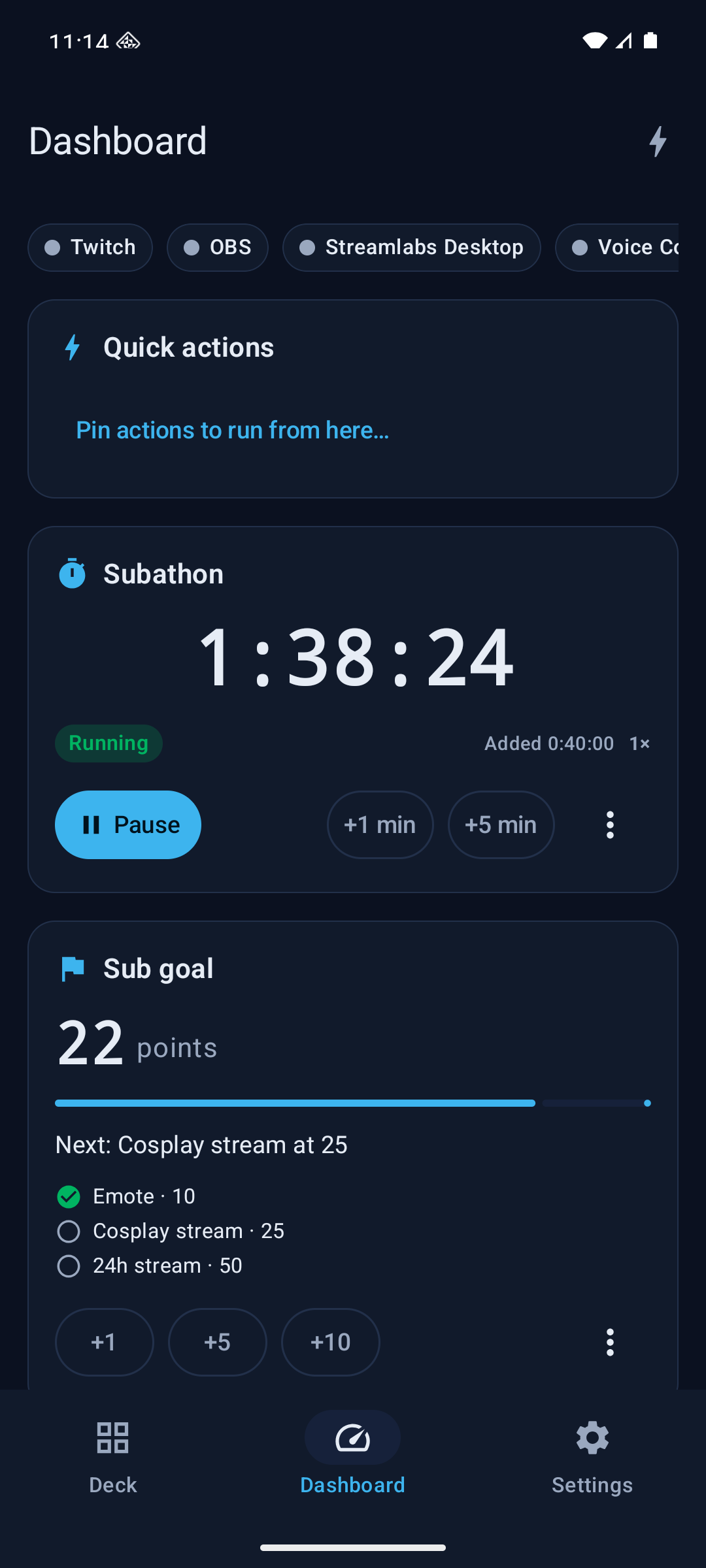
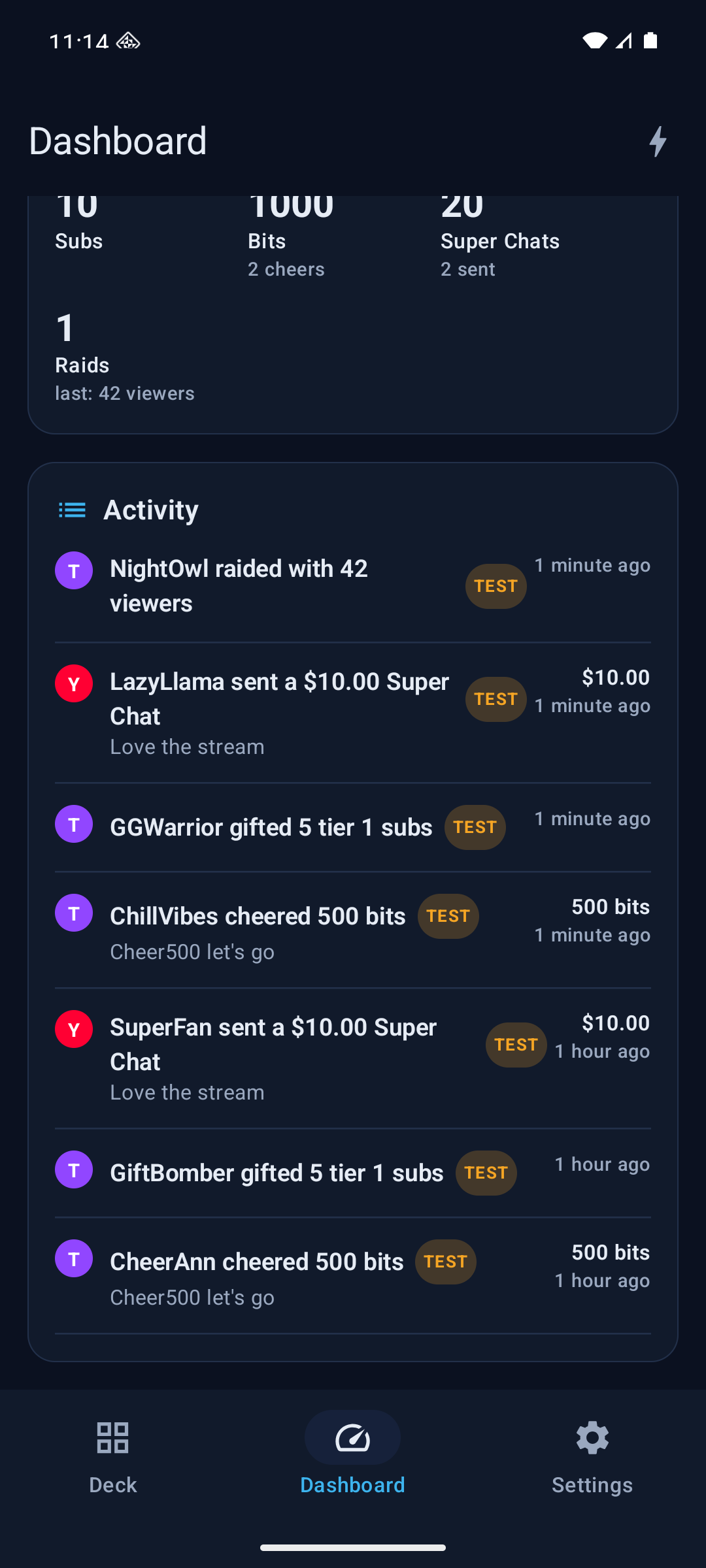
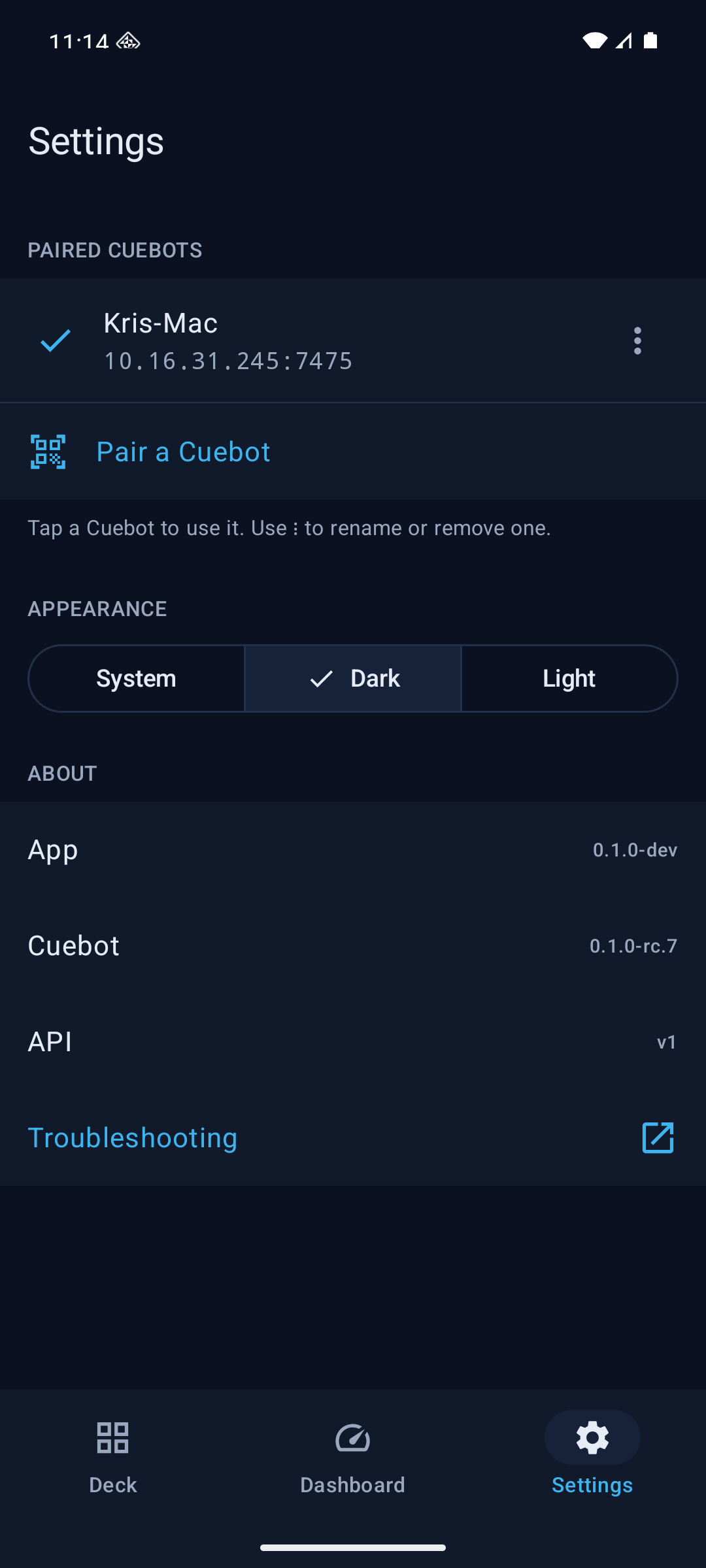
It has three tabs:
| Tab | What it is for |
|---|---|
| Deck | The buttons of your decks. Tap one and Cuebot runs it, just like a Stream Deck. Choose deck switches decks, and the arrows at the bottom switch pages. |
| Dashboard | What is connected, your Quick actions, your subathon timers and goals with their buttons, Top spenders for This stream and more, totals, and the Activity list of follows, subs, tips and raids. |
| Settings | The Cuebots you paired, light or dark look, and Troubleshooting. |
Get the app
| Phone | How to get it |
|---|---|
| Android 10 or newer | Download Cuebot-Companion-<version>.apk from the releases page, next to the computer downloads. |
| iPhone and iPad | Not available yet. It comes to the App Store (first through TestFlight) later. |
Installing the APK on Android: open the downloaded file on your phone. Android asks if your browser (or file app) may install apps: tap Settings, switch on Allow from this source, go back and tap Install. You only do this once. The app is signed by Cuebot, so later versions install over it and keep your settings.
Pair it with your Cuebot
The phone and the computer must be on the same network: the same Wi-Fi at home, for example.
On the computer:
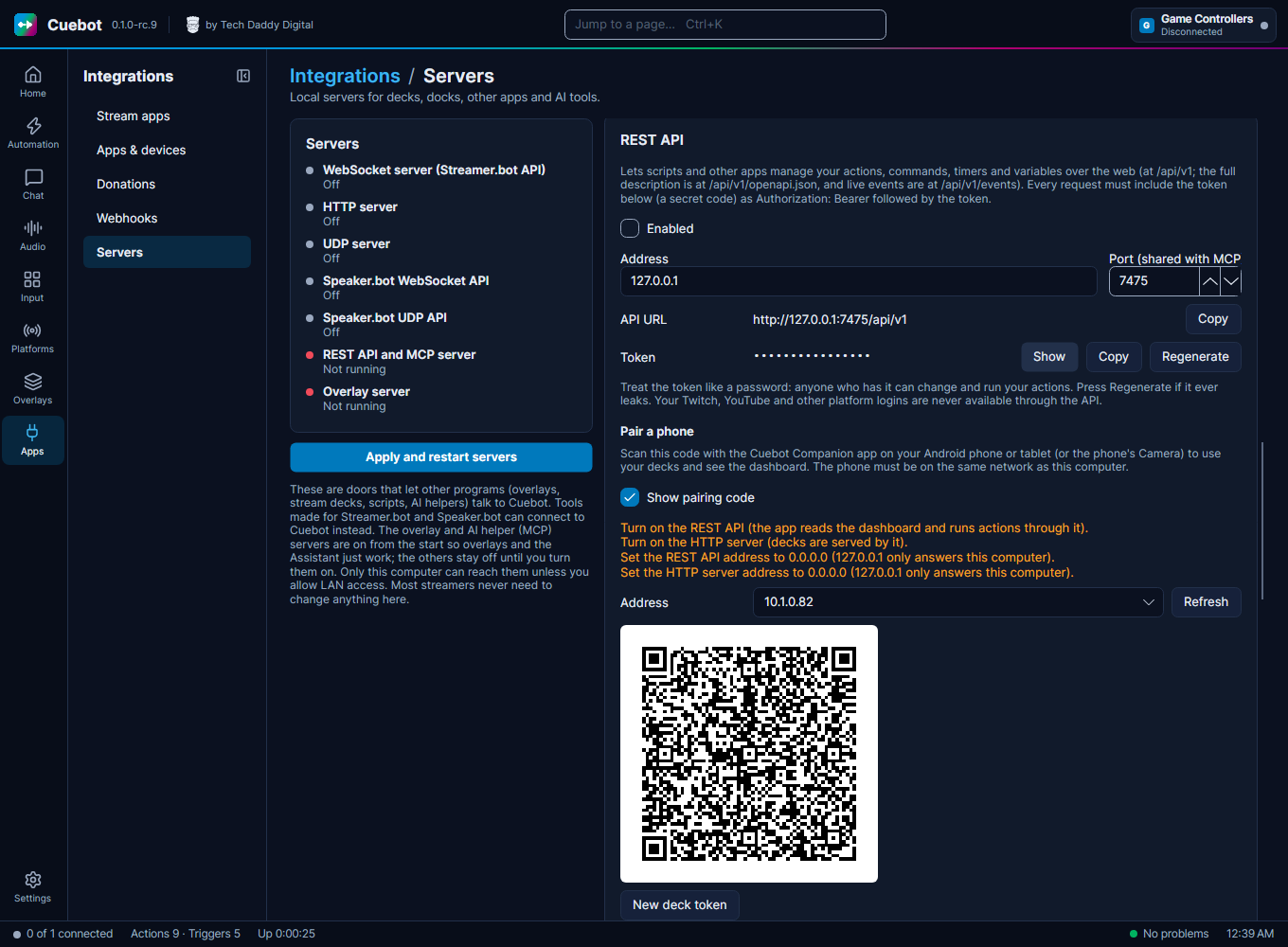
- Go to Integrations > Servers.
- Make sure the REST API and the HTTP server are on, and Allow LAN connections is ticked.
- In the REST API card, find Pair a phone and tick Show pairing code.
- Pick your home network under Address (it usually starts with
192.168). A QR code appears.
If something stops the phone from connecting, the card lists what to change first.
On the phone:
- Open Cuebot Companion and go to Settings.
- Tap Pair a Cuebot.
- Point the camera at the QR code. It connects straight away.
- Or tap Enter the details instead. There you can type the address and token yourself, use Choose an image of the code (a screenshot or photo of it), or Paste a pairing link.
You can also scan the code with the phone's own Camera app. It opens Cuebot Companion, which asks you to check that it is your Cuebot before it pairs.
The code is a key
The pairing code holds the password (token) to your Cuebot. Untick Show pairing code when you're done, and never show it on stream. If someone saw it anyway, click Regenerate next to the REST API token and New deck token under Pair a phone, then pair your phone again.
You can pair more than one Cuebot, like a gaming PC and a streaming PC. Tap one in Settings to use it.
Using it on stream
- Stream mode (on the Deck tab) shows only the buttons, full screen, and keeps the screen from turning off. Handy for a phone on a stand next to your keyboard.
- Subathon and goal buttons on the Dashboard work like the ones in Cuebot: start or pause the timer, add a minute or five, add goal points, or Set points… by hand.
- TEST badges in the Activity list mark test events: the ones you start with Test trigger…, a service's test button or the assistant's emulator. They don't count towards top spenders, but they do move subathon timers and goals, so you can try those out.
It doesn't connect?
Open Settings > Troubleshooting in the app. It goes through the usual causes one by one:
- Is the phone on the same Wi-Fi as the computer? (Not on mobile data, and not on a guest network.)
- On the computer: are the REST API and HTTP server on, with Allow LAN connections ticked, and listening
on
0.0.0.0? See Cuebot's servers. - Is a firewall on the computer blocking Cuebot? On Windows, allow Cuebot on private networks when Windows asks.
- On Android 17 and newer, the app needs local network access (Nearby devices in the app's settings). It asks for it once you have paired.
- Did the computer get a new address? Pair again with a fresh code.
New
The phone app is new. Tell us what works and what doesn't on the issues page. See also What's experimental.