The flowchart editor
Every action can be shown two ways: as a list of steps (the Sub-actions tab) or as a flowchart (the Flowchart tab). They show the same action. Change one and the other changes too.
The flowchart is handy when an action makes decisions. You can see which steps run when the answer is yes, and which run when it is no.
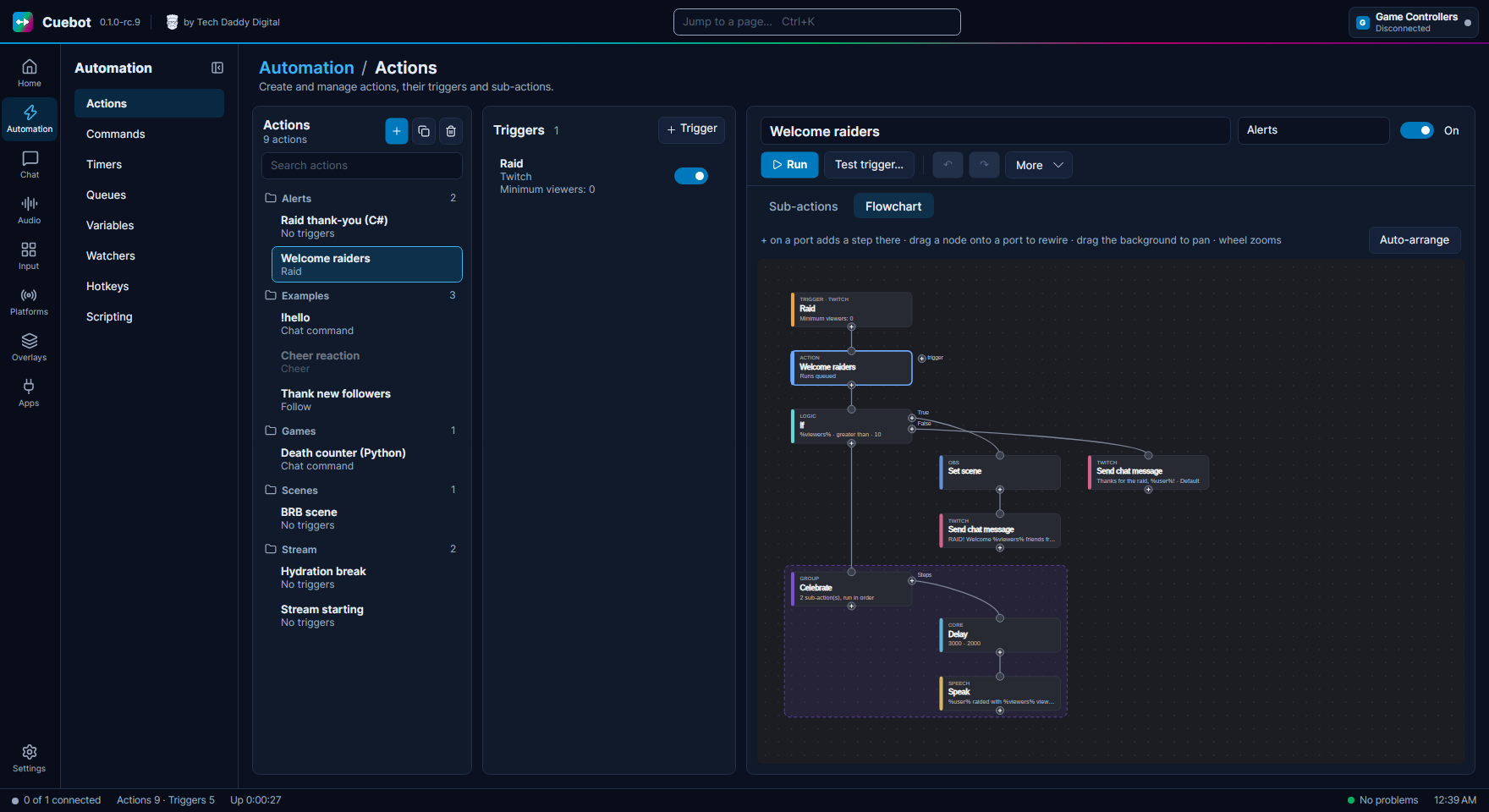
Open it
- Go to Automation > Actions.
- Click an action in the list.
- Click the Flowchart tab, next to Sub-actions.
Tip: the flowchart likes room. Make the Cuebot window wide, or full screen with F11.
Reading the flowchart
Think of it as a map that you read from top to bottom.
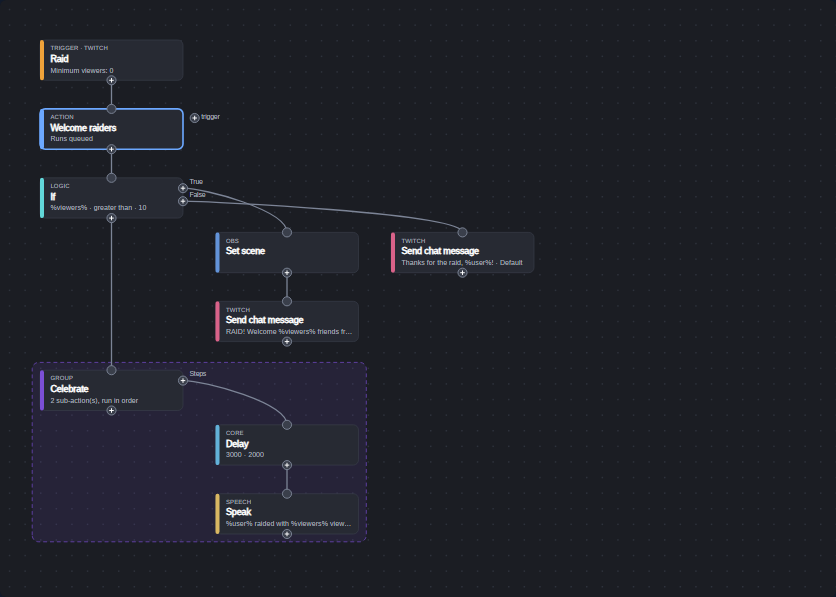
| What you see | What it means |
|---|---|
| Boxes along the top (label TRIGGER, orange stripe) | The triggers: what starts the action, like a raid or a chat command. |
| The box under them (label ACTION, blue stripe) | The action itself. Its small text says how it runs, like "Runs queued". |
| Boxes going down | The steps (sub-actions), in the order they run. The small label says what kind of step it is, like TWITCH or OBS. Each kind has its own colour. |
| Lines | The order: Cuebot follows the line from one box to the next. |
| A faded box | A step that is switched off. It (and anything under it) doesn't run. |
| A thick blue border | The box you have selected. |
Decisions: steps that split
Some steps can go more than one way. They have a labelled dot on their right side for each way. The steps of each way hang to the right of the step, going down.
| Step | Its ways |
|---|---|
| If | True and False: yes and no. |
| Switch | One way for each case you type, plus Default for "none of them". |
| While | Body: the steps it repeats. |
| Run at the same time | Lane 1, Lane 2, ...: all of them run at once (see below). |
| File exists | True and False. |
| User in group | True and False. |
| Steps that spend or check points | One way for "it worked", one for "not enough points". |
When the longest way finishes, the action carries on with the box under the decision.
In the picture above, the raid action asks If %viewers% greater than 10. On True it switches the OBS scene and writes a big welcome. On False it only says thanks. Then both carry on with the Celebrate group.
Groups: a frame around steps
A Group step draws a coloured frame around itself and the steps inside it. Its label says GROUP, or GROUP · ONE AT RANDOM when only one of its steps runs, picked at random. Change the frame's colour with the group's Colour setting. Groups can sit inside other groups.
Doing several things at once: Run at the same time
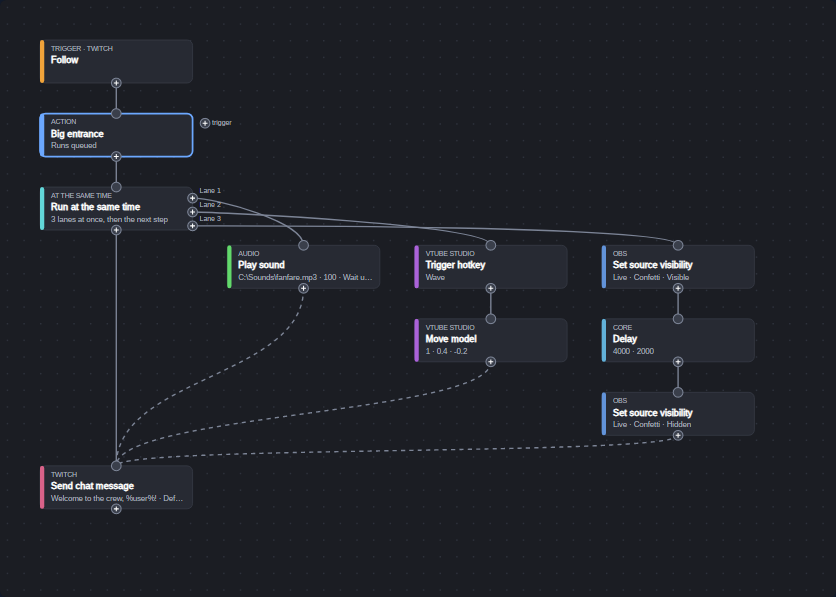
Normally one step waits for the one before it. Sometimes you want two or three things to happen at the same moment: play a sound and make your avatar wave and show confetti, and only then say thanks in chat.
That is the Run at the same time step (in the Logic group). Think of a relay race where every runner starts at once. Each lane is its own little list of steps:
- Its label says AT THE SAME TIME, and it has a dot for each lane on its right: Lane 1, Lane 2, and so on.
- All lanes start together. Inside a lane, the steps still go one after another.
- Dashed lines go from the end of each lane to the next step. They mean "wait here until every lane is done".
- Want more lanes? Select the step and change Lanes (2 to 10). A new dot appears at once.
- Click the + of a lane's dot to add its first step, or drop a box on it to move a step into that lane.
Some rules, so nothing surprises you:
- Each lane gets its own copy of the action's variables. When all lanes are done, their changes come back together, lane by lane, in order. If two lanes set the same variable, the higher lane number wins.
- A Stop action in one lane stops the other lanes too, and the action ends there.
- If a step in one lane fails, the other lanes stop and the action fails, like any failing step.
In the picture, a follow plays a fanfare (lane 1), makes the VTube Studio model wave and step forward (lane 2), and shows a confetti source for 4 seconds (lane 3). The chat message waits for all three.
Steps at the same time, or one at random
Under More, an action can run all its steps at the same time, or only one step, picked at random. The flowchart still draws them as one line going down. Only the small text in the ACTION box tells you, like "· steps in parallel" or "· one random step". For a random action, each step's box also shows its weight: its chance of being picked.
Changing the action
Add a step
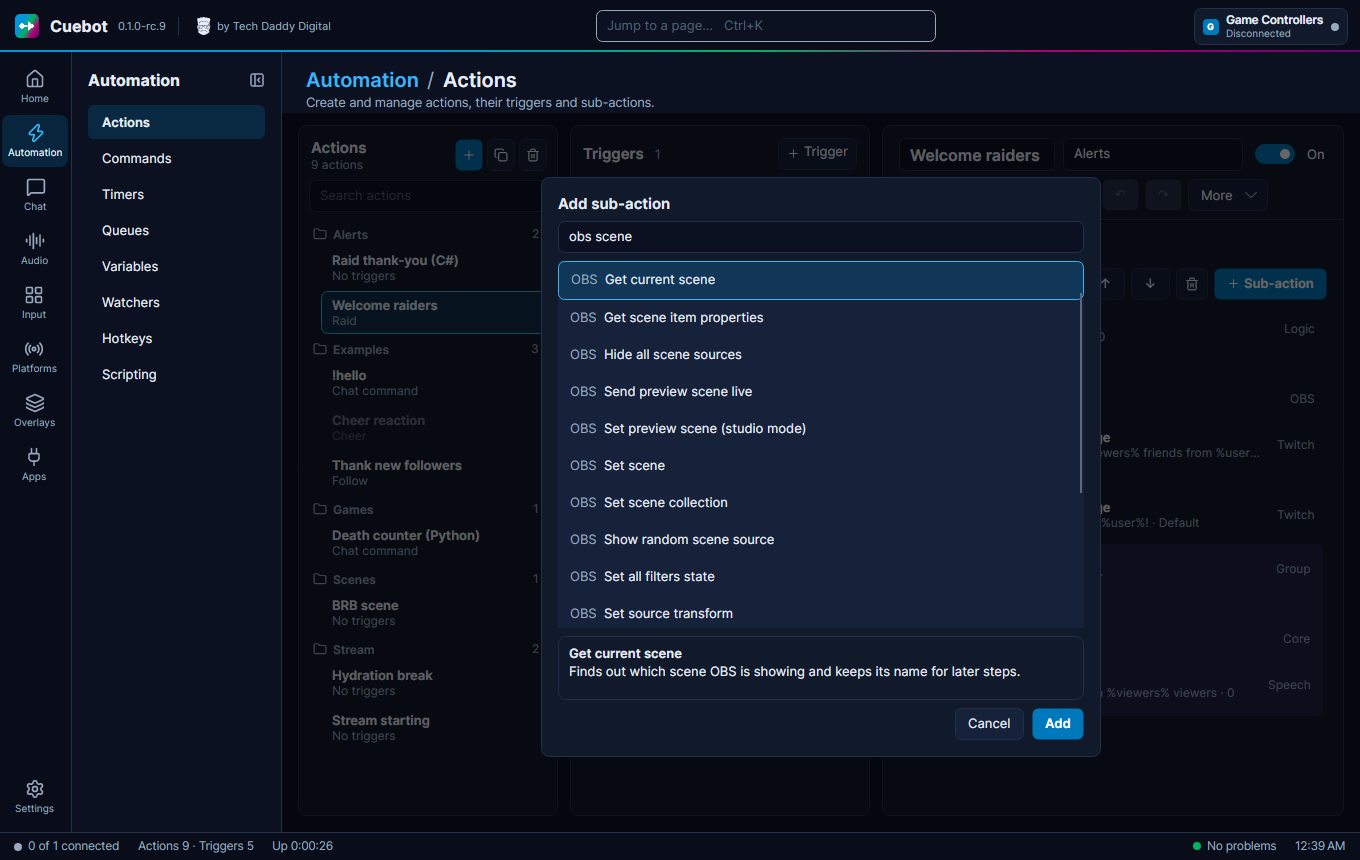
Every box has a round + dot under it. Click a + to add something there. A search box opens: type what you
want, like obs scene, pick it with the arrow keys or the mouse, and click Add (or press Enter).
| Click the + … | Adds … |
|---|---|
| under a step | a step right after that step |
| under the ACTION box | a step at the very start |
| on a decision's way (like True) | a step at the start of that way |
| under a trigger, or the trigger dot next to the ACTION box | another trigger |
Move a step to another place
Drag a box and drop it on a + dot somewhere else. The dot turns green when you can drop it there. The step moves to that place in the action, together with any steps inside it. So you can drag a step from False into True, or out of a group.
You can't drop a step inside itself. Triggers and the ACTION box can be moved around the picture, but not to another place in the action.
No free wiring
You can't draw a line from one dot to another. The lines always follow the order of the steps. To change the order, move the step.
Tidy up the picture
- Drag a box a little to move it on the screen. Cuebot remembers where you put it. This only changes the picture, not what the action does.
- Auto-arrange (top right) forgets every position and lays the flowchart out neatly again.
Change a step's settings
A step's settings are on the Sub-actions tab. Click the box on the flowchart, then click Sub-actions: the same step is already selected, with its settings under the list.
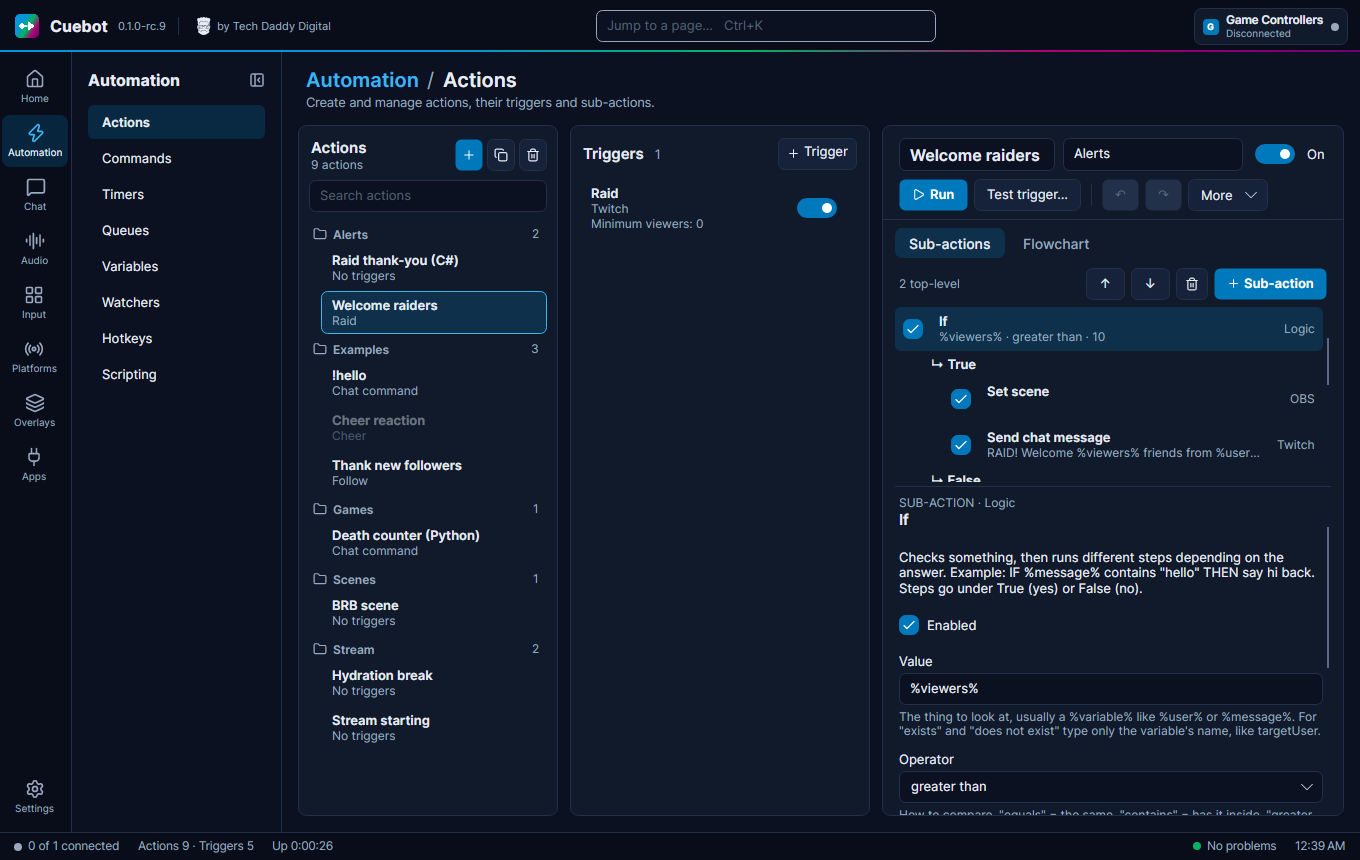
Triggers are easier: click a trigger box and its settings show in the Triggers column. (On a narrow window, the column becomes a Triggers tab.)
Moving around
| To … | Do this |
|---|---|
| Look at another part | Drag the empty background (that also unselects the box). |
| Zoom in or out | Turn the mouse wheel. It zooms around the mouse pointer. |
| See the whole action again | Click the background, then press Home. |
Right-click and keys
Right-click a box for Copy, Paste, Duplicate, Delete, Copy whole action, Undo and Redo.
After you click inside the flowchart, these keys work:
| Key | What it does |
|---|---|
| Del or Backspace | Delete the selected step or trigger, without asking. Ctrl+Z brings it back. |
| Ctrl+C, Ctrl+V, Ctrl+D | Copy, paste (after the selected step) and duplicate. |
| Ctrl+Z, Ctrl+Y | Undo and redo. Moving boxes and Auto-arrange can be undone too. |
| Ctrl+O | Switch the selected step on or off. |
| Ctrl+Up, Ctrl+Down | Move the selected step up or down. |
| Ctrl+Home, Ctrl+End | Move the selected step to the top or the bottom. |
| Home | Fit the whole action on the screen. |
| F5 | Test trigger…: try the action with pretend values. |
List or flowchart?
Use whichever you like: it's the same action.
- The list is quickest for short actions, and it's where you change a step's settings.
- The flowchart is best for actions with decisions, groups and many ways, because you can see the whole thing at once.
New to actions? Start with How actions work.