Media requests
Audio > Media Requests lets viewers ask for YouTube videos in chat. The videos play on your stream, one after another, in an overlay. Want Spotify songs instead? See Song requests.
Set it up
- Go to Overlays > Overlays & Widgets, open your overlay (or make one) and add the Media request player widget. See Overlays. The overlay must be in OBS as a browser source.
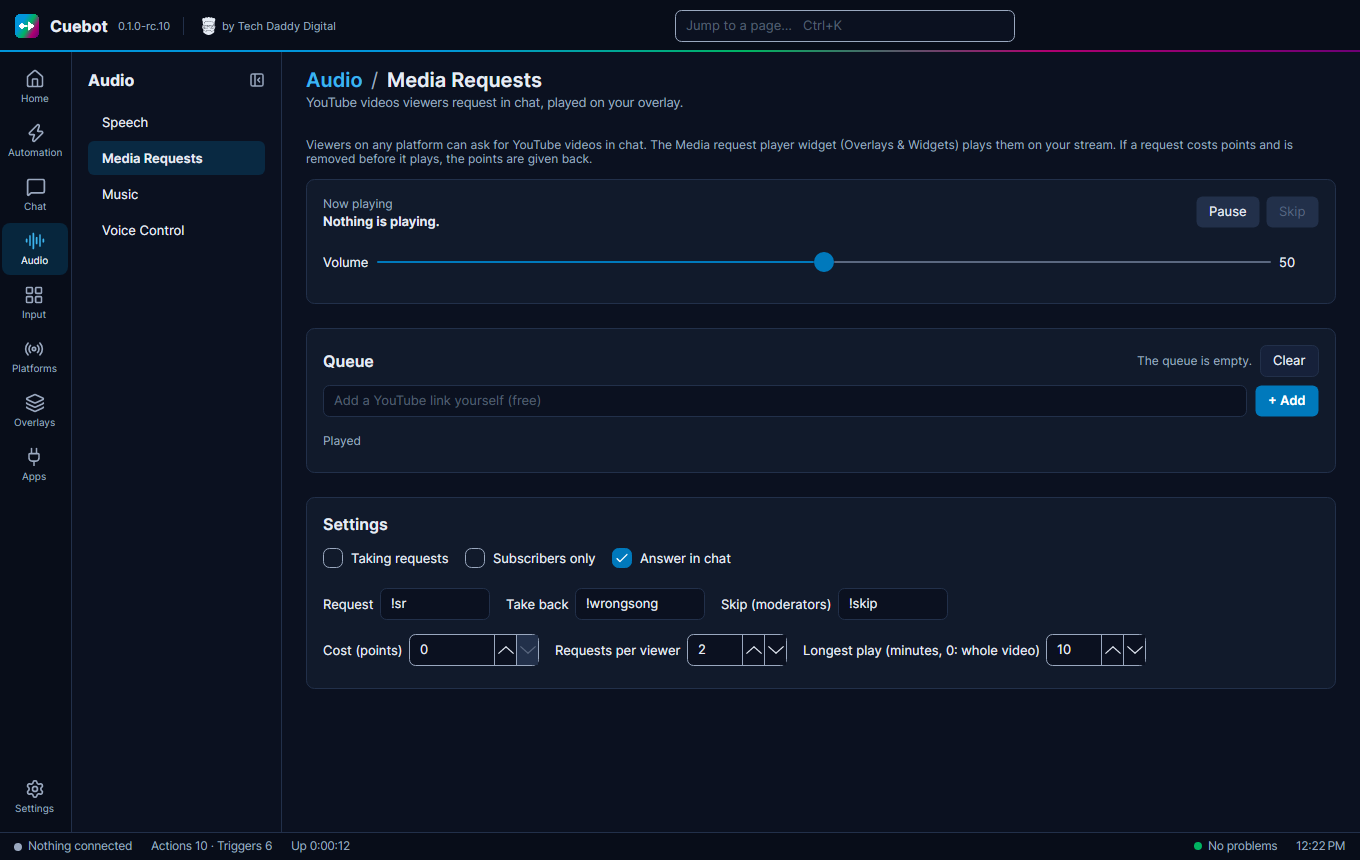
- Go to Audio > Media Requests. Under Settings, tick Taking requests. It starts switched off, so chat can't fill a queue before your player is set up.
- Viewers type
!srand a YouTube link, like!sr https://youtu.be/dQw4w9WgXcQ(or just the 11-letter video id at the end of it). The video goes into the Queue. Searching by name doesn't work here: anything that isn't a YouTube link gets the answer "that is not a YouTube link".
Spotify song requests can also use !sr
If you also made a !sr command for Spotify song requests, one !sr does both. Change one of
the two words, for example the Request word here to !video.
The commands
You can change these under Settings:
| Viewers type | What happens |
|---|---|
!sr and a YouTube link (the Request word) |
Adds a video to the queue. |
!wrongsong (the Take back word) |
Takes back their latest request. |
!skip (the Skip (moderators) word) |
Skips the video that plays. Only you and your moderators. |
More settings
- Cost (points): what a request costs in points.
0means free. Viewers get their points back when a request is removed. - Requests per viewer: how many videos one viewer may have waiting.
- Longest play (minutes, 0: whole video): longer videos are cut off.
- Subscribers only and Answer in chat (Cuebot says where the request is in the queue, or why it was turned down).
Running the queue
On the page you can also Pause and Skip, set the Volume, move videos up and down, Remove one, Clear the queue, and paste a YouTube link yourself (free) with + Add. Actions can do the same with the Media requests sub-actions.