REST API
The REST API is the biggest door into Cuebot. Other programs and scripts can use it to do nearly everything the app can: actions, commands, timers, variables, chat, polls, giveaways, the store, media requests, speech, alerts, import and export. The Stream Deck plugin and the phone app use it too.
Turning it on
It is off until you turn it on.
- Go to Apps > Servers and find the REST API card.
- Tick Enabled and click Apply and restart servers. (The Stream Deck page also has a Turn on the REST API button that does this for you.)
- Click Copy next to Token. The token is a long secret password for programs. Show shows it on screen.
It listens on http://127.0.0.1:7475/api/v1. The MCP server for AI apps uses the same door number (port), but has
its own Enabled box. See Cuebot's servers for letting other computers in.
Keep the token secret
Anyone with the token can control your Cuebot. Do not show it on stream. Regenerate makes a new one; the old one stops working at once, so update every script, AI app and other Cuebot that used it. Your platform sign-ins are never available through the API.
Every request needs the token in a header: Authorization: Bearer YOUR_TOKEN. Without it, Cuebot answers 401.
Your first request
Ask Cuebot how it is doing. Open a terminal (on Windows: PowerShell) and type:
$headers = @{ Authorization = "Bearer YOUR_TOKEN" }
Invoke-RestMethod -Uri "http://127.0.0.1:7475/api/v1/status" -Headers $headers
curl -H "Authorization: Bearer YOUR_TOKEN" "http://127.0.0.1:7475/api/v1/status"
Cuebot answers with its version, which platforms are connected, and how many actions you have.
Run an action
This runs the action called Hello and gives it the variable %user% = Bob:
$headers = @{ Authorization = "Bearer YOUR_TOKEN" }
$body = '{"args": {"user": "Bob"}}'
Invoke-RestMethod -Method Post -Uri "http://127.0.0.1:7475/api/v1/actions/Hello/run" `
  -Headers $headers -ContentType "application/json" -Body $body
curl -X POST -H "Authorization: Bearer YOUR_TOKEN" -H "Content-Type: application/json" \
  -d '{"args": {"user": "Bob"}}' "http://127.0.0.1:7475/api/v1/actions/Hello/run"
import requests

answer = requests.post(
    "http://127.0.0.1:7475/api/v1/actions/Hello/run",
    headers={"Authorization": "Bearer YOUR_TOKEN"},
    json={"args": {"user": "Bob"}, "wait": True},
)
print(answer.json())
const answer = await fetch("http://127.0.0.1:7475/api/v1/actions/Hello/run", {
  method: "POST",
  headers: { Authorization: "Bearer YOUR_TOKEN", "Content-Type": "application/json" },
  body: JSON.stringify({ args: { user: "Bob" } }),
});
console.log(await answer.json());
- An action's name with a space goes in the address as
%20:actions/Thank%20followers/run. The action's id works too. - Without
"wait": true, Cuebot starts the action and answers at once (202). With it, Cuebot answers when the action is done, and says whether it worked.
What else it can do
Every address, with what to send and an example, is in the REST API reference. The short version:
| Address | What it is for |
|---|---|
/status, /openapi.json |
How Cuebot is doing; a full machine-readable description of the API |
/actions, /actions/{id}, /actions/{id}/run, /enable, /disable |
List, read, create, change, delete, run, switch on and off |
/triggers, /subactions, /scriptfunctions |
What triggers, sub-actions and script functions exist, with their settings |
/commands, /timers, /globals |
Chat commands, timers and global variables |
/history |
Recent runs, newest first |
/chat |
Read the combined chat, or send a message |
/speech, /alerts |
Pause, skip and mute text-to-speech and overlay alerts |
/polls, /predictions, /giveaway, /store, /media |
Cuebot's chat polls, points predictions, giveaways, points store and media requests |
/import/preview, /import/apply, /export |
Bring actions in (also from Streamer.bot), or pack them up to share |
/dashboard, /decks |
Everything the phone app shows at once (connections, totals, subathon, top spenders, recent activity), and your decks |
/subathon/{timer}/{command}, /goals/{goal}/{command} |
Start, pause, add time to a subathon timer; add or set points on a goal |
/portal/changes |
Changes your mods made in the mod portal that wait for your OK (below) |
/events |
A live stream of everything that happens (below) |
When something is wrong, Cuebot answers with a number and a reason, like
{"error": "Invalid request", "details": [{"path": "subActions[0].type", "message": "Unknown sub-action type"}]}.
400 means "check what you sent", 404 "not found", 409 "not right now" (for example, a poll is already running).
Mod portal approvals
When a mod changes something in the mod portal that needs your OK, the change waits. Two addresses let a program see and decide those changes (the phone app uses them for its approvals):
GET /api/v1/portal/changeslists the waiting changes, the oldest first: who made it, what it changes, and when it runs out.POST /api/v1/portal/changes/{id}/approveapplies a change;POST /api/v1/portal/changes/{id}/rejectthrows it away. When the thing changed since the mod asked, approving answersconflictand changes nothing; send{"force": true}to use the mod's version anyway.
The details are in the REST API reference.
Hearing about events
/events stays open and sends a message every time something happens: a follow, a chat message, an action that
finished. Programmers call this Server-Sent Events.
curl -N -H "Authorization: Bearer YOUR_TOKEN" "http://127.0.0.1:7475/api/v1/events?types=twitch.*"
Each event looks like this:
event: twitch.follow
data: {"type":"twitch.follow","time":"2026-11-01T18:00:00+00:00","args":{"user":"Bob", ...}}
typespicks what you want, separated by commas:twitch.follow,twitch.cheer, ortwitch.*for all of Twitch. Leave it out to get everything.action.runCompletedarrives every time an action finishes.- A line
: pingcomes every 15 seconds so you know the line is still open. - At most 16 programs can listen at the same time.
The event names are the trigger names Cuebot uses inside, like twitch.follow or obs.sceneChanged.
GET /triggers lists them all.
Pair a phone
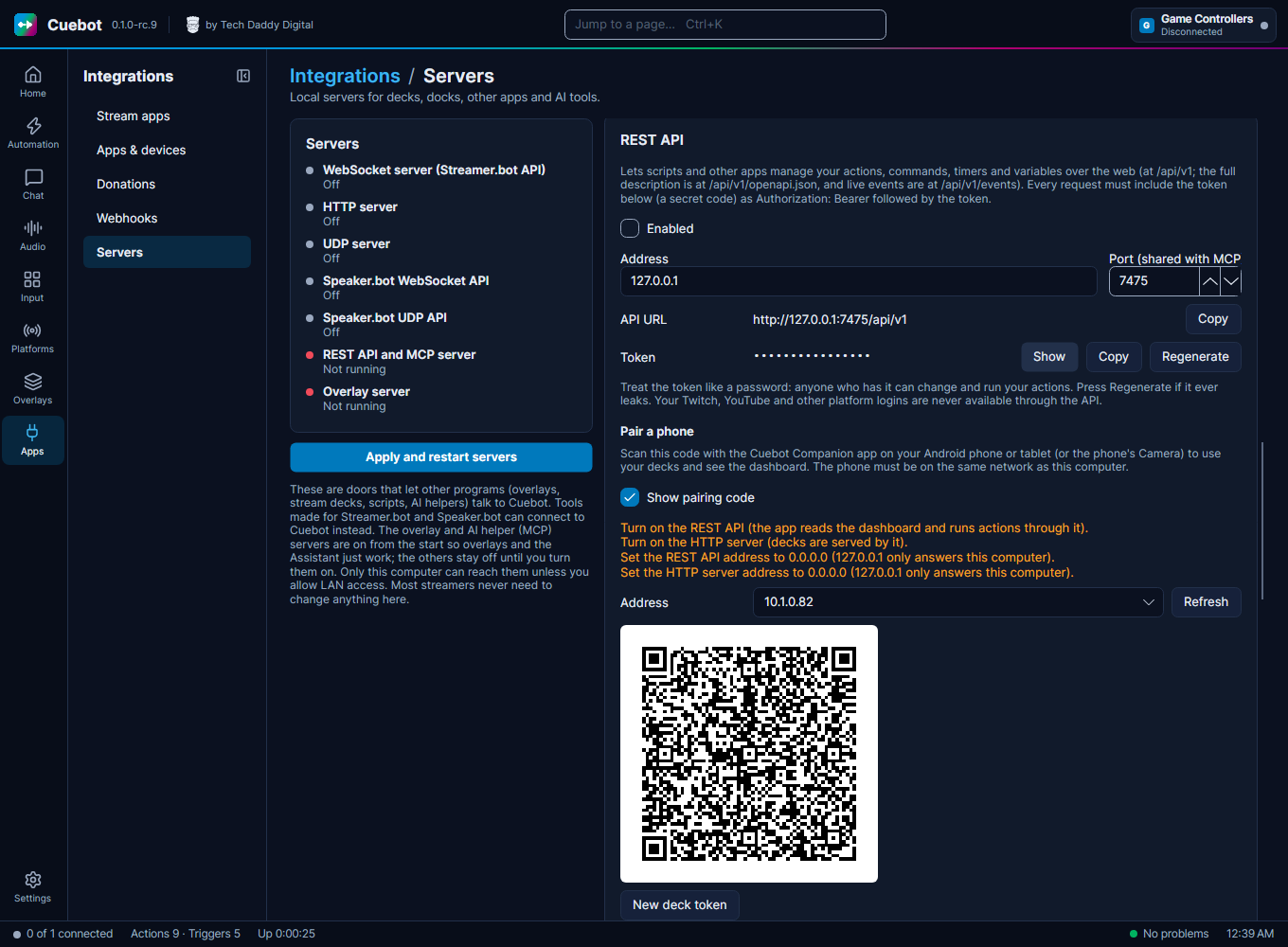
The Cuebot Companion app for Android (and later iPhone and iPad) connects through the REST API by scanning a code. The Pair a phone card is on Apps > Servers, with the REST API.
- Tick Show pairing code.
- Pick the Address of your home network (usually
192.168...). - Scan the code with the app or the phone's Camera. The phone must be on the same network as this computer.
If something still stops the phone, the card lists what to change first: the REST API and
HTTP server on, Allow LAN connections ticked, and both servers listening on 0.0.0.0. The code
holds your token, so keep it hidden while you stream. It also holds the deck token.