Moving from Streamer.bot
Cuebot works the way Streamer.bot does: actions, sub-actions, triggers, %arguments%, ~globals~ and queues. You
can bring your Streamer.bot actions across. Text-to-speech is built in, so you do not need Speaker.bot either.
Note
Cuebot is its own project, written from scratch. It is not made by the Streamer.bot team.
Bring your actions across
- In Streamer.bot, right-click the actions you want, choose Export, and copy the export text.
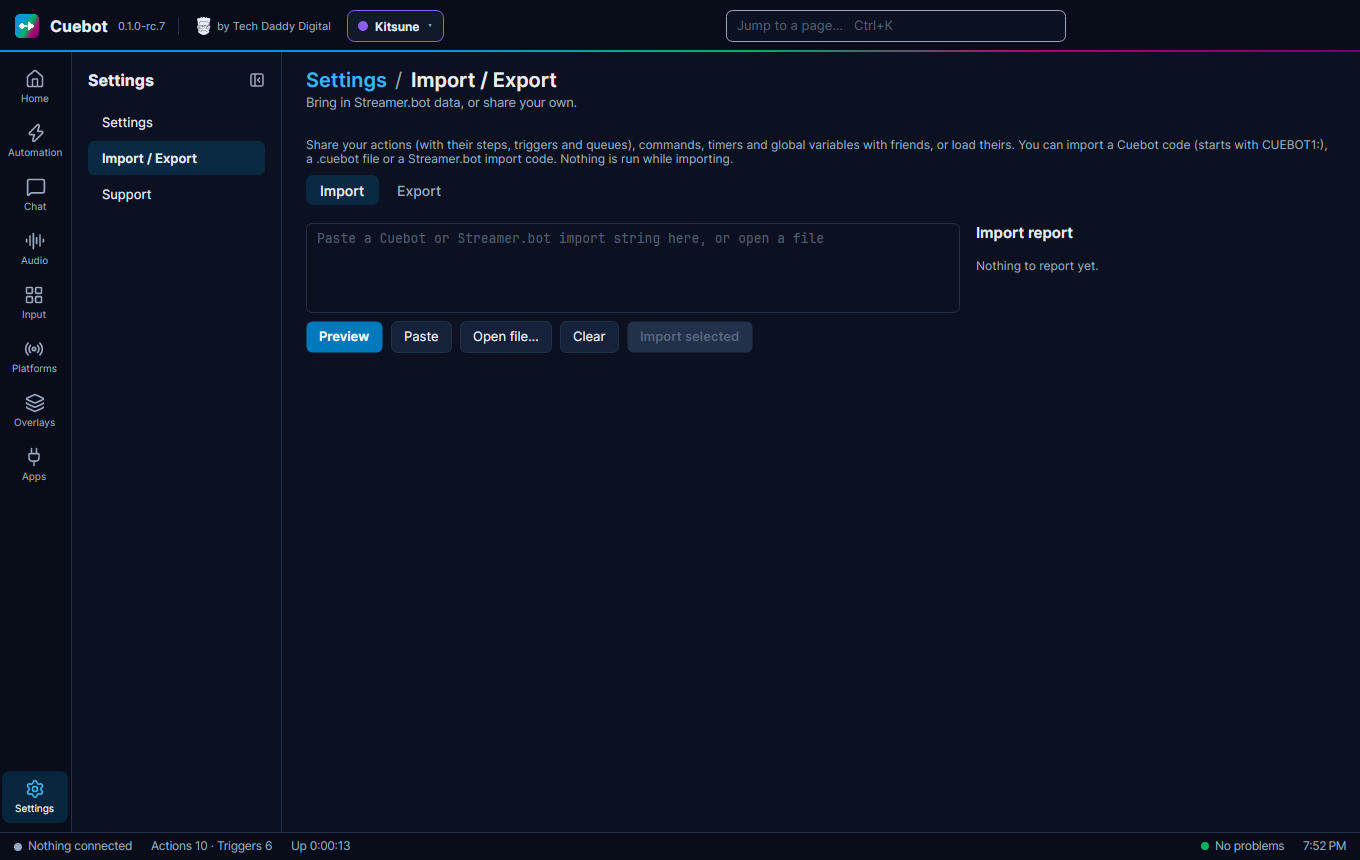
- In Cuebot, go to Settings > Import / Export, tab Import.
- Paste the text into the big box (or click Paste). You can also load a file with Open file….
- Click Preview. Nothing runs while you import.
- Tick what you want and click Import selected.
Imports bring actions (with their sub-actions, triggers and queues), commands, timers and global variables. The same
box also takes a Cuebot code (it starts with CUEBOT1:) or a .cuebot file from a friend.
Before an import replaces anything, Cuebot makes a backup of your data folder, so you can go back.
Read the import report
After an import, the Import report has three lists:
- Converted: brought across and ready.
- Kept as disabled placeholders: things Cuebot does not have yet. They are kept, switched off, with all their settings, so nothing is lost.
- Please check: things that may not fit your new setup, like a file path that only exists on your old computer.
After the import
- Sign in again. Streamer.bot sign-ins do not come across. Sign in on each page under Platforms (see Your platforms).
- Connect OBS on Apps > Stream apps (see OBS Studio).
- Test your most important actions with Test trigger….
What stays the same
- The same variable signs:
%user%,%input0%,~myGlobal~and functions like$math()$. See Variables. - Run C# code (Streamer.bot's "Execute C# Code") runs your C# code, with Streamer.bot's
CPHmethods. Almost all of them work. See Writing code. - Cuebot's WebSocket server (Streamer.bot API) on Apps > Servers speaks Streamer.bot's language, so overlays and tools made for Streamer.bot keep working. Turn it on there first (see WebSocket API).
- The start options
/headlessand/resetwindowwork (see Command-line options).
What is different
- Cuebot runs on Linux and Mac as well as Windows (see Installing Cuebot).
- Code steps can also be Python, with the Run Python code sub-action (see Python).
- Any action can be turned into one C# or Python script (see Export to code).
- Every action can also be seen and edited as a flowchart.
- Commands are made on Automation > Commands and linked with the Command triggered trigger (see Chat commands).
- Cloud backups go to your own Google Drive (see Backups on Google Drive).
Sharing your own actions
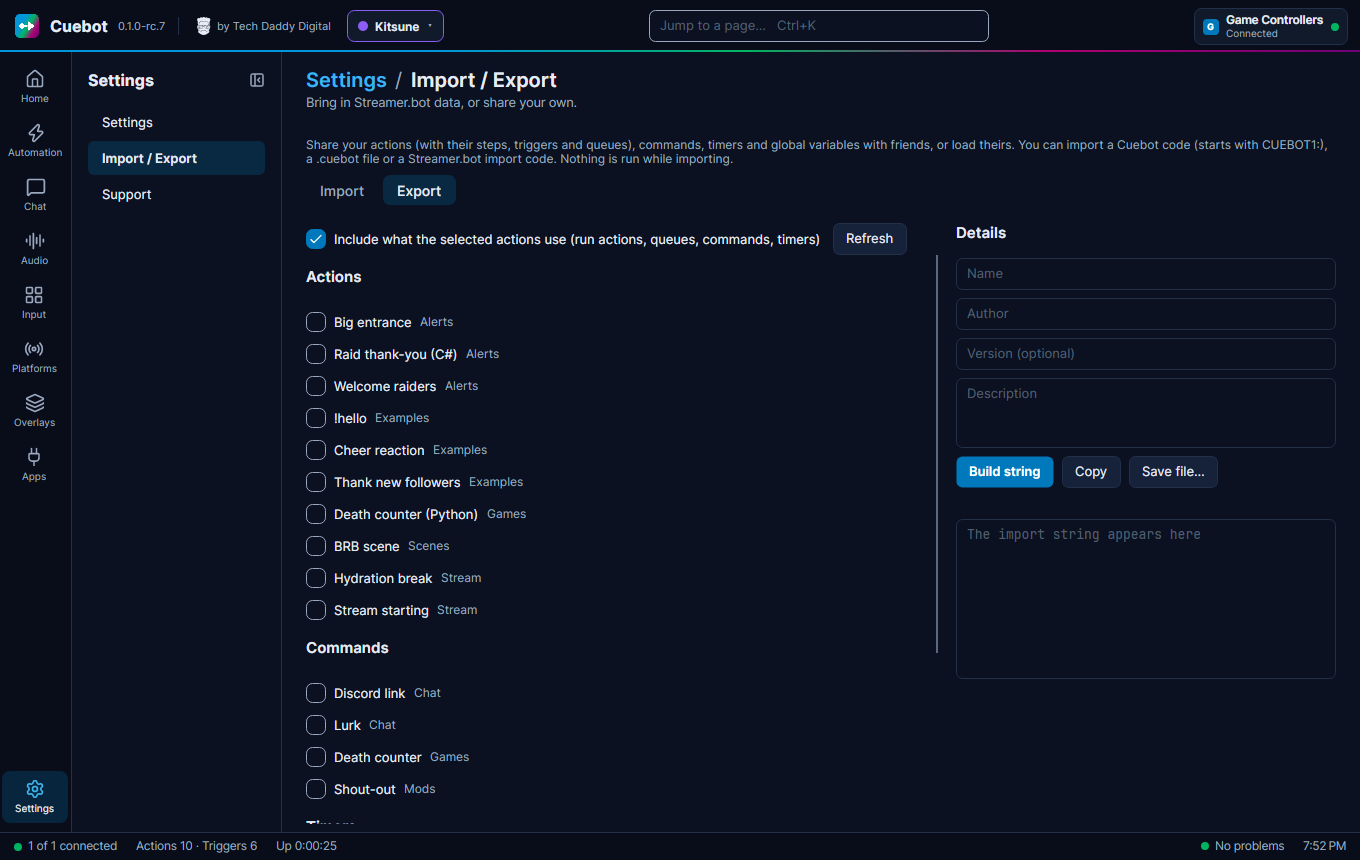
Settings > Import / Export, tab Export: tick the actions, commands, timers and global variables you want, and
click Build string. You can add an Author, a Description and a Version first, if you like. You get a code that starts with CUEBOT1:. Click Copy to share it, or Save file… for a
.cuebot file. Tick Include what the selected actions use so your friend gets everything they need.