Decks
A deck is a page of buttons that opens in any web browser: your phone, a tablet, or a dock in OBS. Press a button, and its action runs. It is like a Stream Deck, but free and on a screen you already have.
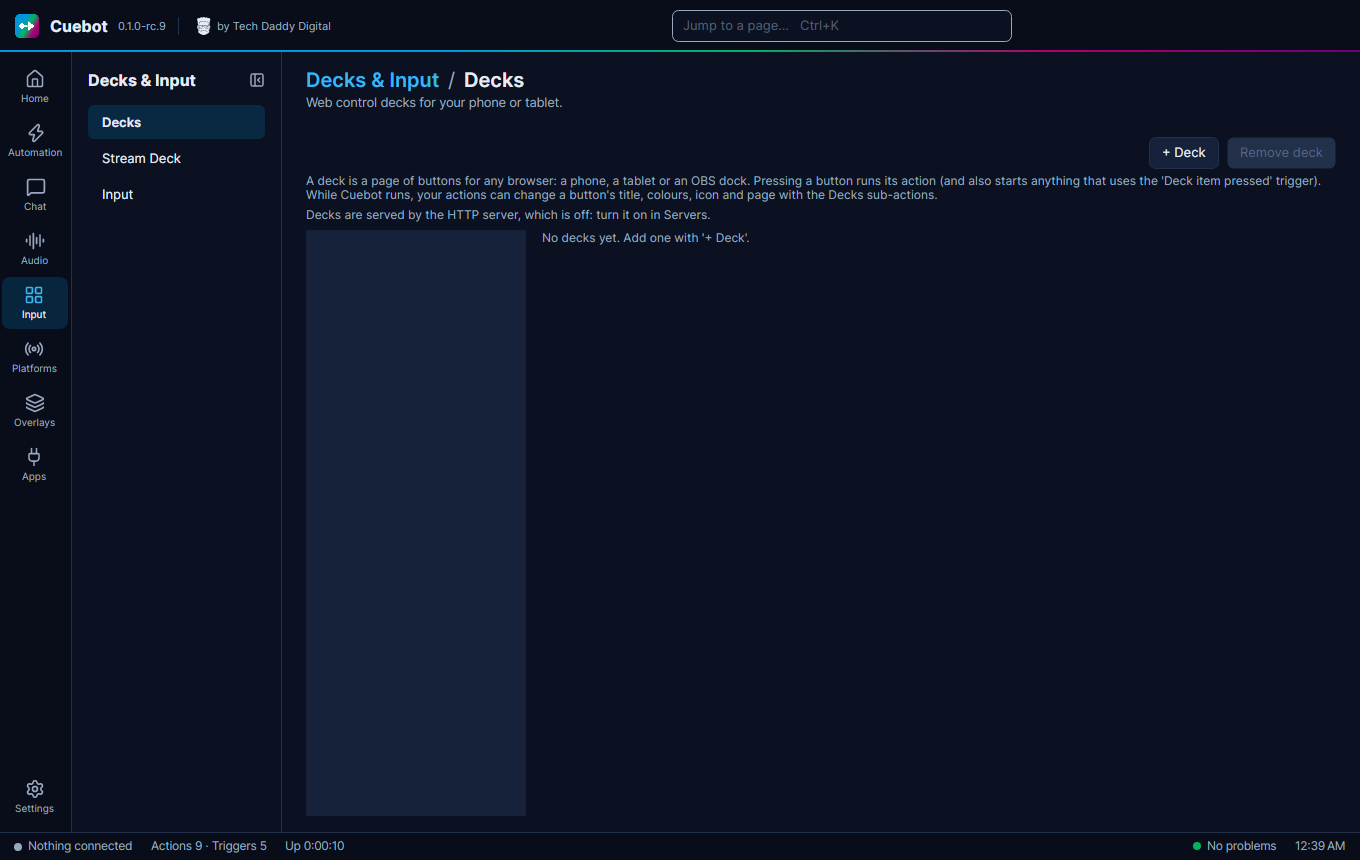
Make a deck
- Decks need Cuebot's HTTP server. Go to Apps > Servers, tick Enabled on the HTTP server card and click Apply and restart servers. (The Decks page reminds you if it is off.)
- Go to Input > Decks and click + Deck. Give it a name.
- Set how many Rows and Columns of buttons you want.
- Click + Button. Give it a Title and pick the Action to run. Add colours and an icon if you like.
- Click Open next to Address to see the deck in your browser.
While you stream, your actions can change a button's title, colour, icon or page with the Decks sub-actions (see the Decks sub-actions).
Using it from your phone
Using it from your phone
At first, the deck only opens on this computer. Your phone is a different device, so Cuebot has to allow your home network first: tick Allow LAN connections on Apps > Servers and let the HTTP server listen on your network address. Only do this on a home network you trust. Cuebot then makes a deck token so nobody else on the network can press your buttons: open the deck from the link on the Decks page, which includes it.
The Cuebot phone app shows your decks on its Deck tab, so you don't need a browser there.