Cuebot's servers
A server is a part of Cuebot that other programs can connect to. Your OBS overlays use one. The Stream Deck plugin, the phone app and AI apps use one. Tools made for Streamer.bot or Speaker.bot use one. This page shows how to turn them on, which one you need, and how to keep them safe.
Most people only need the overlay server, and it is on from the start. Turn the others on only when a guide or a tool asks for it.
Everything is on Apps > Servers.
Turning a server on
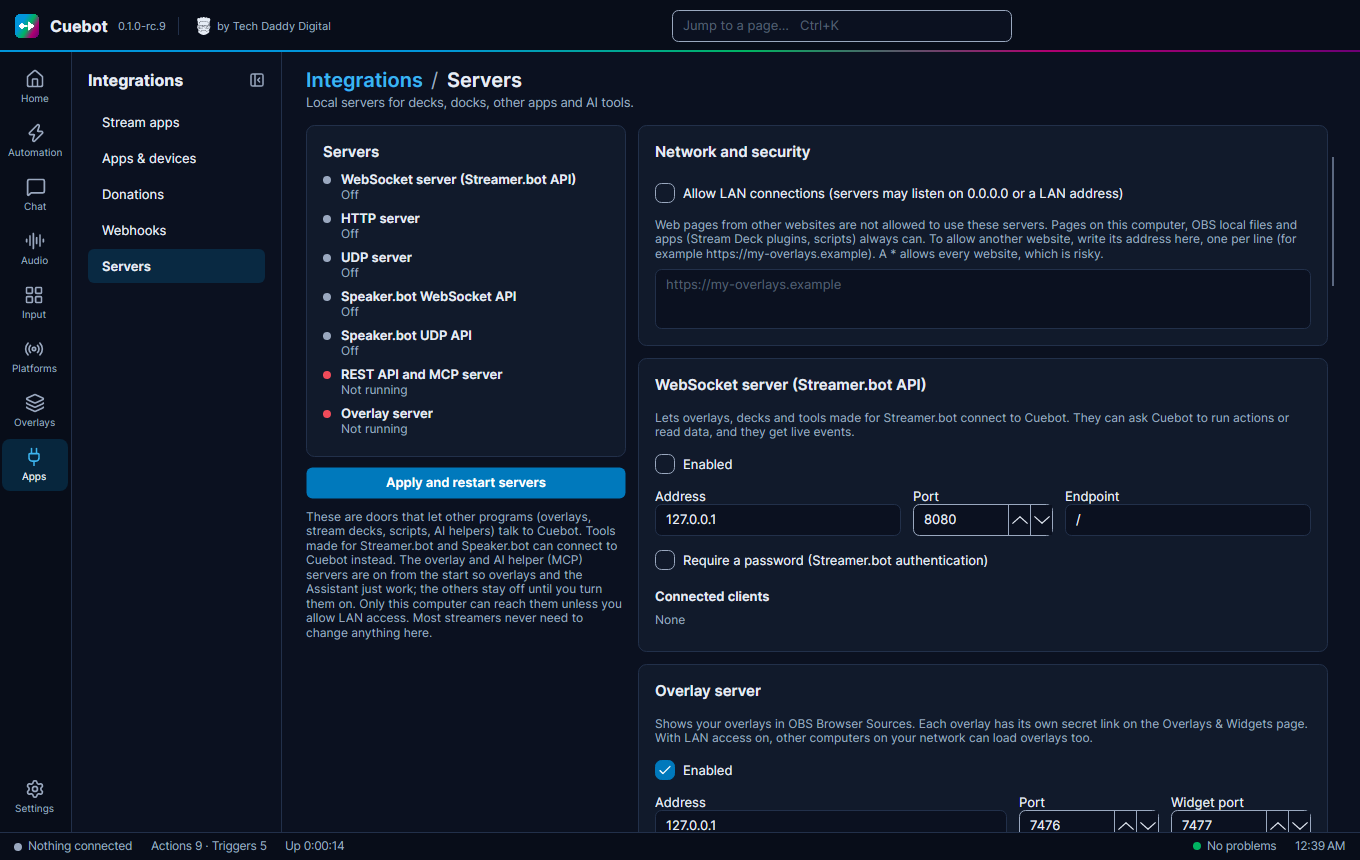
- Go to Apps > Servers.
- Find the server's card and tick Enabled.
- Click Apply and restart servers at the top. Nothing changes until you click it.
The page says "Settings changed: press Apply to restart the servers" while you have changes that are not applied yet. Applying restarts the servers that are on, so connected tools drop off for a moment.
The servers, one by one
| Server | What it is for | Door number (port) at the start | On at the start? |
|---|---|---|---|
| Overlay server | Your overlays in OBS. Widgets get their own second door (Widget port), so a widget cannot reach Cuebot itself. | 7476 (widgets 7477) | Yes |
| HTTP server | Decks, the OBS chat and event docks, your own files, and simple web requests that run actions | 7474 | No |
| WebSocket server (Streamer.bot API) | Overlays, decks and tools made for Streamer.bot | 8080 | No |
| UDP server | Older tools that send a short "run this action" message | 4242 | No |
| Speaker.bot API | Tools made for Speaker.bot, to make Cuebot speak | 7580 (WebSocket), 6669 (UDP) | No |
| REST API | The Stream Deck plugin, the phone app, scripts, and other Cuebots | 7475 | No |
| MCP server (AI assistants) | AI apps on your computer, like Claude Desktop. See Using your own AI app with Cuebot. | 7475 (shared with the REST API) | Yes |
Port is the door number other programs use. Change it only when another program already uses that number. Then change it in that other program too.
The page also has your own WebSocket servers and clients and Remote instances, for linking two Cuebots.
Which door should I use?
| I want to… | Use | Port at the start |
|---|---|---|
| Run actions and change almost anything, from a script or app | REST API | 7475 |
| Hear about events (follows, chat, …) as they happen, from a script | REST API events | 7475 |
| Use an overlay, deck or tool made for Streamer.bot | Streamer.bot WebSocket API | 8080 |
| Run an action from a simple web link or button | HTTP server | 7474 |
| Run an action from an old tool that sends tiny messages | UDP server | 4242 |
| Make Cuebot speak, from a tool made for Speaker.bot | Speaker.bot API | 7580 and 6669 |
| Let an AI app build actions for me | MCP server | 7475 |
| Build my own WebSocket server or client inside Cuebot | Custom WebSockets | you pick |
| Send signals between two Cuebots | Linking two Cuebots | 7475 (the REST API) |
Keeping it safe
- Every server only listens on this computer (the address
127.0.0.1). Other devices cannot reach it. - To let your phone, tablet or a second computer reach Cuebot, tick Allow LAN connections under Network and
security. Then set the server's Address to
0.0.0.0(every network) or to this computer's home-network address. Only do this on a home network you trust: anyone on it could try to use your servers. - Web pages from other websites are not allowed in. Pages on this computer, OBS local files and apps always are. To
allow one website, type its address in the box under Network and security, one per line, like
https://my-overlays.example. Leave it empty if you do not know you need it. A*lets every website in, which is risky. - The REST API and MCP server need a token (a secret code), and decks on other devices need a deck token. See REST API and HTTP server.
- Your Twitch, YouTube and other platform sign-ins are never available through any server.
Inside Cuebot instead
The servers are for other programs (a website, a script on another computer, your own app) that control Cuebot from outside. Want the code to run inside Cuebot, as a step of an action? See Writing code (C# and Python).