The setup assistant
Cuebot has a built-in assistant: a chat window where you type what you want, in plain words, and an AI (a computer program that understands text) sets it up for you. It saves you clicking through the pages yourself.
"Make a !discord command that posts my Discord link, with a 30 second cooldown."
The assistant then makes the command and the action, just as if you had clicked through the pages yourself.
The assistant is only for setting things up
It helps you build things in Cuebot. It never talks to your viewers, and your actions cannot use it.
What you need
The assistant does not have its own AI. It borrows one you already use. Pick one of these:
- An AI app you are already signed in to on this computer: Codex (with a ChatGPT sign-in), Claude Code, Grok CLI or Antigravity CLI. Cuebot uses that app's sign-in, so you do not paste any key. The app gets only Cuebot's tools: it cannot run commands, read your files or use the web.
- An API key: a secret code from an AI company that lets programs use its AI. Cuebot works with keys for Claude (Anthropic), OpenAI, Grok (xAI) and Gemini (Google). The company may charge you for what you use.
- A model on your own computer, through the free program Ollama (or LM Studio). It costs nothing and nothing leaves your computer, but these small models make many more mistakes and can be slow. See The assistant on your own computer before you choose it.
Partly checked
The AI apps (Codex, Claude Code, Grok CLI, Antigravity CLI) were tried for real on Linux, and so were an OpenAI key and Ollama. Keys for Claude (Anthropic), Grok (xAI) and Gemini (Google) were only checked with pretend services, and LM Studio is not confirmed. See What's experimental.
Flatpak on Linux
The Flatpak version of Cuebot cannot reach other apps on your computer, so it needs an API key.
Setting it up
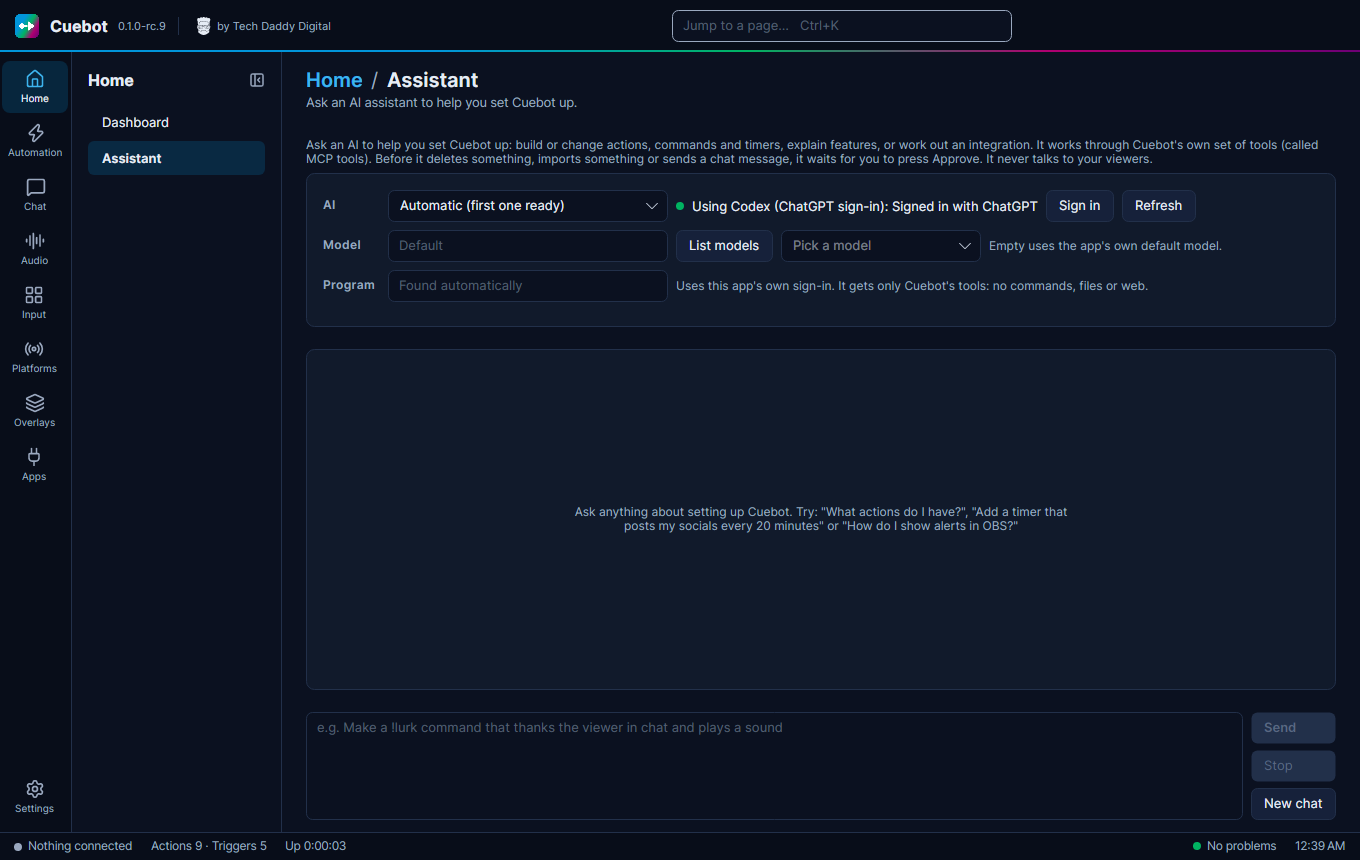
- Go to Home > Assistant.
- In AI, pick your choice. Automatic (first one ready) uses the first one that works.
- Using an AI app? Click Sign in if Cuebot asks you to, then Refresh. Program is usually found by itself.
- Using an API key? Paste it into API key. It is saved in Cuebot's data folder (in
assistant.json) and hidden on screen. - Optional: pick a Model (the AI's "brain" size). Leave it on Default if you are unsure. Once the AI is ready, the list next to List models shows the choices by itself; pick one, or type a model name.
Using it
Type what you want and click Send (or press Enter). Some ideas:
- "Make a !lurk command that says thanks for lurking, %user%."
- "Post my socials in chat every 20 minutes, but only if people are chatting."
- "What does my 'Raid alert' action do?"
- "Add a giveaway for a Steam key that costs 100 points."
Stop stops an answer, New chat starts fresh.
It asks before big changes
Before the assistant deletes something, imports something, or writes in your chat, it shows The assistant wants to: and waits. Click Approve to let it, or Deny to stop it.
Always check what it made. It can make mistakes, just like a person.
Undo what it did
When an answer created, changed or deleted actions, commands or timers, Cuebot adds a card at the end of the answer: "The assistant created the action 'Lurk', created the command 'Lurk'." Click Undo these changes to put them all back the way they were. If you changed one of them yourself after the answer, Cuebot keeps your version and says so. The button works until you close Cuebot. Other things the assistant can change (overlays, points, quotes...) are not covered: check those yourself.
What it can and cannot touch
- Can: actions, triggers, sub-actions, commands, timers, variables, overlays, polls, quotes, points, giveaways, decks and more.
- Cannot: your sign-ins, API keys, passwords, and the server settings. Those stay out of its reach.
Cuebot logs only the names of what the assistant did, not the details. The last conversation is saved in your data folder, so it is still there next time.
The other way round
Rather use your favourite AI app outside Cuebot, and let it work on Cuebot? See Using your own AI app with Cuebot (MCP).