YouTube
This page shows how to sign Cuebot in to YouTube, so it can read your live chat and see your viewers and subscribers. It also explains YouTube's daily limit, the quota.
Signing in
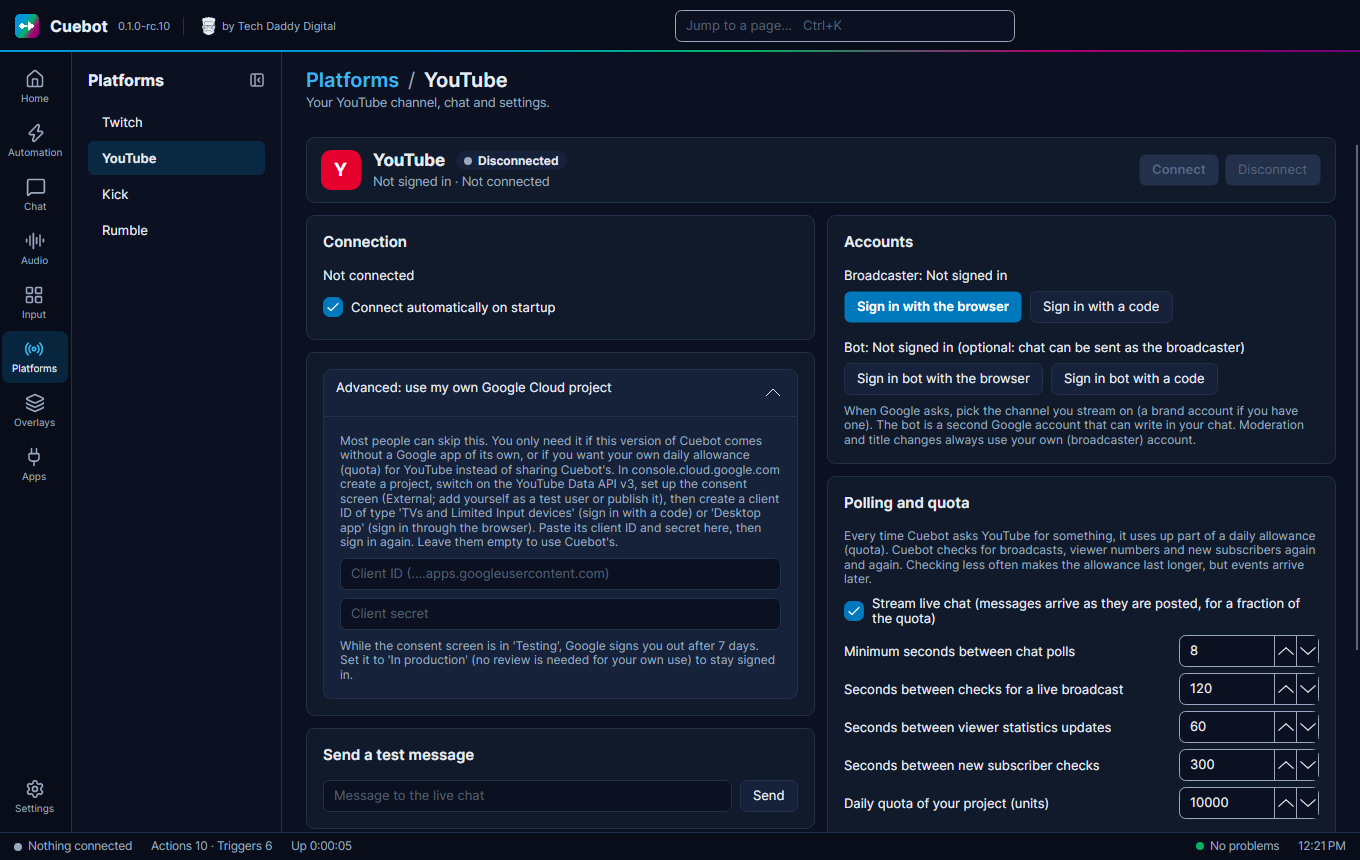
- Go to Platforms > YouTube and click Sign in with the browser. (No browser on this computer? Use Sign in with a code.)
- Google asks which account to use. Pick the channel you stream on.
- Allow Cuebot to manage your YouTube account.
\"Google hasn't verified this app\"
While Google is still checking Cuebot, you may see this warning. Click Advanced, then Go to Cuebot.
Cuebot finds your live stream by itself and reads its chat once you go live. A bot account is optional, with Sign in bot with the browser (or Sign in bot with a code). See Broadcaster account and bot account.
Tick Connect automatically on startup so Cuebot connects every time it starts.
Quota: YouTube's daily limit
YouTube gives every app a daily allowance of "units", and every request Cuebot makes uses some. The Polling and quota part of the page shows how much Cuebot expects to use and how much it used today. Checking less often makes the allowance last longer, but events arrive later. A few boxes there change how much Cuebot uses:
- Stream live chat gets chat messages as they are posted, for a small part of the quota.
- Check for new subscribers looks for new subscribers. YouTube only shows public subscriptions.
- Watch scheduled broadcasts runs the Broadcast added / removed triggers, but doubles the cost of checking for broadcasts.
If you stream a lot and run out, open Advanced: use my own Google Cloud project and follow the steps there. That gives you your own allowance.
Your own Google Cloud project
While its consent screen is set to "Testing", Google signs you out after 7 days. Set it to "In production" (no review is needed for your own use) to stay signed in.
What the Connect button, Connect automatically on startup and Sign out do is the same on every platform: see Your platforms.