More than one persona (profiles)
Do you stream as more than one character, each with its own Twitch, YouTube, Kick or Rumble account? Give each one a profile. A profile is a whole Cuebot of its own: its own accounts, mods, donation services, actions, commands, overlays and viewers. You switch between them in two clicks, and nothing from one persona leaks into the other.
What a profile keeps
Each profile has its own:
- Accounts: Twitch, YouTube, Kick and Rumble, broadcaster and bot.
- Mods: the mod portal, its mods, roles and invites.
- Services: tips and donations, webhooks like Ko-fi, and the Discord bot.
- Everything you build: actions, commands, timers, overlays, widgets, decks, hotkeys, voices and variables.
- Your viewers: points, quotes, users and groups, top spenders, subathon timers and goals.
All profiles share the things that belong to your computer, not to a persona: the theme and where the window is, backups, updates, big downloads like Python and voices, and the servers (their ports and the API token). Because the servers are shared, the phone app, OBS docks and other programs keep working after a switch, with no new pairing.
You start with one profile, called Main. If you used Cuebot before profiles came, everything you had is in Main.
Make a profile
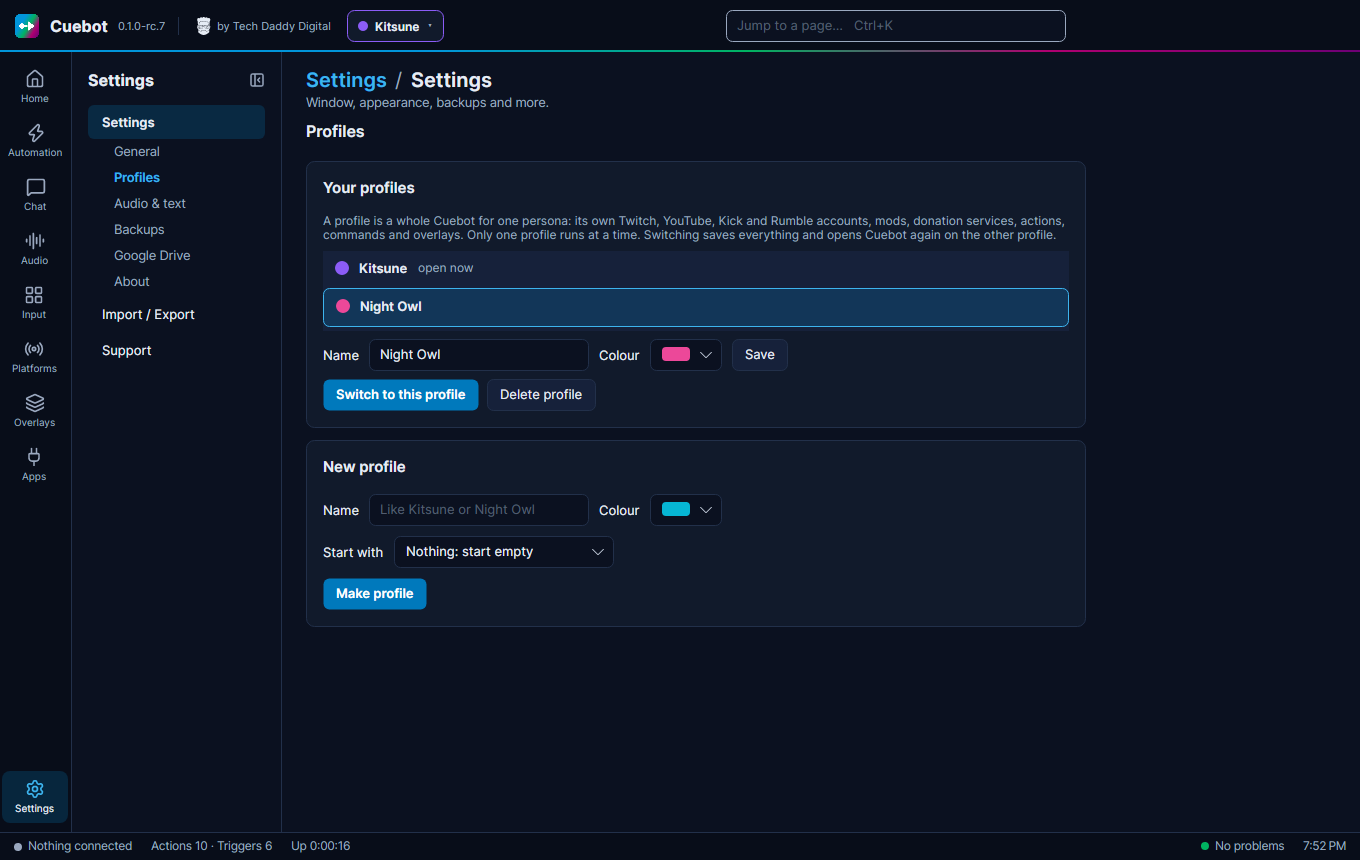
- Go to Settings, tab Profiles. (Or click the profile name in the top bar and choose Manage profiles….)
- Under New profile, type a Name, like
Night Owl, and pick a Colour. The colour shows next to the name, so you can tell at a glance which persona is open. - Start with: choose Nothing: start empty, or A copy of another profile. A copy lets you tick the parts
to bring along:
- actions, timers, queues and watchers;
- chat commands;
- overlays and widgets;
- decks, hotkeys and controllers;
- global variables;
- stream apps and devices (OBS, lights, mixers);
- voices and voice control.
- Click Make profile.
Sign-ins are never copied
A copy never takes the sign-ins of Twitch, YouTube, Kick, Rumble, the mod portal, donation services, webhooks or the Discord bot. So the new persona can never post as the old one by mistake. Switch to the new profile and sign in to its own accounts.
Switch profiles
Any of these works:
- The top bar: click the profile name (with its coloured dot) and choose another profile.
- The tray icon: right-click it, choose Profiles, then the profile.
- The jump box: press Ctrl+K and type the profile's name. It shows as
Profile: Night Owl. Press Enter. - Settings > Profiles: pick the profile and click Switch to this profile.
-
A shortcut: start Cuebot with
--profile "Night Owl"(see Command-line options). If Cuebot is already running, it switches. Make one desktop shortcut per persona and switching is one double-click. -
Your phone: on the phone app's Dashboard, the Profile card shows the open persona. Tap Switch and pick another one.
- An action: the Switch profile step (see below), so a deck button or a chat command can switch.
Switching saves everything, closes Cuebot and opens it again on the other profile, in the same place on your screen. It takes a few seconds. Cuebot doesn't make a start-up backup when it only switches.
Not while you are live
Switching persona in the middle of a stream is almost never what you want, so Cuebot checks first. While any platform says you are live:
- In Cuebot (the top bar, the tray, Ctrl+K, Settings): a message says you are live. Choose the same profile again within 10 seconds to switch anyway.
- On your phone: the app asks Switch anyway?
- The Switch profile step does nothing and fails, unless you tick Switch even while live.
- A shortcut with
--profileswitches anyway: you asked for that profile on purpose.
Get each persona's stream ready by itself
Two triggers (see How actions work) make a switch do the setup for you:
- Profile started runs every time Cuebot opens on this profile, also right after a switch. Put this persona's
setup in it: switch the OBS scene collection, load the VTube Studio model, set the stream title. Its variables
include
%profile%and%previousProfile%(empty when Cuebot just started). - Profile stopping runs just before Cuebot switches away. Cuebot waits for these actions (at most 10 seconds), so
you can say goodbye in chat or put OBS back. Its variables include
%nextProfile%.
Each profile has its own actions, so give each persona its own Profile started action.
Switch from an action
The Switch profile step opens Cuebot on another profile. Type the profile's Name in it. Put it last in its action: Cuebot runs the Profile stopping actions, then closes and opens again. Use it on a deck or Stream Deck button, or a hotkey, for one-press switching.
Your mods can't use this step: the mod portal never lets mods switch your persona.
From other programs
Programs that use Cuebot's REST API can read the profiles with GET /api/v1/profiles and
switch with POST /api/v1/profiles/{id}/activate (send "force": true to switch while live). See the
REST API reference.
When you have more than one profile, the window title shows the open one too, like Cuebot – Night Owl.
Only one persona is online at a time
Only the open profile is connected. While Night Owl is open:
- Kitsune's chat, events and alerts don't reach Cuebot.
- Kitsune's mods see the mod portal as offline.
- Webhooks for Kitsune (Ko-fi, Patreon…) are missed. The relay passes them on but never stores them. Ko-fi and the other services keep their own list, so you can look there.
OBS: overlay links belong to one profile. Give each persona its own OBS scene collection, with that persona's overlay links in its browser sources.
Rename, recolour or delete
On Settings > Profiles, pick a profile. Change its Name or Colour and click Save.
Delete profile removes a profile with its sign-ins, actions, overlays and everything else. Click it twice to be sure. You can't delete the open profile: switch to another one first. A backup made before still has it.
Where profiles live
Each profile is a folder inside your data folder, under profiles, like profiles/night-owl.
The folder name stays the same when you rename the profile. A backup holds every profile.