Using your own AI app with Cuebot (MCP)
You can use your favourite AI app, like Claude Desktop or Claude Code, and let it work on Cuebot. Ask it "make a !lurk command that thanks the viewer" and it builds the action in Cuebot. This is the other way round from the setup assistant, which lives inside Cuebot.
It uses MCP (Model Context Protocol): a common way for AI apps to use other programs' tools.
Turning it on
The MCP server is on from the start. It only listens on this computer and asks for a token (a secret code).
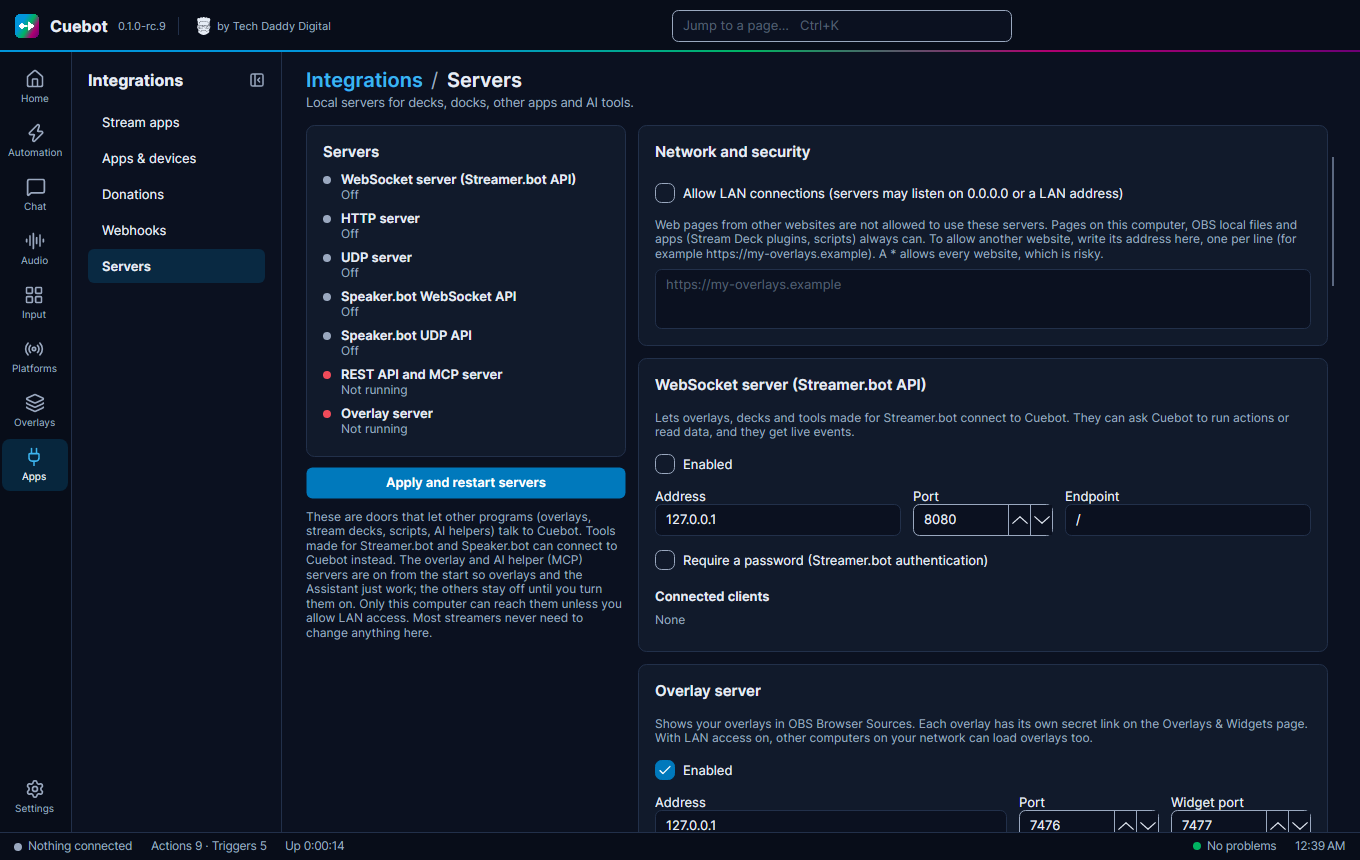
- Go to Apps > Servers.
- On the MCP server (AI assistants) card, check that Enabled is ticked. You do not need to turn on the REST API for this. If you changed it, click Apply and restart servers.
- The card has ready-made setup text. Click Copy next to the one for your AI app:
- Claude Code (terminal): a command. Paste it into a terminal and press Enter.
- Claude Desktop and other apps that start an MCP process (stdio): settings text. Paste it into the app's settings file. For Claude Desktop: Settings > Developer > Edit Config.
- Other clients with HTTP support (.mcp.json and similar): settings text for apps that connect by web address.
- Keep Cuebot running while you use it.
Copy always copies the whole text with your token in it, even while the token is hidden on screen.
The address and the token
- The MCP URL is
http://127.0.0.1:7475/mcp. It shares its door number (port) with the REST API, but has its own Enabled box. - The token is the REST API's token. It is on the REST API card: Show shows it, Copy copies it and Regenerate makes a new one (then update your AI app too).
- Apps that start programs themselves (like Claude Desktop) run a small helper,
Cuebot --mcp-stdio, which connects to the Cuebot that is already running. So Cuebot must be open, with MCP turned on.
Keep the token secret
Anyone with the token can change your Cuebot. Never show it on stream. If it leaks, click Regenerate.
It asks before big changes
Keep Confirm destructive tools ticked on the MCP card. Then the AI must ask you before it deletes something, imports something, or sends a chat message. Leave it ticked.
What the AI can do
The AI sees a list of tools: it can list and build actions, look up triggers and sub-actions, create commands and timers, and run and fix actions. You can read the same list, with what each tool needs, in MCP tools.
Want more of the servers' details, like the port or letting other computers in? See Cuebot's servers.