Hotkeys
A hotkey is a keyboard shortcut that starts an action. Cuebot's hotkeys work even when a game or OBS is in front, so you can fire an alert or switch a scene without leaving your game.
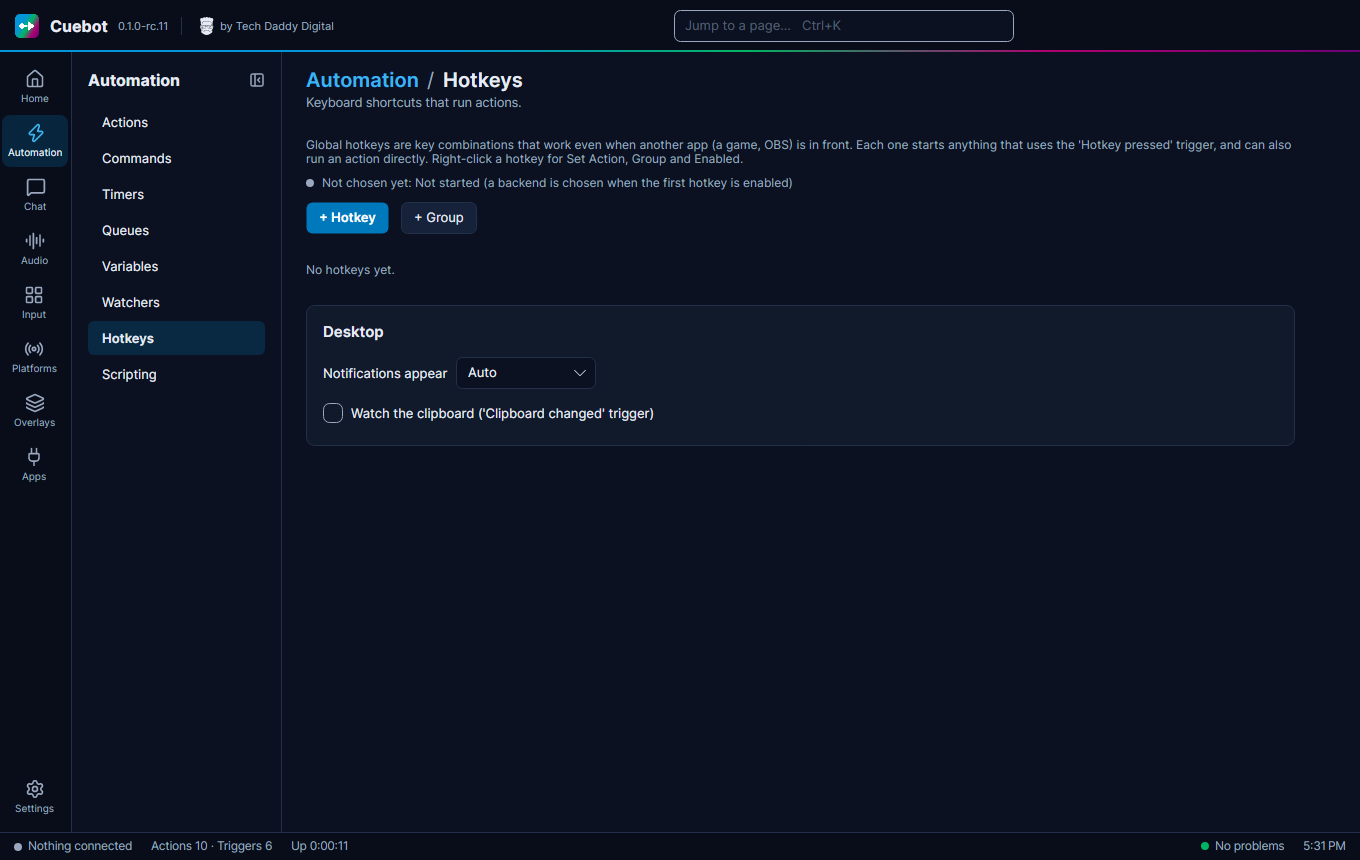
Make a hotkey
- Go to Automation > Hotkeys, click + Hotkey and give it a name.
- Type the keys, like
Ctrl+Shift+F1, or right-click and choose Record keys. - Either type an action in Run action (optional), or add the Hotkey pressed trigger to an action.
- Test tries it.
+ Group keeps hotkeys tidy, like one group per game.
The Desktop settings
The Desktop part of the page sets where Cuebot's pop-up notifications appear (Notifications appear), and Watch the clipboard ('Clipboard changed' trigger) lets an action start whenever you copy something.
On a Mac
Mac
On a Mac, Meta is the Command key and Alt is Option. The first time you turn on a hotkey, macOS asks
whether Cuebot may watch the keyboard: open System Settings > Privacy & Security > Input Monitoring, turn on
Cuebot, then quit and reopen Cuebot. The app in front still gets the keys, so pick combos it does not use.
The Keyboard press sub-action needs Accessibility in the same place, for the same reason.