How actions work
Everything Cuebot does is built from three pieces. Once you know them, you know Cuebot.
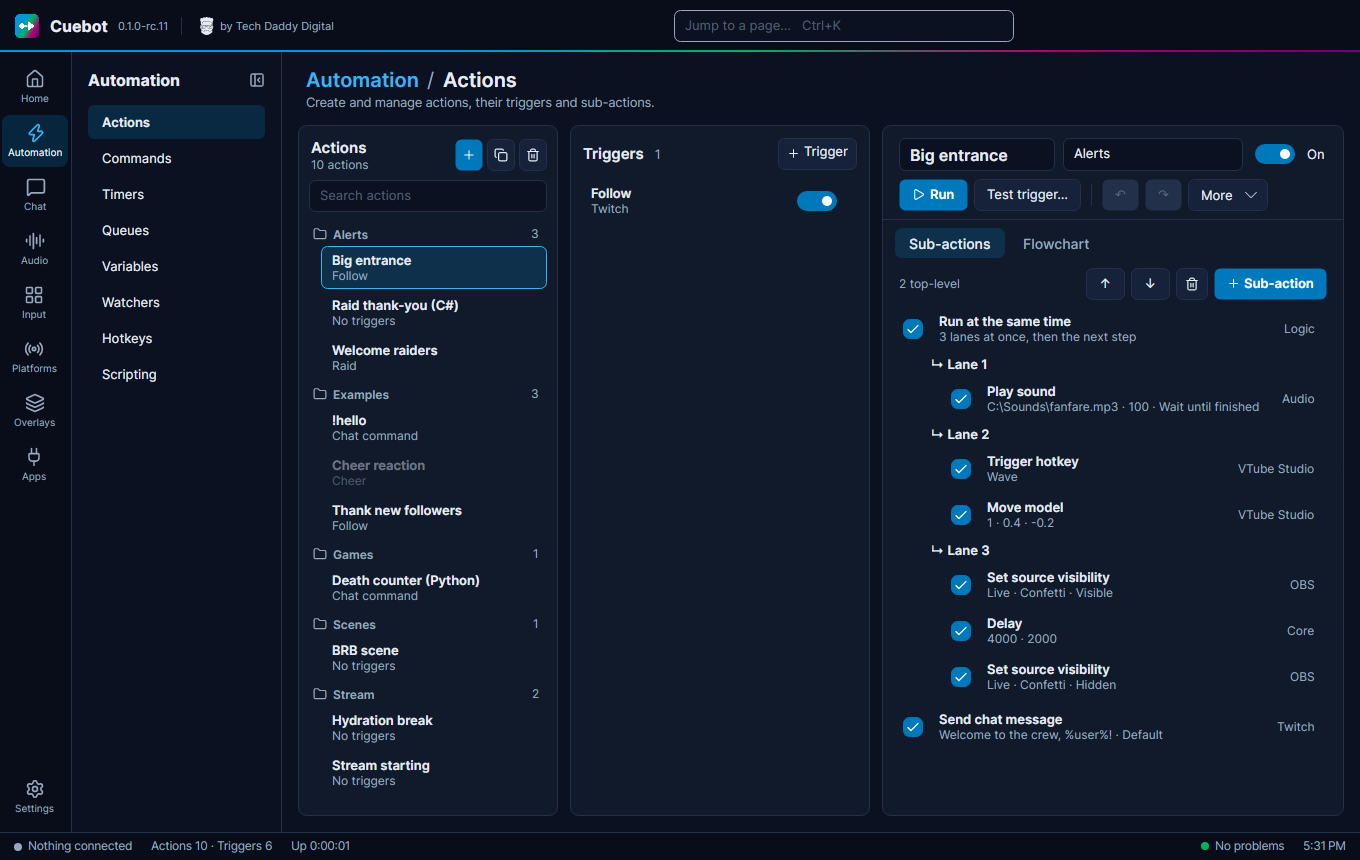
| Piece | What it is | Stream example |
|---|---|---|
| Action | A job, with a name. | "Thank new followers" |
| Sub-action | One step of that job. An action has a list of them. | "Write Thanks for the follow! in chat" |
| Trigger | What starts the job. | "Someone followed my channel" |
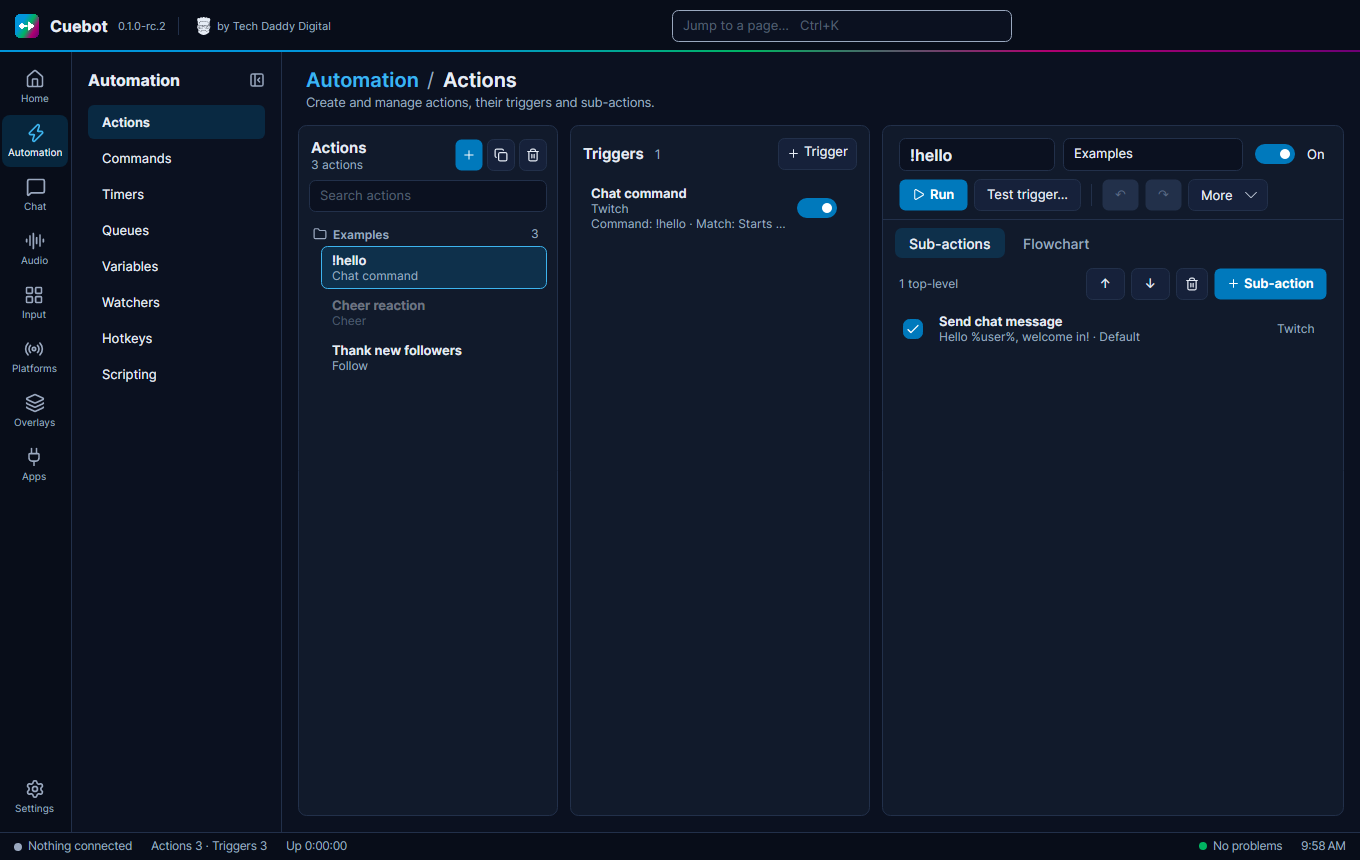
Think of a recipe card. The action is the card. The sub-actions are the steps written on it, done from top to bottom. The trigger is the moment you pick the card up.
- One action can have many triggers. "Say thanks" could start on a follow and on a sub.
- One trigger type can start many actions.
- An action with no trigger only runs when you start it by hand, from a command, or from another action.
All of this lives in Automation > Actions.
Building an action
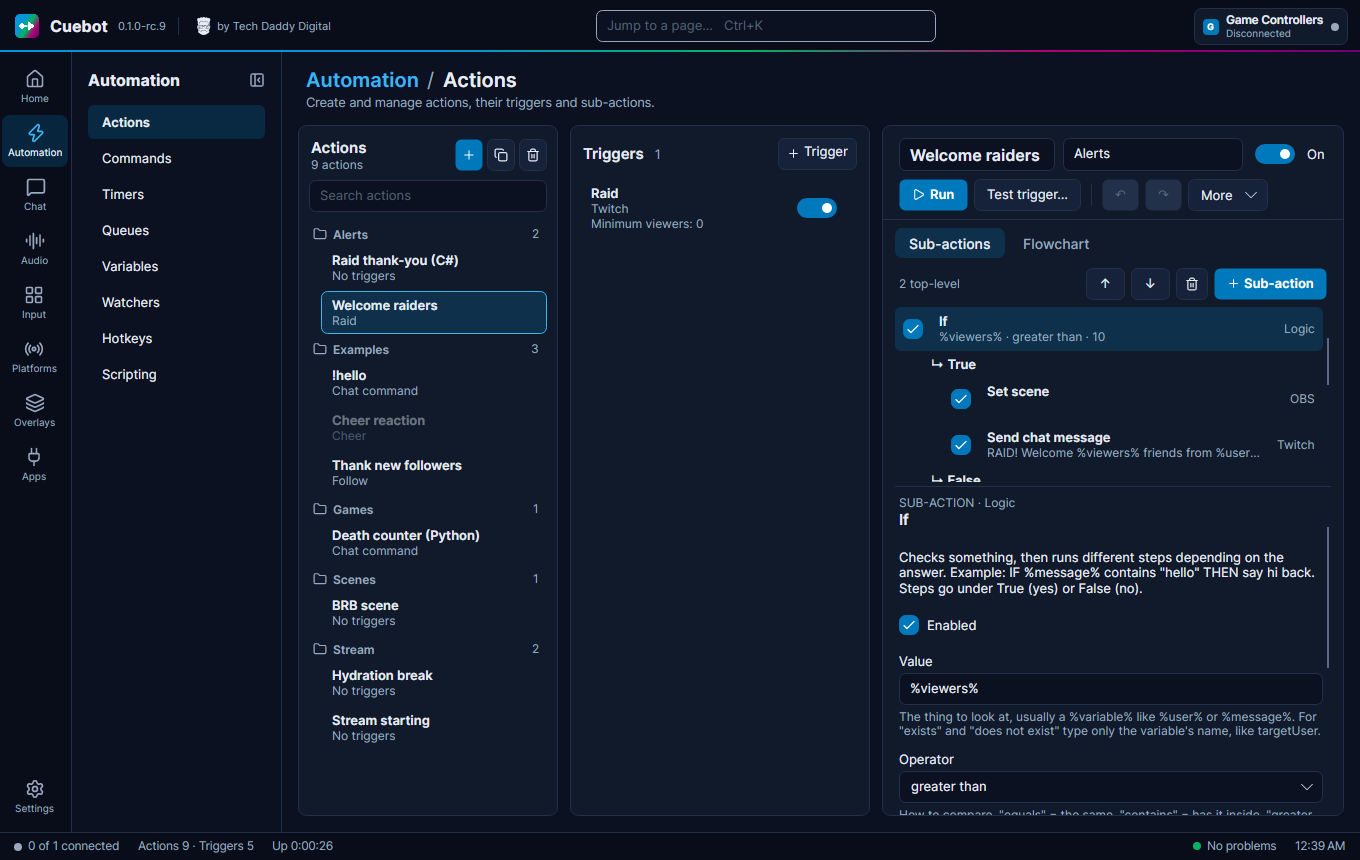
- Go to Automation > Actions and click + (New action).
- Click the name at the top and give it a clear name, like
Thank new followers. - Optional: type a Group name, like
Alerts. Groups are folders that keep the list tidy. - On the Sub-actions tab click + Sub-action. Type what you want to do, for example
chat,scene,soundorspeak, pick one and click Add. - Fill in its settings. Each setting has a short hint under it.
- Add more sub-actions the same way. A new one goes in after the one you selected.
- Click + Trigger and pick what should start it, for example Twitch › Follow.
You can try an action at any time:
- Run starts it right now.
- Test trigger… (F5) starts it as if a trigger fired. You type pretend values, one
name=valueper line, likeuser=Bob, and Cuebot uses them. Good for testing a follow alert without a real follower. The trigger's filters are not checked, and the run waits in the action's queue like any other. Cuebot also hands the action%isTest%=true, so a step can tell it is a test.
A test is real
Tests really do the steps. A "send chat message" step really writes in your chat.
Changing the list
- ↑ and ↓ (or Ctrl+Up / Ctrl+Down) move the selected sub-action.
- The tick box on a sub-action turns it off without deleting it.
- Ctrl+Z undoes, Ctrl+Y redoes. Each action has its own undo.
- Ctrl+C / Ctrl+V copy and paste actions, triggers and sub-actions, even into another Cuebot.
- Ctrl+D makes a copy, Del deletes.
Turning things off
The On / Off buttons switch a whole action off. Each trigger also has its own on/off switch. An action that is off does nothing, even when its trigger happens.
Triggers
Click a trigger in the list to see its settings. Many triggers have filters: settings that make them pickier. For example, a channel point trigger can be set to one reward only, like "Hydrate".
Open Variables this gives your action under a trigger. It lists the %words% you can use in your messages, like
%user% for the viewer's name. See Variables.
There are hundreds of triggers: chat messages, commands, follows, subs, cheers, raids, donations, OBS scene changes, Stream Deck buttons, hotkeys, timers and many more. The trigger reference lists every one.
Decisions and repeats
Sometimes a step should only happen sometimes. These sub-actions help. You find them in the Logic and Core groups of the list:
| Sub-action | What it does | Example |
|---|---|---|
| If | Checks something, then runs one of two lists. | If %bits% is more than 499, switch to the "Celebration" scene. Otherwise just say thanks. |
| Switch | Picks one list out of many, by value. | A different sound for each reward name. |
| While | Repeats a list while something is true. | |
| Loop break / Loop continue | Stop a repeat early / skip to the next round. | |
| Delay | Waits, in milliseconds (1000 = 1 second). | Show an alert, wait 5000, hide it. |
| Group | Keeps several steps together, like a folder. | |
| Run at the same time | Runs two or more lists (lanes) at once, then carries on when all are done. | Play a sound and wave the avatar, then say thanks. |
| Run action | Starts another action. | Reuse one "play alert sound" action everywhere. |
| Stop action | Stops here. |
When you select a step that has its own lists (like If), the word BRANCH shows up. New sub-actions then go into that list. After the list, the action carries on with the next step.
The Cheer reaction action in the Examples group shows an If in use. It starts switched off.
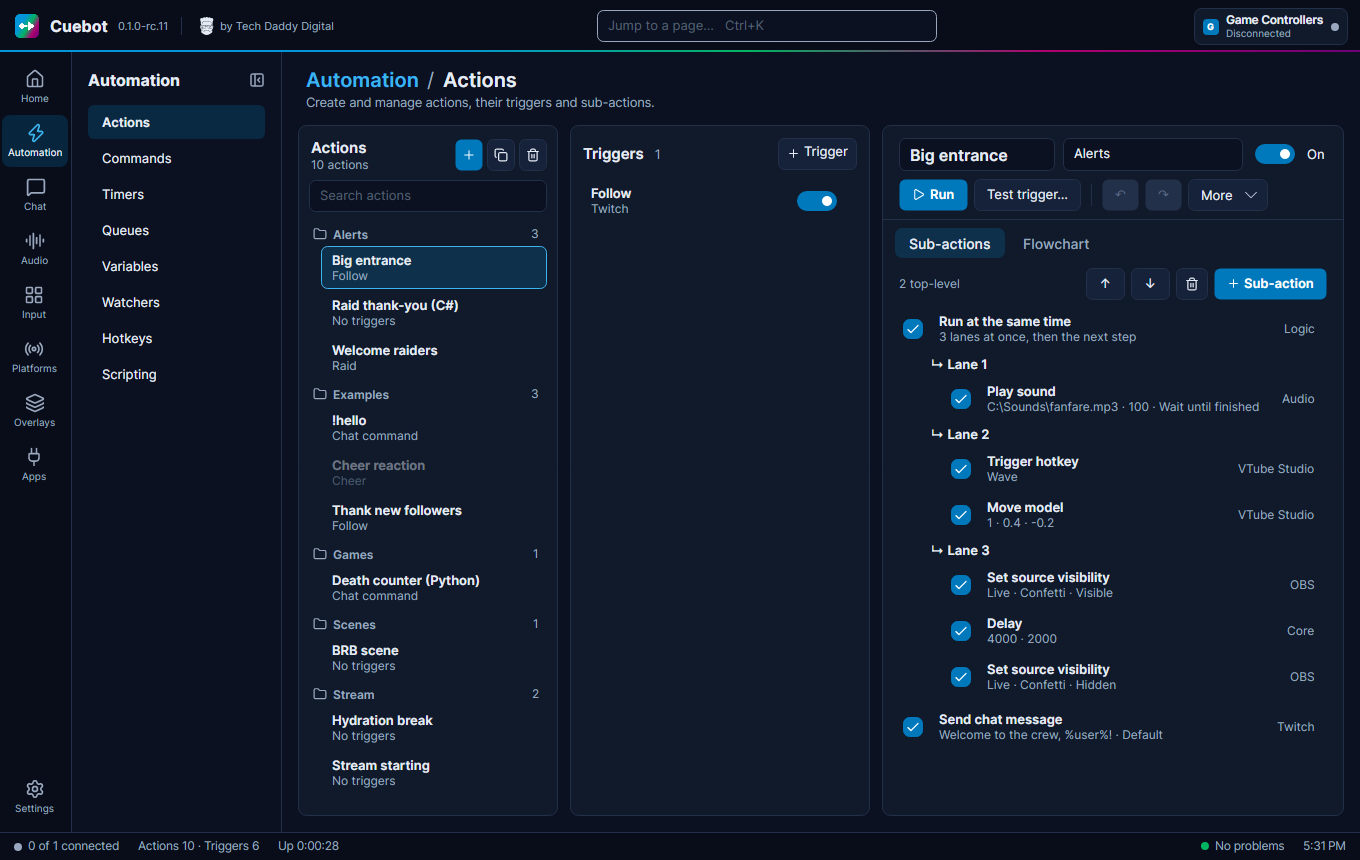
Run at the same time shows its lanes in the list like an If shows True and False. Each lane's steps go one after another, but the lanes all start together. The step after it waits until every lane is done. The flowchart editor explains the rules.
More options
The More button on an action has extra choices:
- Random action: run only one step, picked at random. Each step gets a Weight: a bigger number means a bigger chance. Great for "pick a random sound".
- Concurrent sub-actions: run all steps at the same time instead of one after another. It does nothing while Random action is ticked.
- Always run: run even when the action's queue is paused.
- Exclude from history: keep this action out of the Pending and History lists (handy for things that run very often).
- Queue: which waiting line the action uses. See Queues.
- Export to code, then C# or Python: makes a copy of the action that runs as one script, and switches this one off. You find it on the right-click menu of the action list too. See Turn an action into code.
Flowchart
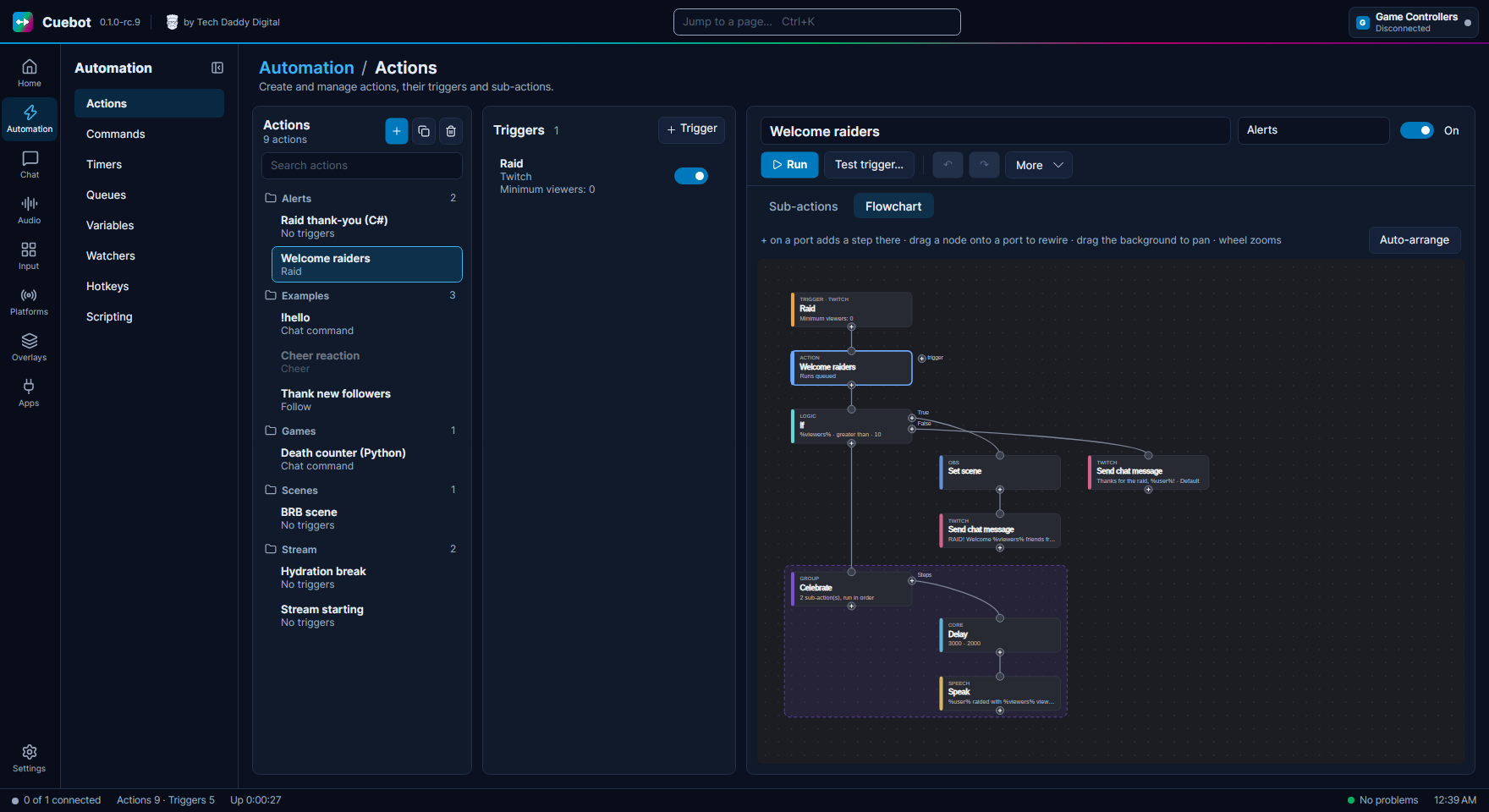
The Flowchart tab shows the same action as boxes joined by lines. It is the same action, just drawn differently. Change one view and the other changes too. The flowchart editor explains it all.
Scripts (for the curious)
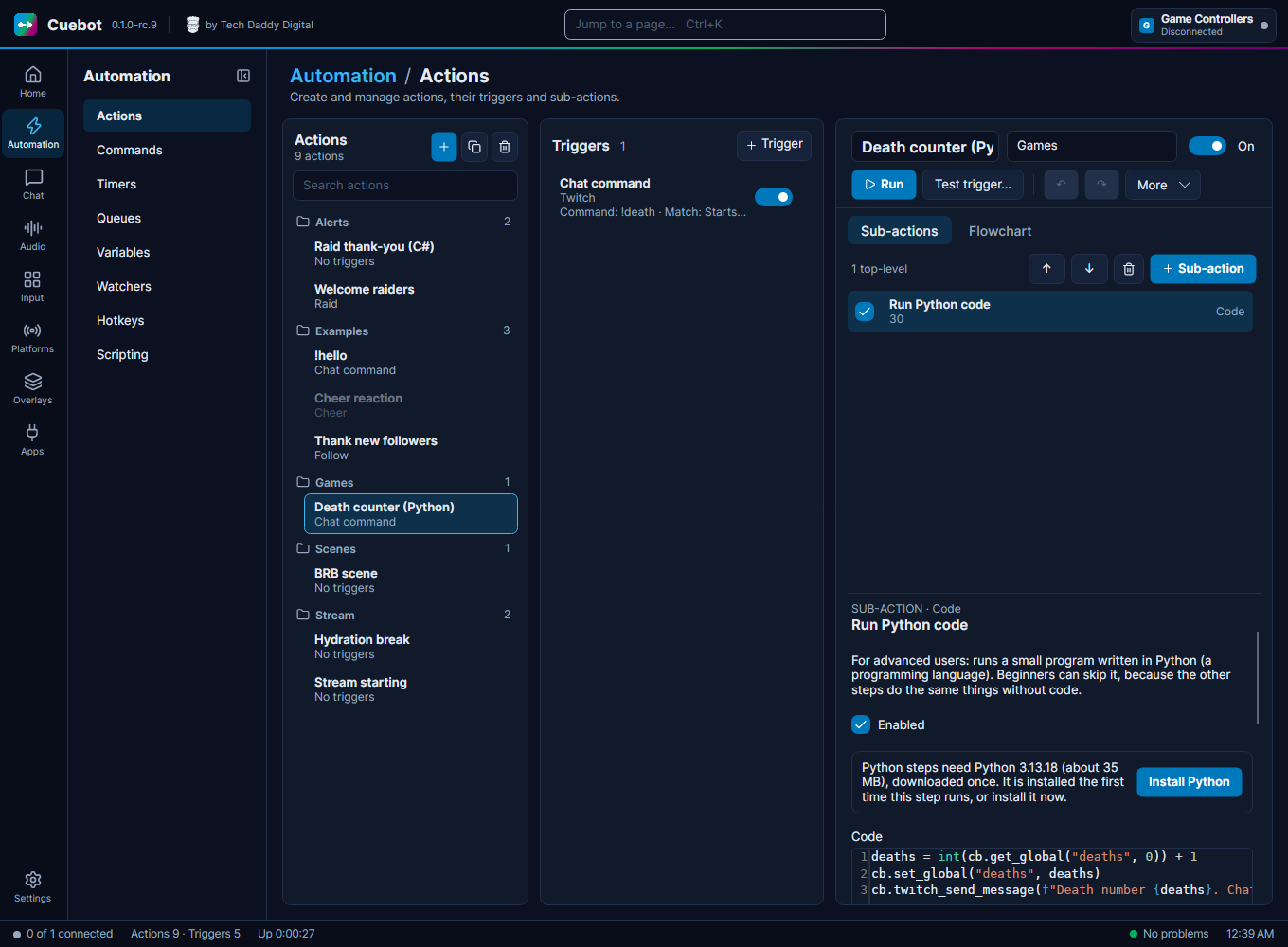
When no sub-action does what you want, a code step lets you write a little program in C# or Python. This is optional
and needs some coding. The steps are in the Code group of the sub-action list; see the
Code sub-actions. C# code written for Streamer.bot (the CPH methods) works in
Cuebot too. Writing code (C# and Python) walks you through it, with examples, and
shows how Automation > Scripting sets up Python.
Next: Variables, the %words%.