OBS Studio
Connect Cuebot to OBS Studio and your actions can switch scenes, show and hide sources, and start or stop the stream. OBS events, like "scene changed", can start your actions too. It is on Apps > Stream apps.
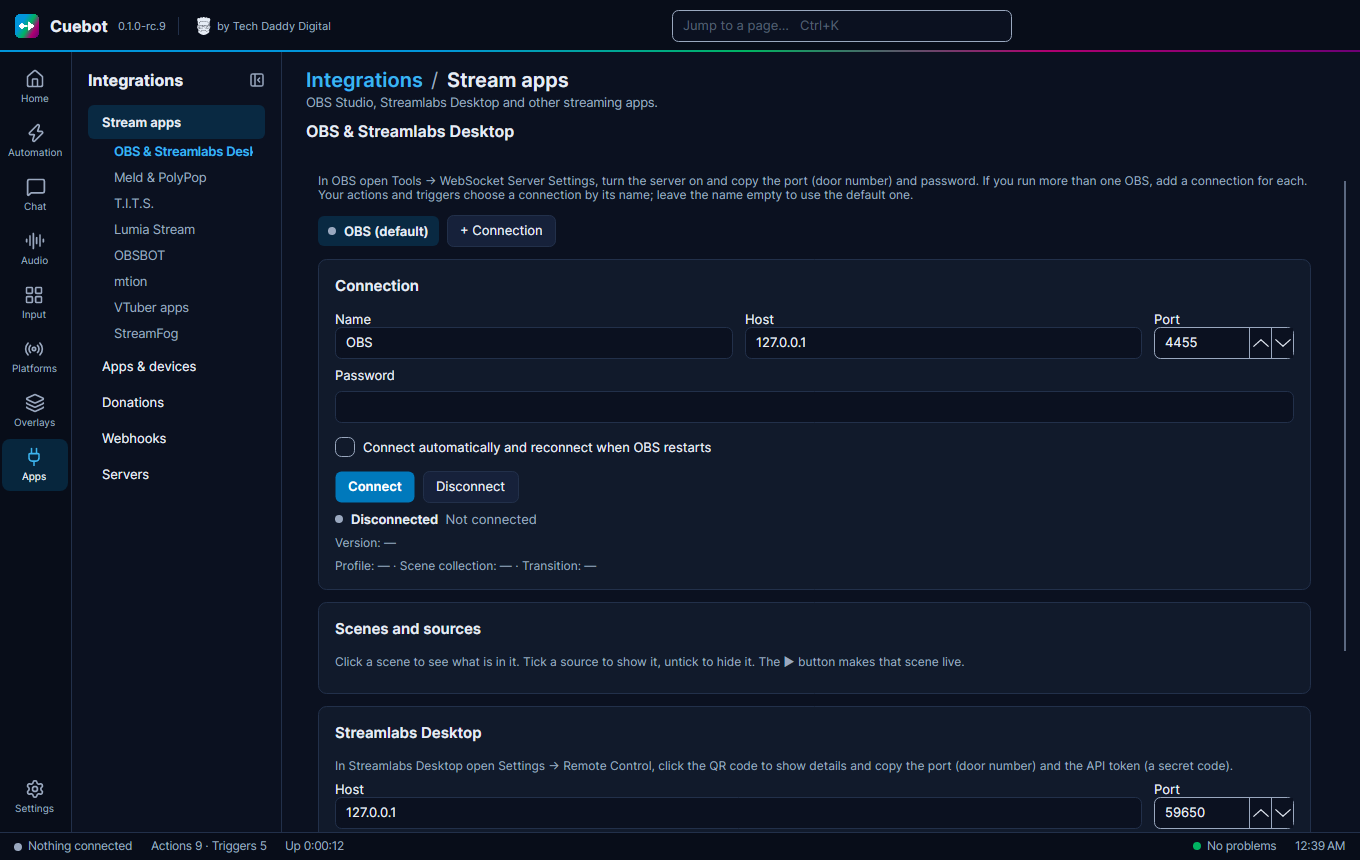
Connect OBS
- In OBS, open Tools > WebSocket Server Settings, tick Enable WebSocket server and click Show Connect Info.
- In Cuebot, open Apps > Stream apps and the OBS & Streamlabs Desktop tab. Under OBS Studio, check Host and Port and paste the Password from OBS.
- Click Connect, and tick Connect automatically and reconnect when OBS restarts.
What you can do
Once connected, the page shows your scenes and sources, with buttons like Start / stop stream, Start / stop recording and Save replay. Your viewers see the stream start or stop right away, so Start / stop stream asks first: click it, then click again within 5 seconds. Your actions can now switch scenes (Set scene), show and hide sources (Set source visibility), change text and filters, and much more. OBS events, like "scene changed" or "stream started", become triggers.
More than one OBS
Two computers, or two copies of OBS? Click + Connection to add another. Give each a Name. OBS sub-actions and triggers then let you pick which OBS to use; empty means the first one.
OBS on another computer? Put that computer's address in Host instead of 127.0.0.1, and make sure its firewall
lets the port through.
The OBS steps are listed in the OBS sub-actions.