Updating Cuebot
A new Cuebot version brings fixes and new features. This page shows how to put it in place without losing anything, and how to let Cuebot tell you when a new version is out.
Getting the new version
- Close Cuebot.
- Download the new version from the releases page, the same file you picked when installing.
- Unzip it over the old folder, or into a new folder. On a Mac, drag the new Cuebot into Applications and choose Replace.
Your actions and settings are not in the program folder, so nothing is lost. They live in your data folder.
On a Mac
If hotkeys or key presses stop working after an update, see "After updating on a Mac" on Installing Cuebot.
Being told about new versions
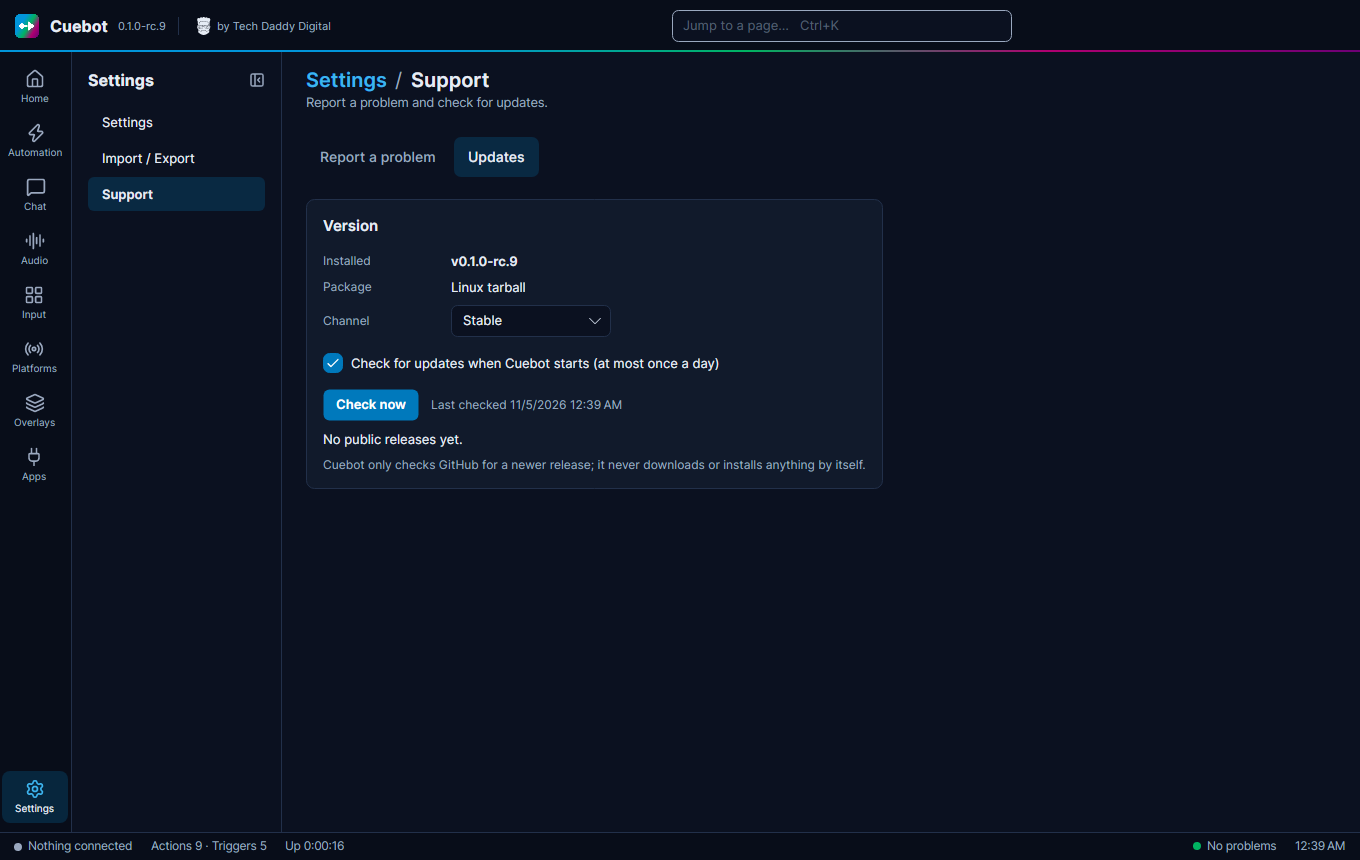
In the left rail click Settings, then the Support page, then the Updates tab.
- "Check for updates when Cuebot starts (at most once a day)" is ticked from the start. Untick it if you would rather check yourself.
- Check now looks right away.
- Channel is Stable at first. Set it to Prerelease to also hear about test versions. While Cuebot is in testing, every release is a test version, so pick Prerelease for now.
- When there is a new version, Open release page takes you to its download.
Cuebot only checks GitHub for a newer release. It never downloads or installs anything by itself.