Now playing
Cuebot can see which song you are playing and show it on stream. It can also answer a !song command, and run an
action every time the song changes. Everything is on the Audio > Music page.
There are two ways Cuebot finds your music:
| Way | Works with | Needs |
|---|---|---|
| Players on this computer | Spotify, VLC, foobar2000, Firefox, Chrome, YouTube Music and most other players, on Windows and Linux | Nothing. No account, no password. |
| Your Spotify account | Spotify on any device: a PC, a Mac, a phone or a speaker | A free "Spotify app" you make once (about two minutes, see Spotify). Song requests and skipping need Spotify Premium. |
Mac
On a Mac, Cuebot cannot see the players on your computer yet. Sign in to your Spotify account to show the songs you play in Spotify.
Experimental
Now playing on Windows is built and tested by Cuebot's own tests, but not yet on a real Windows computer. Now playing on Linux was tried with real players (mpv and VLC). See What's experimental.
Want viewers to pick the songs? See Song requests (Spotify) or Media requests (YouTube videos).
Show the song you are playing
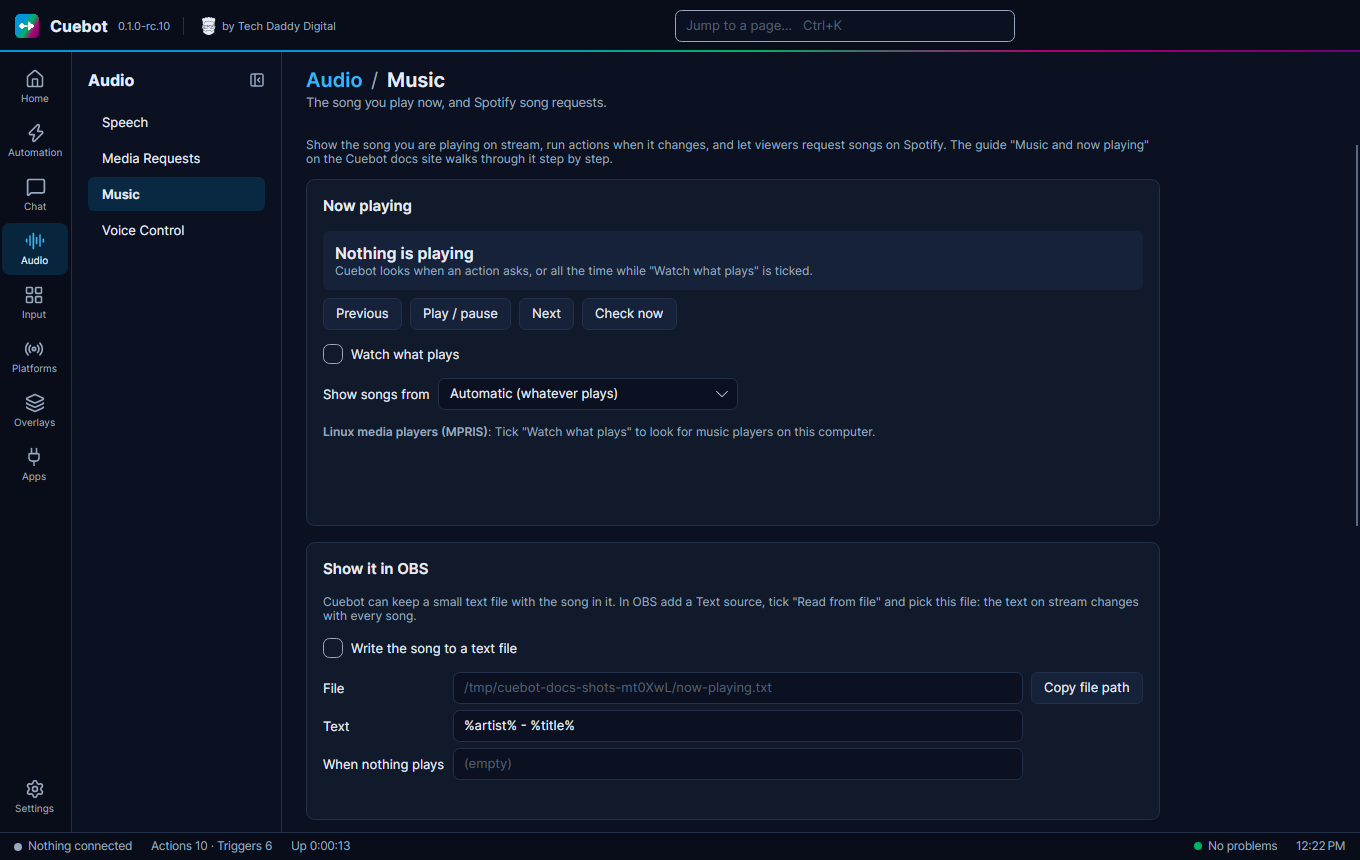
- Open Audio > Music.
- Tick Watch what plays.
- Start a song in your music player. Its name, artist and player show up at the top of the page within a second or two.
- Leave Show songs from on Automatic. If you have several players open (say Spotify and a YouTube tab) and
Cuebot shows the wrong one, pick One player on this computer and type part of its name, like
spotify. The names Cuebot sees are listed under Open players.
The Previous, Play / pause and Next buttons press the media keys of the player that plays now. Handy to test.
Put it on stream (OBS)
- On the Music page, tick Write the song to a text file.
- Click Copy file path.
- In OBS, click + under Sources, choose Text (on Linux: Text (FreeType 2)) and click OK.
- Tick Read from file, click Browse and paste the path you copied. Click OK.
That is it: the text in OBS changes with every song. To change what it says, edit Text, for example
Now playing: %title% by %artist%. You can use %title%, %artist%, %album%, %player% and %duration%.
While the music is paused the file shows When nothing plays (empty by default, so the text disappears).
A !song command
Viewers type !song and Cuebot answers with the song.
- Go to Automation > Commands, click +, name it
songand type!songunder Commands. - Go to Automation > Actions and make an action called
Song. - On Triggers, click + Trigger, pick Commands › Command triggered and choose
song. - On Sub-actions, click + Sub-action and pick Now playing › Get now playing.
-
Add Chat (all platforms) › Send chat message (any platform) with this message:
Now playing: %nowPlaying.title% by %nowPlaying.artist%Tick Reply on the platform the trigger came from.
You do not even need Watch what plays for this: Get now playing looks when it runs.
Say every new song in chat
- Tick Watch what plays on the Music page.
- Make an action with the trigger Now playing › Song changed.
- Add Send chat message (any platform) with
🎵 %title% by %artist%.
The trigger gives you %title%, %artist%, %album%, %player%, %durationText% (like 3:45), %artUrl% (the cover
picture, when the player has one) and %link% (Spotify songs only). It runs once per song, not when you pause and play
again.
The Now playing › Media control step presses play/pause, next or previous on any player, including players on this computer.
Troubleshooting
| What you see | What to do |
|---|---|
| Nothing is playing, but music plays | Tick Watch what plays and click Check now. Cuebot sees players that show up in the Windows volume pop-up (Windows) or in your desktop's media controls (Linux). Some players do not share what they play: on Linux, mpv needs the mpv-mpris plug-in; older VLC versions on Windows do not share it at all. Browser tabs show up while they play. |
| The wrong player shows | Pick One player on this computer and type part of its name. |
| Windows says it cannot read music players | Cuebot needs Windows 10 (October 2018 update) or newer for this. Sign in to Spotify instead. |
How it works (for the curious)
- On Linux, Cuebot reads players through MPRIS, the shared "media player" language of the Linux desktop (the same thing your desktop's media controls use).
- On Windows, Cuebot reads the same list as the volume pop-up (the Windows media controls). It starts a small
helper for this,
powershell.exe, which closes when Cuebot closes. - Spotify is asked every 5 seconds what plays, while you are signed in. Your Spotify sign-in is stored encrypted on your computer, like your other sign-ins.