Twitch
This page shows how to sign Cuebot in to Twitch, and what each tab of the Twitch page does. Once you are signed in, Cuebot reads your chat, sees follows, subs and raids, and can run your channel for you.
Signing in
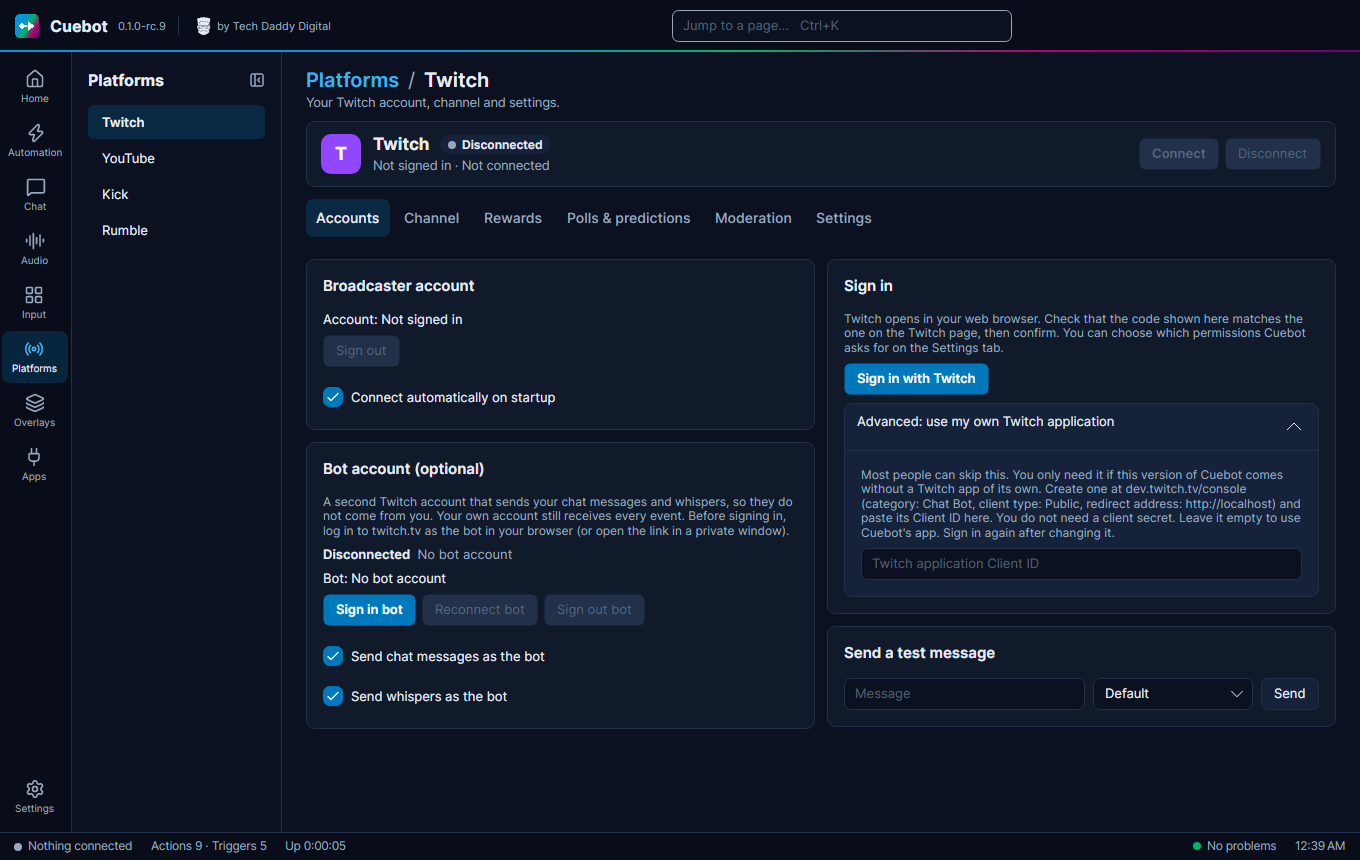
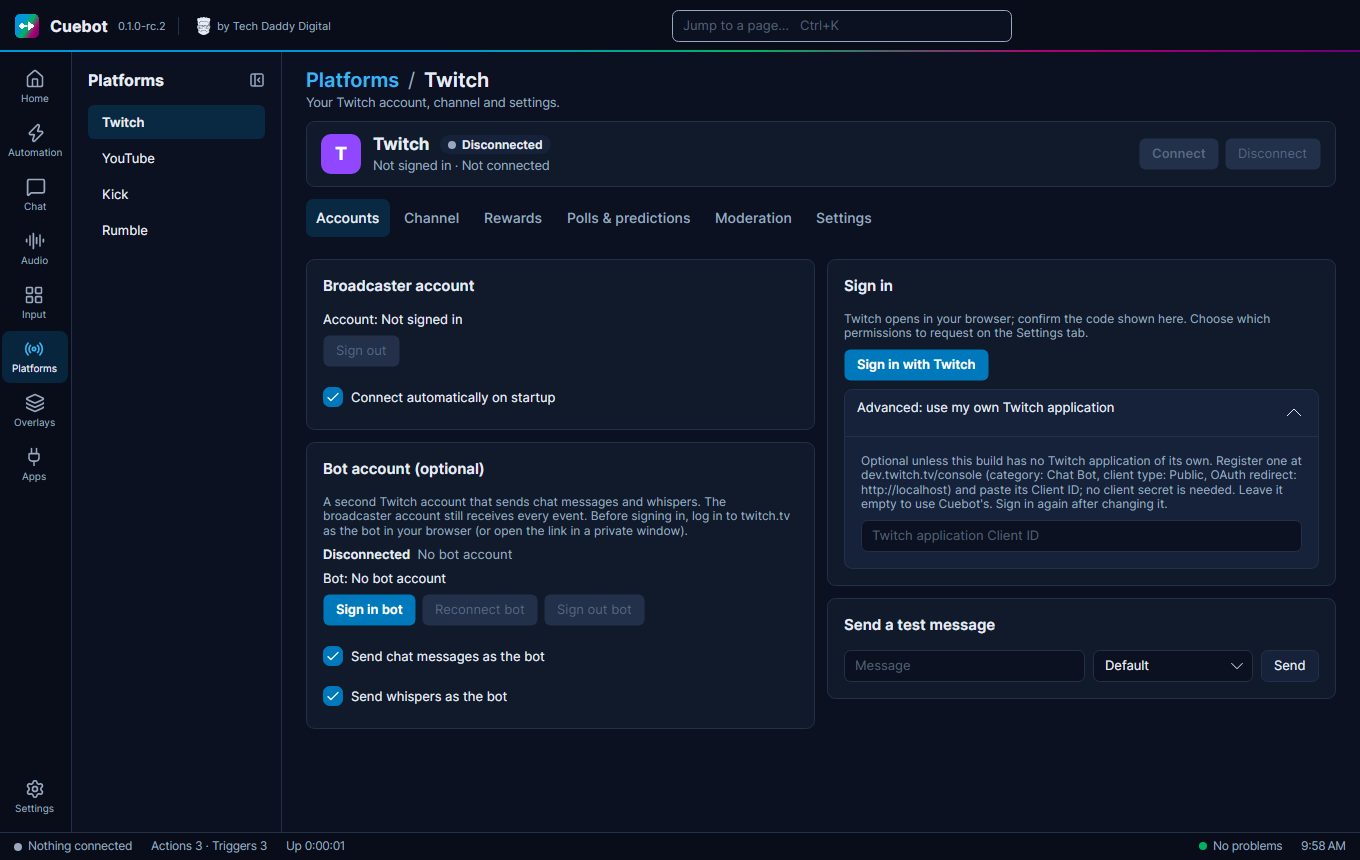
- Go to Platforms > Twitch, tab Accounts.
- Under Broadcaster account click Sign in with Twitch.
- Twitch opens in your browser and Cuebot shows a code. Confirm that code on Twitch.
- Cuebot connects by itself.
- Tick Connect automatically on startup, so Cuebot connects every time it starts.
Bot account: under Bot account (optional) click Sign in bot, then confirm the code while logged in as the bot (see Broadcaster account and bot account). Tick Send chat messages as the bot and, if you like, Send whispers as the bot. Type a message under Send a test message and click Send to check it.
Permissions: the Settings tab lists every permission Cuebot asks Twitch for, under Permissions (scopes). You can untick ones you do not want. Anything that needs a missing permission is skipped and a warning goes to the log. Sign in again on the Accounts tab after you change the list.
The Twitch page, tab by tab
Once you are signed in, the other tabs let you run your channel from Cuebot, without opening Twitch.
Channel: your stream's info, and buttons for things you do while live.
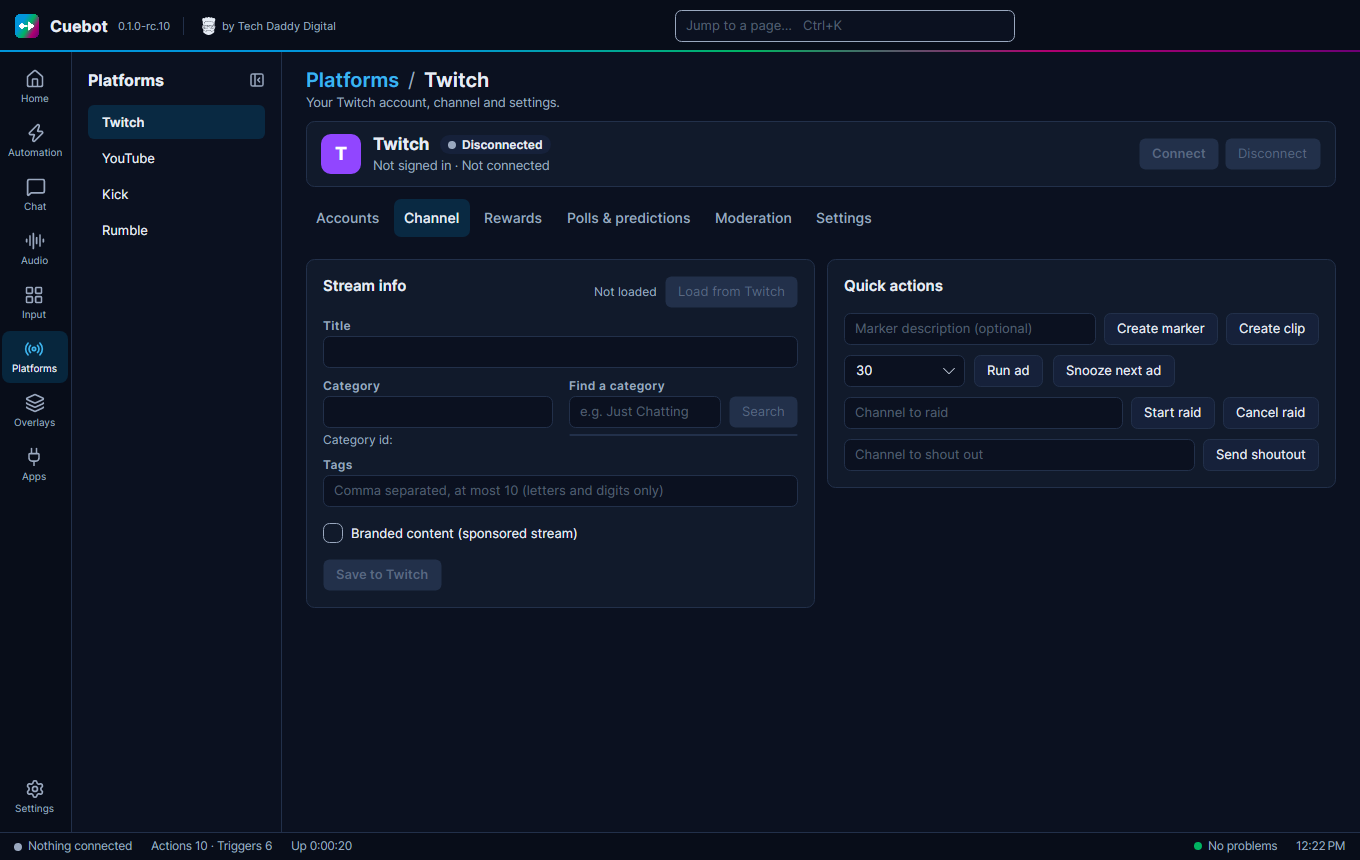
- Stream info: click Load from Twitch to see your Title, Category and Tags. Change them, then click Save to Twitch. To pick another category, type part of its name under Find a category and click Search. Tick Branded content (sponsored stream) when a company pays you for this stream.
- Quick actions:
- Create marker puts a bookmark in your video at this moment (type a note first if you like).
- Create clip saves the last moments as a Twitch clip.
- Run ad starts an ad break; Snooze next ad pushes the next planned one back a little.
- Start raid sends your viewers to the channel you typed; Cancel raid stops it before it happens.
- Send shoutout shows your viewers a card recommending another channel.
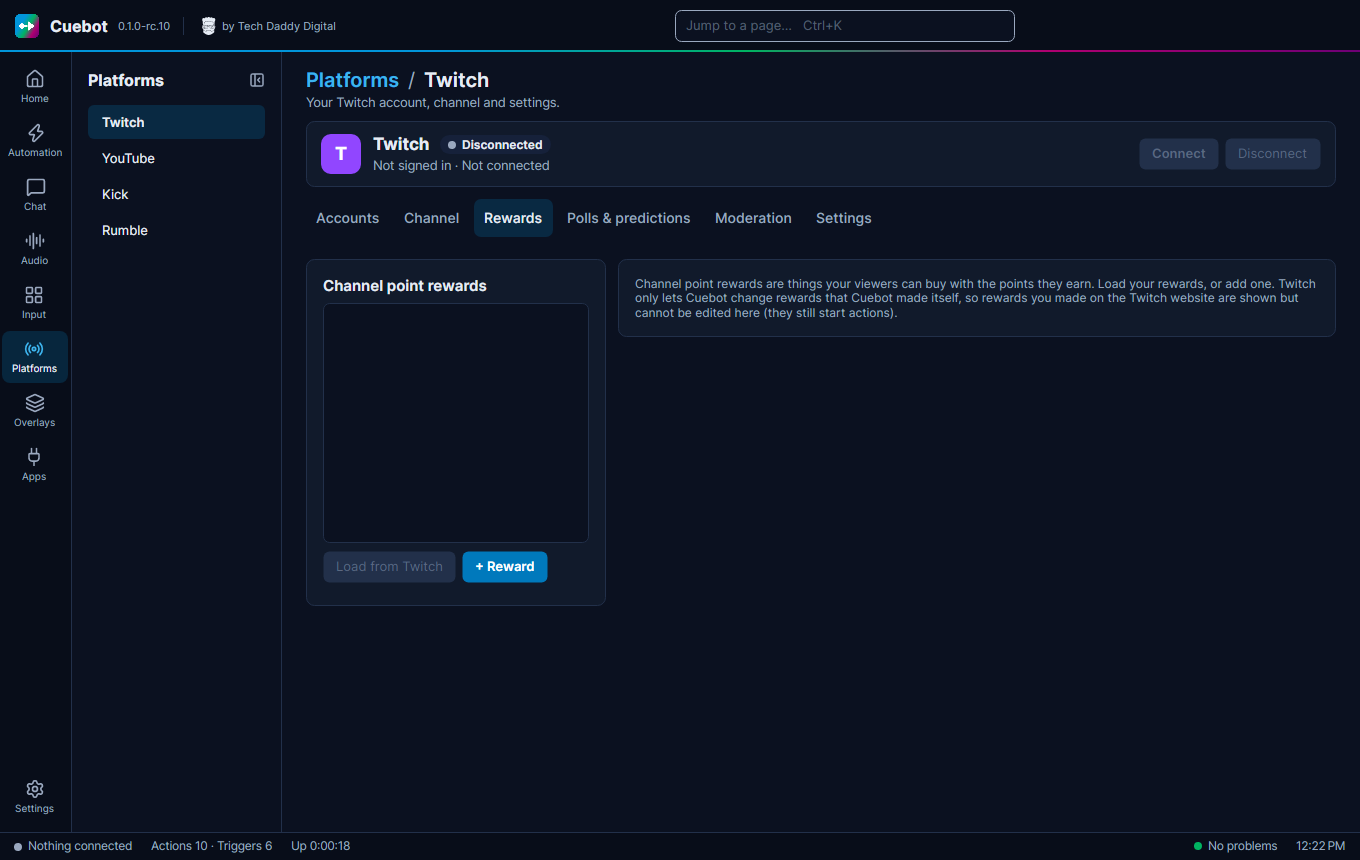
Rewards: your channel point rewards. Load from Twitch shows them; + Reward makes a new one. Set its Title, Cost, Colour, Prompt, cooldowns and limits, tick User input required if viewers type something with it, or Skip the request queue to approve it straight away. Enabled and Paused switch it on, off or on hold, and Delete removes it. Then Save to Twitch. Twitch only lets Cuebot change rewards Cuebot made: rewards you made on the Twitch website show here as read-only, but they still start your actions.
Cuebot also counts how often each reward was used (Persist counter keeps the count after a restart, Persist per-user counters does the same for each viewer's count). A reward's Group lets an action switch several rewards together. These last settings stay in Cuebot and are not sent to Twitch.
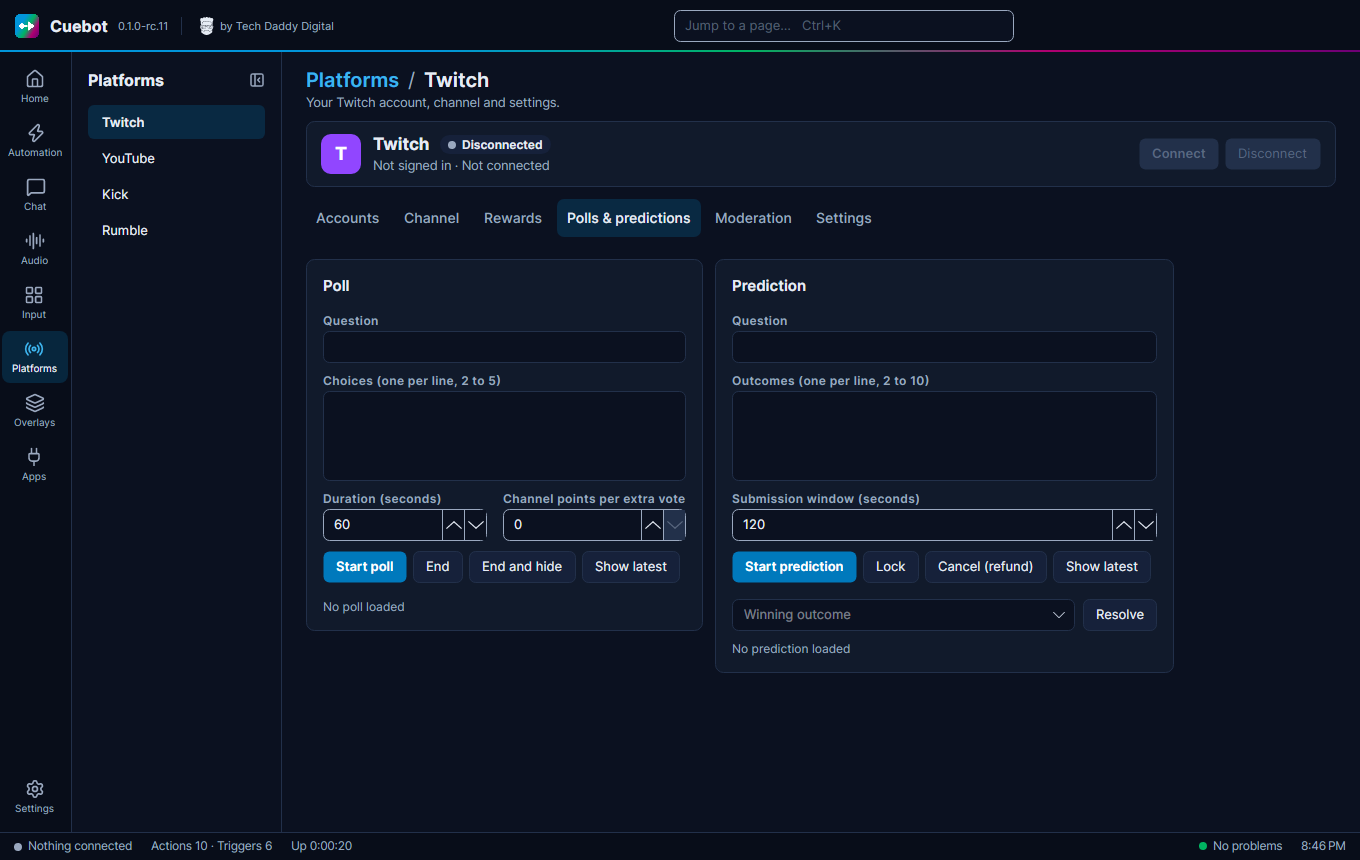
Polls & predictions: start a Twitch poll or prediction, end it, and pick the winning outcome. See Polls and predictions.
Moderation: keep your chat friendly.
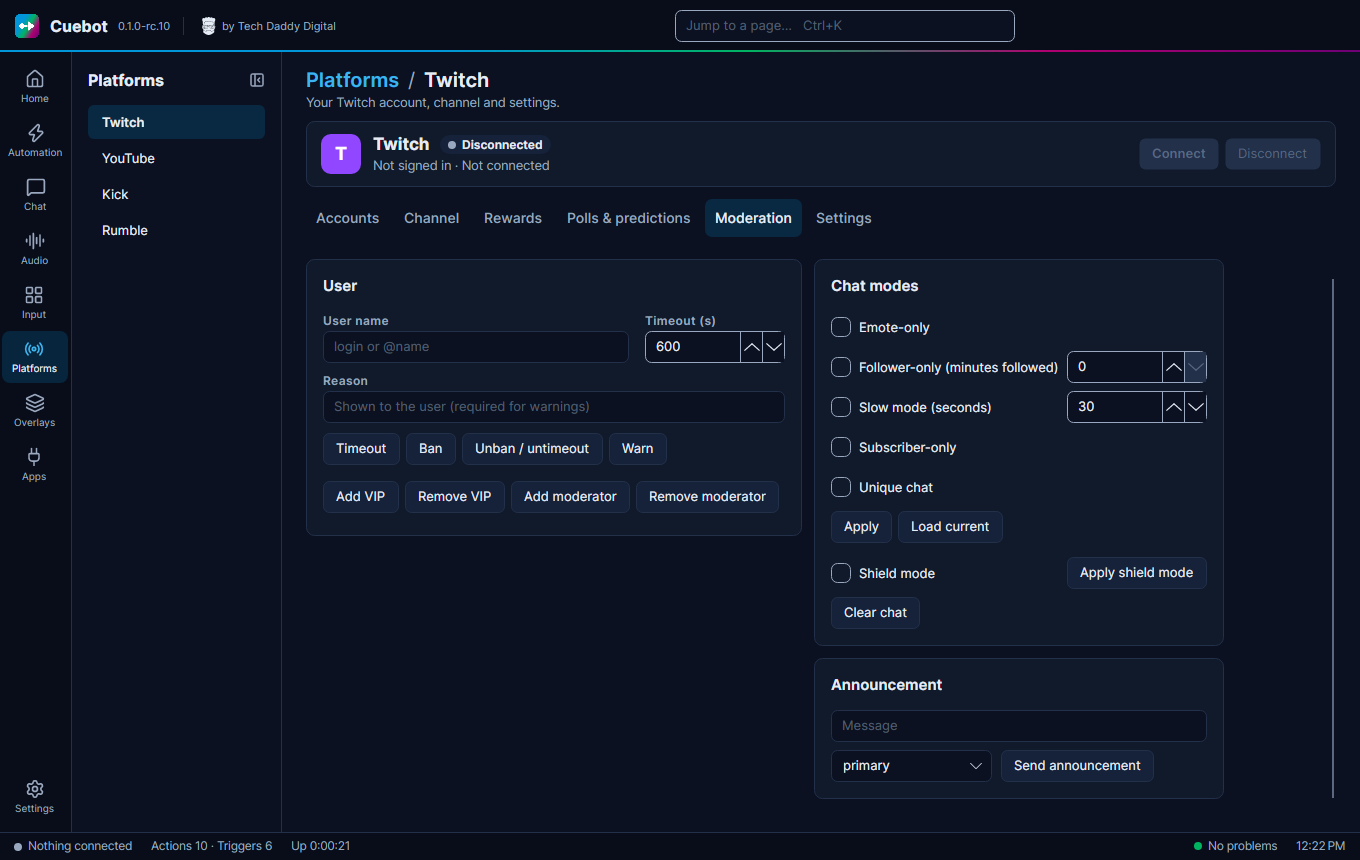
- Type a User name, then Timeout (for the number of seconds in Timeout (s)), ban (click twice to confirm), Unban / untimeout or Warn them (a warning needs a Reason). Add VIP, Remove VIP, Add moderator and Remove moderator change their badges.
- Chat modes: tick Emote-only, Follower-only (minutes followed), Slow mode (seconds), Subscriber-only or Unique chat (no copy-paste spam), then press Apply. Nothing changes until you do. Load current shows what is on right now.
- Shield mode is Twitch's emergency button against hate raids: tick it and press Apply shield mode.
- Clear the whole chat (click twice to confirm), or post a highlighted Announcement with Send announcement.
Settings: the permissions above, plus:
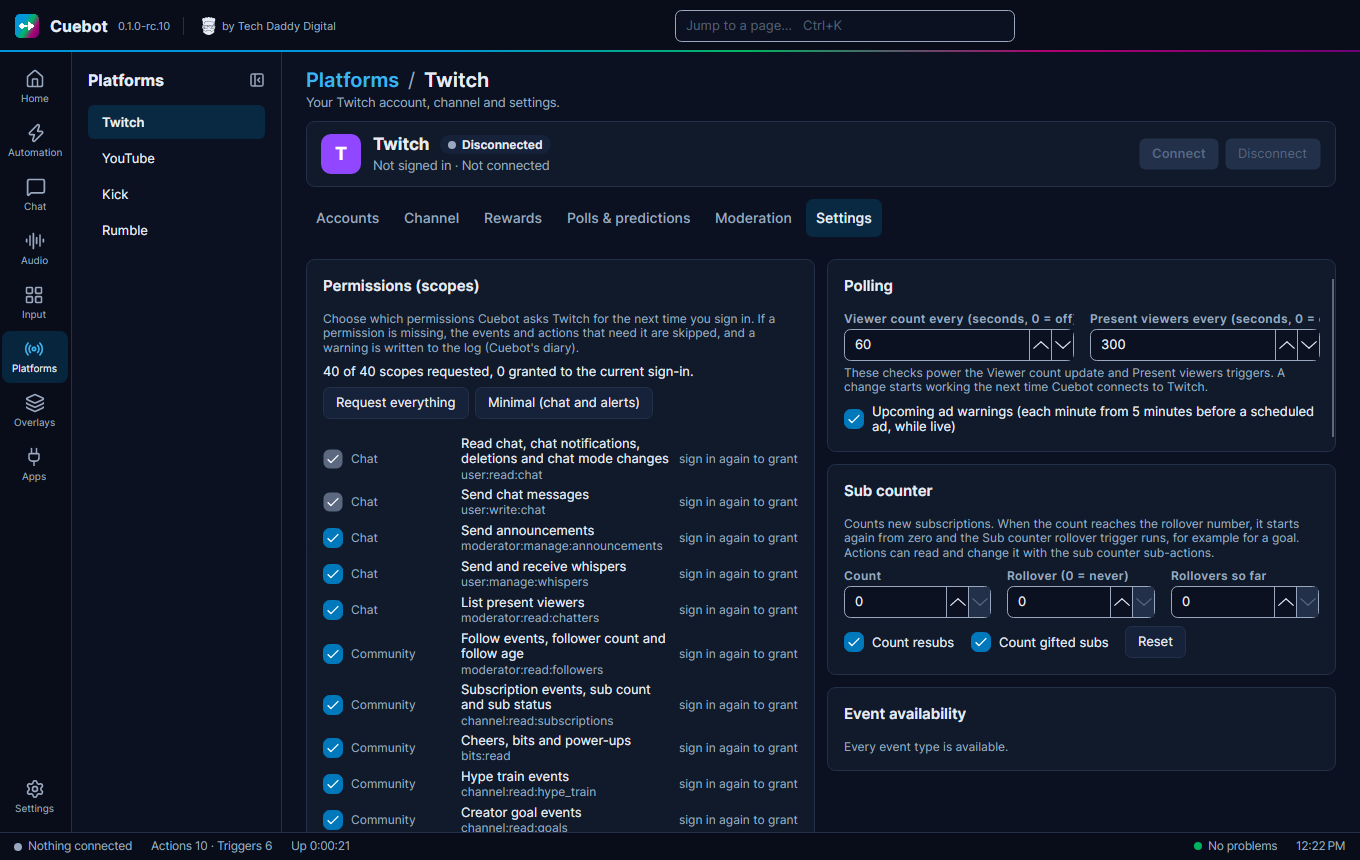
- Request everything or Minimal (chat and alerts) ticks the permissions for you.
- Polling: how often Cuebot checks your viewer count and who is in chat (for the Viewer count update and
Present viewers triggers).
0turns a check off. - Upcoming ad warnings: a trigger every minute from five minutes before a planned ad, while you are live.
- Sub counter: counts new subs. When it reaches Rollover, it starts again from zero and the Sub counter rollover trigger runs, handy for a sub goal. Tick Count resubs and Count gifted subs to count those too.
- Event availability shows which events work with the permissions you have.
Accounts also has Reconnect bot, for when the bot account lost its connection.
What the Connect button, Connect automatically on startup and Sign out do is the same on every platform: see Your platforms.