Controllers and MIDI
Buttons, pads, knobs and game controllers can all start your actions. This page lists what Cuebot can use, and where to set each one up.
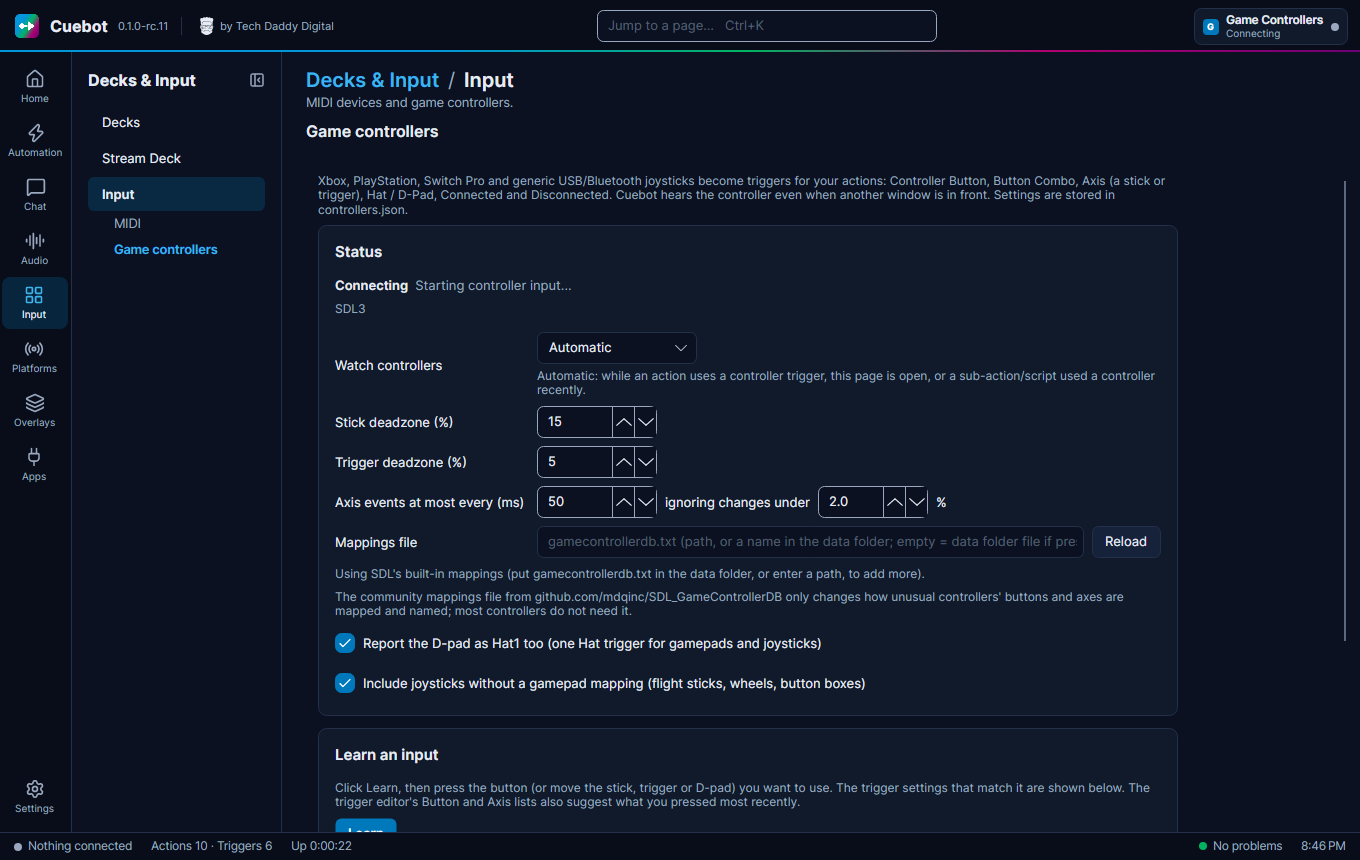
| Device | Where | What it does |
|---|---|---|
| Stream Deck | Input > Stream Deck | See the Stream Deck page. |
| Decks (buttons in a browser) | Input > Decks | See Decks. |
| MIDI controllers (pads, keyboards, knob boxes) | Input > Input, MIDI | Keys and knobs start the MIDI Message trigger; actions can send MIDI back. |
| Game controllers (Xbox, PlayStation, Switch Pro and others) | Input > Input, Game controllers | Buttons, button combos and sticks become triggers. Rumble and lights on pads that have them. |
| Keyboard shortcuts | Automation > Hotkeys | See Hotkeys. |
| Your voice | Audio > Voice Control | See Voice control. |
MIDI tip: add an event for each key or knob, then click Learn new event and press it. (On an event you already have, Learn changes which key it listens to.) Cuebot fills in the details for you.
Partly checked
Sending MIDI was tried on Windows and Linux, and on a Mac with Cuebot's own pretend MIDI ports, but pressing keys on a real MIDI controller was not. Game controllers: Cuebot's controller part starts on Windows and Linux, but nobody has pressed a real controller yet. See What's experimental.
On Linux, PlayStation and Switch pads need extra permission for rumble and lights. Install your distribution's
steam-devices or game-devices-udev package.